Replace Content in an Assignment
After you launch an assignment, you may find the need to replace the content, such as when content retires or new content becomes available that better meets your need.
If one or more assets within a published assignment is retired and you don't replace it, and the assignment has active content in it, the retired content no longer counts towards the assignment completion criteria. If the order is forced, the learner is automatically able to access the next item in the list after the retired content. The platform automatically removes the retired item from the assignment and the user can continue to complete the assignment.
If all content within an assignment becomes retired, the assignment shows completed for the learner. If you try to replace retired content after the assignment is marked complete for the learner, the learner retains the assignment completion. A best practice is to replace content scheduled for retirement before it actually retires.
Replace Content
To replace content in an in progress assignment:
- From the left navigation bar, select Learning > Assignments. The Assignments page displays.
- Use the search to locate the assignment you wish to edit.
- Select
 >
>  Edit.
Edit.
- With the assignment details open, select Edit Content.
- Locate the content item in the list you want to replace and select Replace.
- Search to find the replacement content and select the plus,
 to make the replacement.
 - In the dialog box that displays, enter a reason for making the replacement.
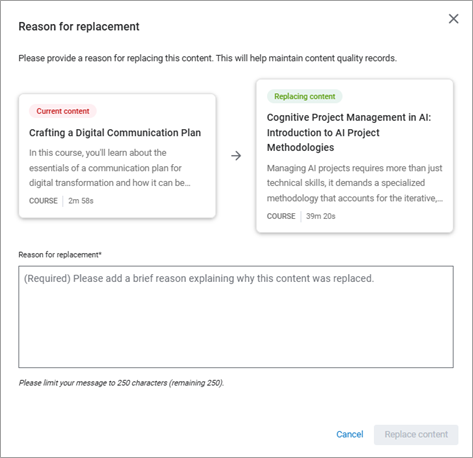
- Select Replace content.
Content replacement impacts
When you replace content within an in progress assignment, keep the following in mind:
- If a learner completes an entire assignment, and then you replace content, the learner retains assignment completion and does not have to take the replacement content.
- If a learner is in progress in an assignment and has completed the item you are replacing, the learner retains the item completion and does not have to take the replacement content to achieve assignment completion.
- If the learner is in progress in an assignment and has started, but not completed, the content being replaced, the learner loses their progress and has to start the new content from the beginning.