Career Journey Dashboard
Career Journeys blend live, on-demand, hands-on, and collaborative learning methods into one topic-specific skilling program. Each Career Journey enables learners to master mission- and job-critical skills and drive meaningful business transformation year-after-year. Career journeys comprise specially curated Aspire Journeys. If you added any of the available Career Journeys to the platform, you can assess their value through the Career Journey dashboard.
Dashboard Insights
The Career Journey Dashboard gives you insights into how users are interacting with Career Journeys. You can:
- Check how many learners consumed a Career Journey license.
- See how many learners accessed the Career Journey content. If numbers are low, you may consider creating promotions on your platform for Career Journeys or assigning Career Journeys to users.
- See how many learners completed a journey.
- See how many learners started a journey.
- Get insights into what journeys and tracks learners accessed.
- See which journeys are most popular among your users.
- Track how much time users spend learning. Encourage learners to set learning goals in order to increase their learning hours.
Get Started
To access this dashboard and customize it for your needs:
- From the left navigation bar, select Analytics. Switch to the All dashboards tab.
- Select Career Journey.The dashboard page displays.
- Set the filters at the top of the page. You can filter data on this dashboard by date range and audience. After you set filters, make sure to select Update to update the data shown on the dashboard.
- Select Clear filters to reset the filters to default. The page automatically updates.
Filters
Filters you can set include:
- Date Range Presets: Filters the data by a specified range of dates from the drop-down list. Or select a custom range:
- Start: Instead of using a Date Range preset, use this to specify a start date. When you enter a Start date, the Date Range Presets filter changes to Custom.
- End: Instead of using a Date Range preset, use this to specify an end date. When you enter an End date, the Date Range Presets filter changes to Custom.
- Audience: Predefined group of users. Enter the name of an audience and then select it from the list. You can display the data for multiple audiences at the same time by entering more than one audience name. You can select up to 20 audiences.
About this Dashboard
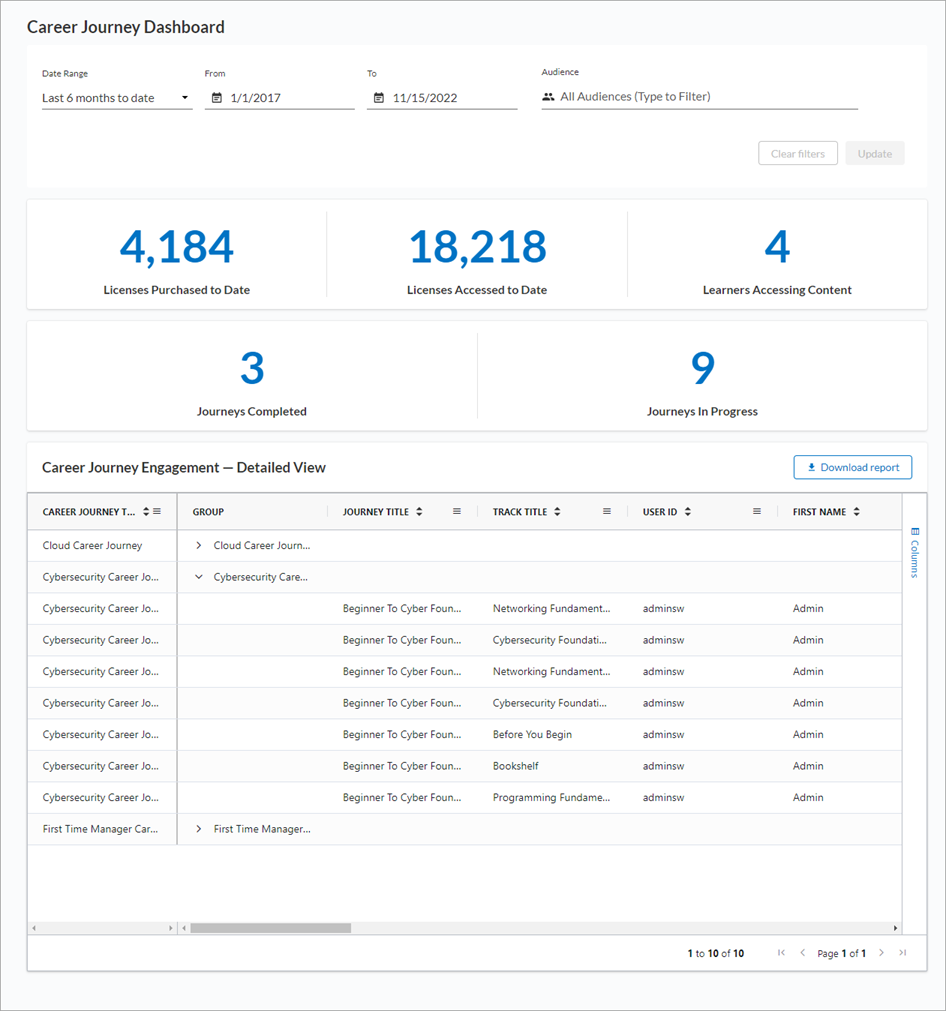
This dashboard contains the following sections:
 Career Journey statistics
In this section you see:
- Learners accessing content: The number of unique learners who started or completed content from within a Career Journey.
- Journeys completed: The total number of Aspire Journeys contained within Career Journeys that learners completed.
- Journeys in progress: The total number of Aspire Journeys contained within Career Journeys that learners started.
Career Journey Engagement — Detailed View
In this section you see a list of all Career Journeys and their corresponding Aspire Journeys and tracks based on the filters set. With this list you can:
- Download report: download the entire list into a CSV format that you can use for further data analysis. The downloaded CSV shows only the data that corresponds to the filters set.
- Customize your view by sorting, filtering, ordering and choosing columns of data to show. For instructions, see Organize columns in tables.
Columns displayed by default
The following columns are displayed by default in the Career Journey report:
- CAREER JOURNEY TITLE: The title of the Career Journey.
- GROUP: The report groups all Aspire Journeys into their corresponding Career Journey. Expand the data in this column to see specific Aspire Journey and track details for each Career Journey.
- JOURNEY TITLE: The title of the journey.
- TRACK TITLE: The title of a track within the journey.
- USER ID: The value entered in the User ID field. It is used to identify a user inside the platform.
- FIRST NAME: The value entered in the First name user attribute. Usually the user's first name.
- LAST NAME: The value entered in the Last name user attribute. Usually the user's last name.
- USER STATUS: The status of the user, Active or Inactive.
- JOURNEY START DATE: The date the learner began the journey. This date is not impacted by the Date Range Presets filter, and the time stamp of t00:00:00Z is expected.
- JOURNEY LAST ACCESS DATE: The date the learner last accessed the journey.
- JOURNEY COMPLETED DATE: The date in UTC the user completed the content. This date is not impacted by the Date Range Presets filter. You may see completion dates outside your Date filters if there was any type of asset activity within the selected date range. The time stamp of t00:00:00Z is expected.
- JOURNEY PROGRESS: The percent completion that the learner is through the journey.
- JOURNEY STATUS:The learners status of the journey, either In progress or Completed.
- TRACK PROGRESS: The percent complete that the learner is through the track.
- TRACK STATUS:The learners status of the track, either In progress or Completed.
- TOTAL LEARNING HOURS (HOURS): The total number of hours a learner spent in content learning. If the item is a Skillsoft course, the total includes time spent watching videos while in the course (not the time spent on the same videos if launched in video-only mode) and working on knowledge checks within the course. If you see learners with a completed status and with 0 duration, the learner only took the test and did not watch any of the content. Time is listed as fraction of hours. Something that takes 90 minutes to complete is listed as 1.50 and something that takes 15 minutes is listed as 0.25.
- TOTALESTIMATED DURATION (HOURS): Total estimated amount of time it takes a learner to complete the specified content. For online courses this only includes the video playback time. Time is listed as fraction of hours. Something that takes 90 minutes to complete is listed as 1.50 and something that takes 15 minutes is listed as 0.25.
- TOTAL ASSETS: The number of assets contained in the track.
- TOTAL REQUIRED ASSETS: The total number of content items within the track that the learner is required to take for completion.
- STARTED: Total number of content items within the track that a learner started.
- COMPLETED: The total number of content items within the track that a learner completed.
- NOT STARTED: The total number of content items within the track that a learner has not started.
Other columns available
The following columns are also available in the Career Journey report:
- USER UUID: This is a universally unique identifier that is automatically assigned by the system for each account.
- LOGIN NAME: The value entered in the Login name attribute for the user.
- EMAIL ADDRESS: The value entered in the Email address user attribute; the user's email address.
- TOTAL LEARNING HOURS (SECONDS): The total number of hours a learner spent in content learning. If the item is a Skillsoft course, the total includes time spent watching videos while in the course (not the time spent on the same videos if launched in video-only mode) and working on knowledge checks within the course. If you see learners with a completed status and with 0 duration, the learner only took the test and did not watch any of the content. Time is listed in total seconds.
- TOTAL LEARNING HOURS (HHMMSS): The total number of hours a learner spent learning in this content item. If the item is a Skillsoft course, the total includes time spent watching videos while in the course (not the time spent on the same videos if launched in video-only mode) and working on knowledge checks within the course. If you see learners with a completed status and with 0 duration, the learner only took the test and did not watch any of the content. Time is listed in (00h00m00s) format.