XP (Experience Points)
Experience Points (XP) are part of the Skillsoft Platform’s gamification system. XP rewards learners and managers for completing learning activities and engaging with the platform. Learners earn XP for actions like completing videos, courses, books, audiobooks, and skill benchmarks. In addition to earning XP as learners, managers can also earn XP for creating assignments and sending email reminders encouraging team engagement. XP makes progress visible and motivates users through levels and leaderboards.
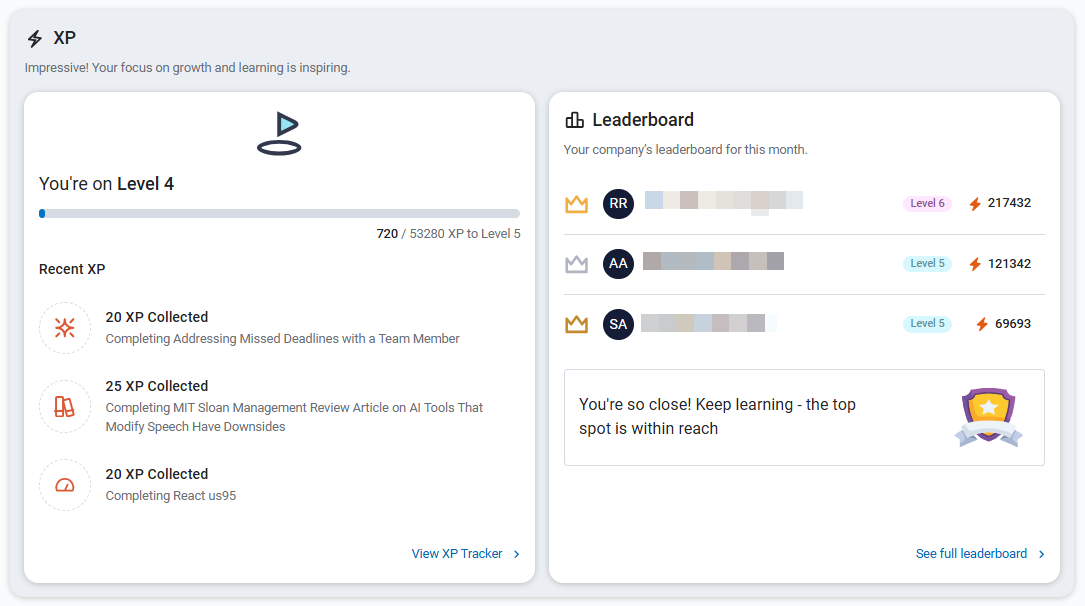
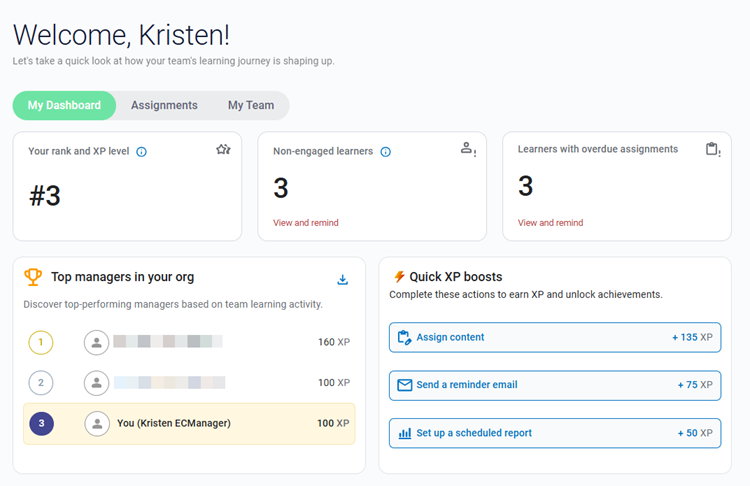
Learners see their XP and ratings from their My Learning page and managers see them from their Manager dashboard.
 Your contract with Skillsoft determines if you have access to this feature. Reach out to your Skillsoft account team for more information.
Benefits of XP
XP offers many benefits to your users, including:
- Increased engagement: Learners see their XP balance and level on their dashboard as soon as they complete content.
- Healthy competition: Leaderboards show rankings based on XP, motivating learners and managers. Leaderboards display top performers within your organization.
- Supportive learning culture: Visible progress and milestones help learners set goals and stay motivated. XP milestones unlock levels encouraging learners to continue learning.
- Increased manager involvement: Managers earn XP for actions that support team learning, reinforcing accountability.
Coming in the future, admins will be able to track XP distribution and engagement trends through reports.
Get Started with XP
You can set up how your organization uses XP allowing you to adapt it to your specific culture.
To set up XP, from the left navigation bar, select Settings > Engagement > XP (Experience points).
The default setting is on for both learners and managers.
XP Settings
You can configure XP settings for your entire organization which includes both learners and managers. If you would rather you can enable XP for just learners or just managers. You can also configure the number of points users can earn and the number of points they need to move to the next level.
About earning points
The following information is important to know when enabling XP:
- Learners earn points only after they complete content.
- The number of points a learner earns is calculated based on the estimated duration of the content item, not the amount of time they spend in the item.
- If a learner earns XP with an admin override and you revoke the admin override, the learner loses the XP.
- If a learner earns XP with a waiver and you revoke the waiver, they keep the XP.
- If you change the number of points that can be earned, previously earned points do not adjust to the new point designation. Learners and managers keep the points they have earned. The new point designation only impacts new activities.
- Learners can earn XP for custom content. This is usually the value associated with Other linked content.
- Only managers assigned the Skillsoft Platform role of manager can earn manager points.
- If you assign a custom value of points to a specific item, that value overwrites the value for the item type.
- If your custom value expires, the item reverts back to the item type value.
XP system settings
When you turn on XP System settings, you allow learners and managers to earn experience points. When turned on, you can set up how learners and/or managers earn points and move through the levels. When turned off, learners and managers cannot earn points.
Learner activity
When you turn on XP system settings, by default, Learner activity is also turned on. When Learner activity is turned on, learners can earn points for completing different learning activities. If you do not want learners to be able to earn points, you can turn off points for learner activity.
When on, you can:
- Set the amount of XP for each content type.
- Choose to set a different XP value for an individual content item.
- Choose to not include a content type in the XP calculation by unchecking its associated checkbox.
XP for Content Type
For each content type, set the number of XP that a learner will earn after they complete a content item of that type for each 10 minutes of estimated duration. The total XP that learners earn for a completed content item varies depending on the estimated duration of the content item. The system calculates total XP for a learner based on the XP value for 10 minutes of estimated duration of the item times the total estimated duration of the specific item that the learner completes.
For example, if you set the XP value of 20 points for a course and the estimated duration of the course is 30 minutes, the learner after achieving course completion would earn 60 XP no matter how much time they spent in the course.
When you set XP for videos, learners only earn points when they launch a video in the video-only player. If they watch videos as part of a course, they earn the XP as part of the course activity, not the video activity.
By default, learners earn the following points for each 10 minutes of estimated duration in each type of content item. If you do not want to include an activity, simply uncheck it.
| Activity Type | Default XP Value for 10 minutes |
| Videos | 10 |
| Courses | 20 |
| Books | 25 |
| Audio books | 25 |
| Book summaries | 10 |
| Audio summaries | 10 |
| Skill benchmarks | 25 |
| CAISY | 20 |
| Bootcamps or leadercamps | 15 |
| Other linked content | 15 |
| Labs | 25 |
XP for Individual Content
If you want to run time-bound learning campaigns or incentivize completion of newly added or business-critical content, you can set a higher value of XP for specific content items. The value you set for a specific content item overrides the value set for the content type associated with the content item.
You can leave the end date blank if you do not want to time bound the XP for a specific item. If a learner completes the item within the specified date range, they earn the higher XP value. When learners view the item, they see the special XP value.
If you remove a custom XP value or it expires, the content reverts to the global XP setting. If you change the XP value on a content item after a learner takes it, they keep the XP value they earned when they took the item. Previous XP values do not get recalculated when you change an individual item's XP value.
Learner view of XP
Learners can see an XP summary on their My Learning page and from the top navigation. If your organization has leaderboards and the XP metric enabled, they can see how their XP compares to others in your organization. From either My Learning or the top navigation, they can navigate to their XP Tracker page for more details about how they earned their points.
XP Levels
When you turn on XP system settings, you can define XP Levels, the point threshold users must achieve to move to the next level. Leveling adds a gamification element to learning. You can customize the name and points for each level to match your corporate culture.
You can customize up to ten levels. The default level names and values are as follows:
| Default level name | Default XP Value |
| Level 1 | 0 |
| Level 2 | 500 |
| Level 3 | 2000 |
| Level 4 | 6000 |
| Level 5 | 60000 |
| Level 6 | 156000 |
| Level 7 | 200000 |
| Level 8 | 260000 |
| Level 9 | 330000 |
| Level 10 | 420000 |
Manager actions
When you turn on XP system settings, by default, Manager actions is also turned on. When Manager actions is turned on, managers can earn points for completing different tasks to engage their team. If you do not want managers to be able to earn points, you can turn off points for manager actions. When on, you set how many points managers earn for each type of action. By default, managers earn the following points for these actions:
| Action | Default First-time XP Value | Default All repeat XP Value | Reset Period |
| Schedule report | 50 | 10 | Weekly |
| Assign content to the team | 100 | 50 | Weekly |
| Send a reminder email if learner is not engaged | 30 | 10 | Weekly |
| Send a reminder email if assignment is overdue | 30 | 10 | Weekly |
| Visit Manager dashboard | 50 | 0 | Biweekly |
Managers see their XP points on their Manager Dashboard.
Set XP for Learner Activity by Content Type
If you turned on XP system settings and Learner activity, you can set how many points learners earn when they complete each content type. For each 10 minutes they spend with the content, they earn a set number of points upon completion.
To set learner activity points:
- Access XP Settings, from the left navigation bar, select Settings > Engagement & Notifications > XP (Experience points).
- Ensure both XP system settings and Learner activity are turned on. They are on by default.
-
For each content type, set the number of XP that a learner will earn after they complete a content item of that type for each 10 minutes of estimated duration. The total XP that learners earn for a completed content item varies depending on the estimated duration of the content item. The system calculates total XP for a learner based on the XP value for 10 minutes of estimated duration of the item times the total estimated duration of the specific item that the learner completes.
For example, if you set the XP value of 20 points for a course and the estimated duration of the course is 30 minutes, the learner after achieving course completion would earn 60 XP no matter how much time they spent in the course.
When you set XP for videos, learners only earn points when they launch a video in the video-only player. If they watch videos as part of a course, they earn the XP as part of the course activity, not the video activity.
- Select Save changes.
Set XP for Specific Content Items
If you turned on XP system settings and Learner activity, you can set a special number of XP for specific content items. For each 10 minutes they spend with the identified content, they earn this number of points upon completion.
To set points for specific content items:
- Access XP Settings, from the left navigation bar, select Settings > Engagement & Notifications > XP (Experience points).
- Ensure both XP system settings and Learner activity are turned on. They are on by default.
- From the XP for individual content section, select Add content.
- Search for the content that should earn higher XP and select the plus sign to its right. You can do multiple searches and select multiple content items.
- After you select all your content items, select Add content. You see all items you selected added to the list.
- Specify the number of points a learner earns upon completion. This value must be higher than the value set for the content type associated with that item.
- Specify a Start date. This is when the learner can start earning this higher point value.
- For the End date, you can leave it blank if you always want this item to earn the higher point value, or specify an end date if you need to time-box the higher point value.
- Select Save changes.
Set XP Levels
XP levels allow you to give your users a chance to move up. You can set the number of points and the names of your levels to match your organization culture. You can configure up to six levels.
To set XP Levels:
- Access XP Settings, from the left navigation bar, select Settings > Engagement & Notifications > XP (Experience points).
- Ensure the XP system settings are turned on along with either or both of the Learner activity and Manager actions settings.
- For each level, set:
- Level name: This is the name of the level the user sees in their leaderboard and XP activity. You can use something simple, such as Pewter, Brass, Bronze, Silver, Gold, and Platinum or something more creative geared toward your organization culture.
- XP to reach this level: This is the number of points a user must achieve to reach the level.
- Select Save changes.
Set XP for Manager Actions
If you turned on XP system settings and Manager actions, you can set how many points managers earn when they perform different tasks designed to keep their team engaged. The actions they perform earn them points. You set the number of points for the first time they perform that action and also the number of points they earn for subsequent times they perform that action within the reset period.
To set manager action points:
- Access XP Settings, from the left navigation bar, select Settings > Engagement & Notifications > XP (Experience points).
- Ensure both XP system settings and Manager actions are turned on. They are on by default.
- For each action listed, set the following:
- The number of XP that a manager earns for the first time they perform the action.
- The number of XP they earn when they perform the action subsequently within the reset period. This encourages managers to engage the first time and then keeps them engaged.
- The Reset period. The reset period is the timeframe, such as weekly or monthly, where managers can earn first-time XP if they perform the action again. For example, if the manager earns 100 points for making an assignment the first time and 50 points for repeating that action within the reset period of monthly, the following would happen: At day 1, the manager makes an assignment and earns 100 points, at day 5 they make an assignment and earn 50 points, at day 25 they make an assignment and earn 50 points, at day 45 they make and assignment and earn 100 points again. This gives them a total of 300 points.
- Select Save changes.
Reset XP to Defaults
If you made changes to XP points and levels and you want to reset all to Skillsoft Platform defaults, you can. Resetting XP settings to default changes the following: points for learner activity, levels, and manager actions as well as level names.
To reset to the defaults:
-
Access XP Settings, from the left navigation bar, select Settings > Engagement & Notifications > XP (Experience points).
-
Scroll to the bottom, select Reset to default. A dialog box displays asking you to confirm your action.
-
Confirm you want to reset settings to the Skillsoft Platform default settings. Select Reset to default. Otherwise, select Cancel.
-
Select Got it. This confirms that the reset is complete.