Roles and Privileges
Your role in the Skillsoft platform and the accesses granted to you by your administrators determine your experience in LX Design Studio.
If your organization has given you access to LX Design Studio, you can create, share, and manage custom content. However, depending on your level of access, you may not be able to publish content to your Skillsoft platform site so others in your organization can see it. In this case, you can still create and share content and collaborate on other projects. You can also preview the content you create. In preview mode, you can practice or assess the skills that the content focuses on. When you complete content in preview mode, you receive a score, but it does not show in your Skillsoft platform activity.
Set up Users with Administrator Access
LX Design Studio administrators:
- Have full access to all custom content in their organization's LX Design Studio platform. This includes view and edit access to all projects, workspaces, and content.
- Are not listed as collaborators on a project unless they are specifically invited to that project.
- Are the only ones who can create workspaces.
Skillsoft platform site admins are automatically given the role of LX Design Studio administrator.
Site admins can assign the LX Design Studio administrator role to other Skillsoft platform roles:
- From the left navigation bar, select Site Settings > Role Customization.
- Under Role Customization, select the Skillsoft Platform role to which you wish to give LX Design Studio administrator privileges.
- Find the section for LX Design Studio. Check the box Admin Access to LX Design Studio.
- Select Save Changes.
If you assign LX Design Studio administrator access to a particular role, all users with that role automatically have access to LX Design Studio and have publishing privileges from LX Design Studio. They also have full access to all workspaces and projects including the ability to edit, move, duplicate, delete, and archive content. They can also create workspaces.
If you want users to be able to create and collaborate within LX Design Studio but not be able to access all workspaces and projects or publish content to the platform, you can grant them access with the LX Design Studio privileges through User Management.
Grant Access to LX Design Studio
If you want users to be able to create and collaborate on projects in LX Design Studio without them seeing all workspaces and projects, you must grant them access. You can do that from User Management in the Skillsoft platform or from LX Design Studio Admin Dashboard.
If the user has a platform role with admin access to LX Design Studio enabled, they do not need the privileges set in User Management.
User Management
To give a user access to LX Design Studio from User Management:
-
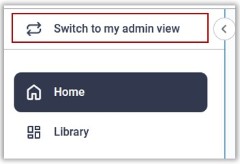
Ensure your left navigation is in the admin menu view. To get there, select Switch to my Admin View. If you see Switch to my Learner View, that means you are on the admin view.
- From the left navigation bar, select Users > User Management.
- On the User Management page, locate the user you want to assign privileges to and select Edit user.
- Locate the section LX Design Studio privileges.
- Select the check box next to Access to LX Design Studio to allow that user to create custom content in workspaces and projects that they have access to. Please note, the user cannot publish any content they create to the platform with this level of access. They become a Creator in LX Design Studio.
- Optionally, select the check box next to Publish content from LX Design Studio to allow that user to publish the content they create to the platform. As a best practice, we recommend only assigning this privilege to those with the Skillsoft Platform roles of manager or administrator in order to limit the content reaching your Skillsoft Platform site. If you allow a user who does not have content management permissions to publish from LX Design Studio, they are not able to curate their LX content into channels or journeys in the platform. Others will only discover it by searching until another admin curates it into a channel or journey. When you select this option, they become a Publisher in LX Design Studio.
- To save changes for that user, select Update.
- This user will have access to the shared workspace and to their own named workspace. If they need access to other workspaces, you must grant them access.
Admin Dashboard
To give a user access to LX Design Studio from the LX Design Studio Admin Dashboard:
- Ensure you are in LX Design Studio. From the platform experience, select the 9-dot menu from the upper left corner, then select LX Design Studio. The Home page launches in a new tab.
- From your profile icon, select Admin Dashboard. The dashboard page displays.
- From the Overview tab, in the Users and Roles section, select Add user.
- Start typing the user's name in the Select user box. The platform shows matches from the platform user list.
- Select from the list the user who should have access.
- Choose which permission they should have in LX Design Studio. You can choose either:
- Creator: This person can create and edit content in workspaces and projects they have access to. They cannot publish content to the Skillsoft platform for others to see and use. This is the same as selecting Access to LX Design Studio in User Management.
- Publisher: This person can create, edit, and publish content in workspaces and projects they have access to. This is the same as selecting Publish content from LX Design Studio in User Management.
- Select Add user. The user's permissions are changed in User Management in the Skillsoft platform and you see their name on the Users and Roles list.
- This user will have access to the shared workspace and to their own named workspace. If they need access to other workspaces, you must grant them access.
Change a User's Permissions
You can change a user's permission from creator to publisher or publisher to creator at any time to meet the needs of your organization.
To change a user's permission in LX Design Studio:
- Ensure you are in LX Design Studio. From the platform experience, select the 9-dot menu from the upper left corner, then select LX Design Studio. The Home page launches in a new tab.
- From your profile icon, select Admin Dashboard. The dashboard page displays.
- From the Overview tab, in the Users and Roles section, locate the user whose permission you want to change.
- Select the pencil icon to edit the user's permission.
- Choose the correct permission: Creator or Publisher.
- Select Save.
You can also change the user's permissions from the Skillsoft platform and User Management. You can edit the specific user record and check or uncheck the option: Publish content from LX Design Studio.
Remove a User from LX Design Studio
You can remove a user from accessing all of LX Design Studio at any time to meet the needs of your organization.
To remove a user from LX Design Studio:
- Ensure you are in LX Design Studio. From the platform experience, select the 9-dot menu from the upper left corner, then select LX Design Studio. The Home page launches in a new tab.
- From your profile icon, select Admin Dashboard. The dashboard page displays.
- From the Overview tab, in the Users and Roles section, locate the user you want to remove.
- Select the pencil icon to edit the user's permission.
- Select Remove user.
- Select Remove user to confirm that the user will no longer have permission to access LX Design Studio.
You can also use the Skillsoft platform User Management to remove the user's permissions from LX Design Studio. You can edit the specific user record and uncheck the option: Access to LX Design Studio.
Frequently Asked Questions
 How can I publish my content to the Skillsoft Platform if I do not have publish access?
If you create content in LX Design Studio that you think would be useful to a wider audience and want to publish it to your Skillsoft Platform site, you can mark it as Ready to Publish and invite a user with publishing privileges, such as a site administrator to collaborate on your project. Anyone with access to LX Design Studio can share projects with other LX Design Studio creators in their organization. Once you have invited someone with publishing privileges to collaborate on your project, they can approve it to be published to the platform.
Can Skillsoft Platform learners have publishing privileges?
Yes, administrators with user management permissions can assign publishing privileges to users. However, if learners publish content to the Skillsoft Platform, they can not curate that content into a journey or channel. They can only publish content so that it is available by search. Skillsoft Platform admins with content management permissions would then need to curate it into a channel or journey so other learners can browse to it.
How do I create a workspace?
You can only create a workspace if you are an administrator in LX Design Studio. See Create workspace.