Sign in to the Mobile App
The app requires:
- A user account active in the platform
- An active Skillsoft content license.
-
To sign into the mobile app using the Smart app login option:
- From your profile menu or the login page of the platform on your desktop, select Smart app login. The system generates a QR code.
- Scan the QR code with your mobile device.
- If you have a Skillsoft Platform role of administrator, you are prompted to enter a one-time password for added security.
To sign into the mobile app, if not using the Smart app login option from your profile:
- Open the mobile app.
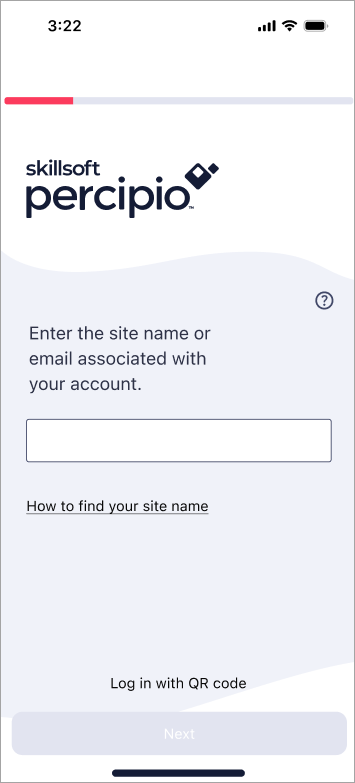
- Enter your Skillsoft Platform site name or email address. If you enter your site name, you only have to enter it once, the platform remembers it for you.
- Your site name and user name are in the Welcome email you received from your team.
- It is not necessary to enter the whole site address (.percipio.com is already a suffix).
- Select Next.
- Do one of the following:
- If you entered your email address, you get an email with a link to log in. Open the email on your mobile device and select the link in the email to log into the app.
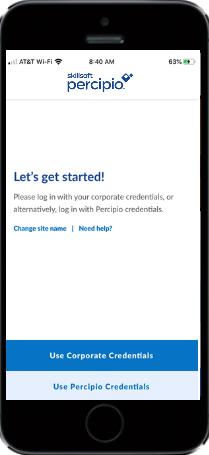
- If you entered your site name, you may be prompted to choose credentials. Select Use Corporate Credentials to enter your corporate user name and email or select Use Percipio Credentials to enter your Skillsoft Platform user name or email.
- Enter your credentials and select Next.
- If enabled by your administrator, you may be required to enter a 6-digit verification code that is sent to your email address associated with your Skillsoft Platform account. If you do not have an email address associated with your Skillsoft Platform account, the platform prompts you to enter one so it can send you the 6-digit code.
-
Note: Your sign-in times out after 90 days of inactivity and you will have to re-enter your information to access the app.
First time sign-in
 First time sign-in without password
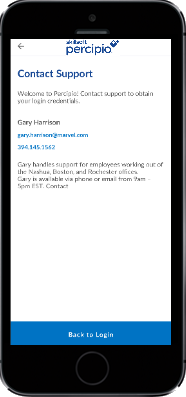
If you are signing in to the platform for the first time without a password, you will be prompted to contact Customer Support.
First time sign-in with a user name but without a password
If you have an active user name and are signing in to the platform for the first time, you are sent an email with a link to create your new password.
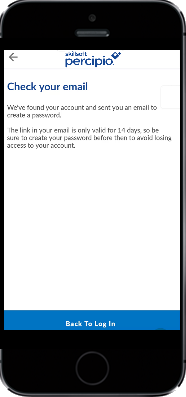
If the user name is not found, a message displays to contact support for further assistance.
First time sign-in with an assigned password
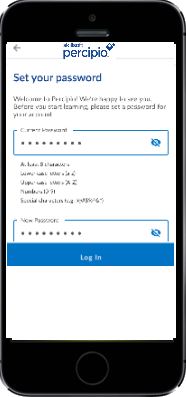
If you are signing in to the platform for the first time with an assigned password, you may be prompted to reset your password for security purposes, based on your organization's settings.