Create a Detail (Child) Page
To create a detail (child) page
- In the Outline pane, right-click and select New Page.
- In the Create Page dialog, select one of the available Learning Roadmap templates.
-
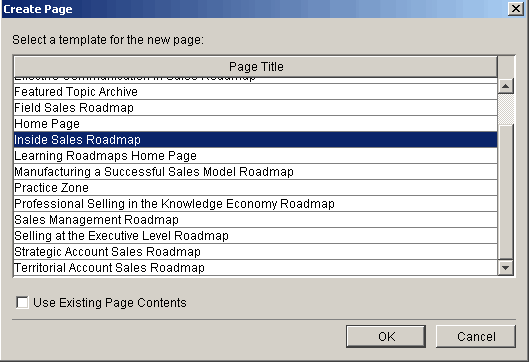
- If you want to copy the content from all blocks on the selected page, check Use Existing Page Contents. For a blank Learning Roadmap page, leave it unchecked.
- Click OK.
- The new Learning Roadmap page appears at the bottom of the Outline pane. The title is italicized to indicate that it is an overlay page.
- In the Design pane, change the page Title (ID).
To use the page, you must add it to a content block on a Learning Roadmap Home page. You can add it to an existing block or to a new block.
To add the Detail page to a new block, first create the block as described under Add a Block to a Learning Roadmap, then proceed to step 1.
- In the Outline pane locate the Learning Roadmap Home page and select the desired block.
- In the Design pane List element, click the Add button.
- In the Add New Item dialog, click the drop-down and select Roadmap Detail Page Link.
- Click OK. The new item is added to the list.
-
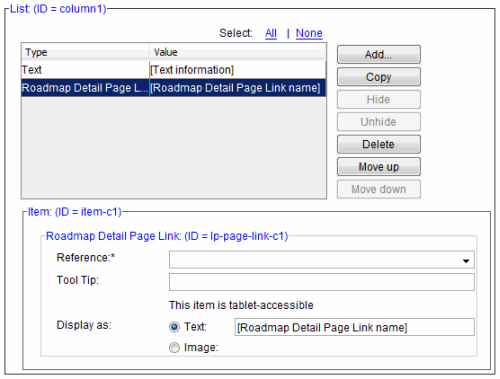
- Click the Reference drop-down and select the new Roadmap page.
- The title of the page is automatically entered into the Tool Tip field and the Display as Text field (if selected).
- In the Display as: field choose Text or Image.
- If Text is selected, a value must be entered in the Text field. Accept the automatically entered value, or modify the value to fit your needs.
- If Image is selected, a message informs you that the page layout may change. Click OK. The Image fields display.
- Click the Browse button to select the desired image.
- If desired, enter an Alternate Text and/or Tool Tip for the image.
- Save your changes.
© 2015 Skillsoft Ireland Limited