CAISY for Presentation
CAISY for Presentations allows you to practice giving a presentation in a safe, realistic environment and provides you with instantaneous feedback on your strengths and improvement areas. AI attendee members can ask questions throughout the presentation, helping you prepare for real-life audience interactions. You are evaluated against a rubric and given specific direction on how to improve your presentation.
How to find CAISY for Presentations content
To locate CAISY for Presentation content, you can:
- Enter CAISY in the Search box. The results show all AI simulator content.
- If searching for specific content, you can use the Type filter, and select AI simulation to show only AI simulation content for the keywords searched.
- From the left navigation bar, select AI Simulations.
- When browsing a channel , look under the Practice tab for AI simulator content. Not all channels have AI simulator content.
How to Practice your Presentation
After you locate the specific CAISY for Presentation you want to practice:
- To start CAISY for Presentation in a new browser tab from Percipio for the web, select Launch. Note that CAISY for Presentations is not available on mobile devices at this time. The presentation simulation displays.
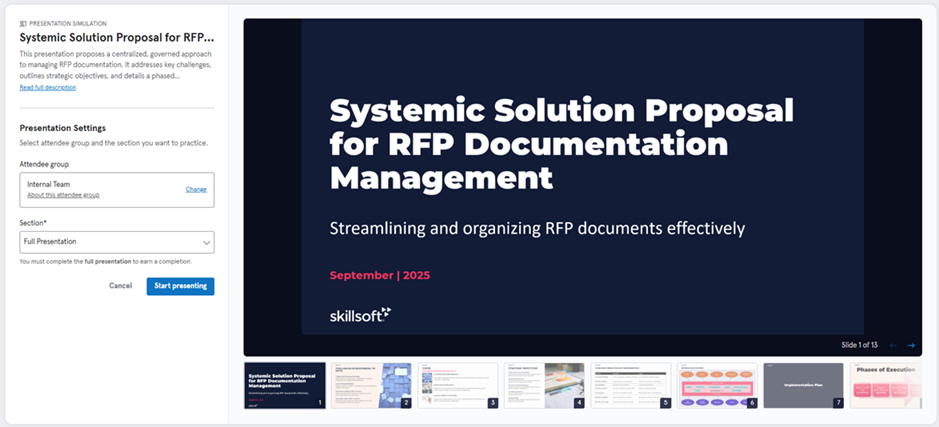
- Prepare to deliver your presentation. Review all slides in the deck. Use the arrow buttons below the slide, or press the left and right arrow keys to navigate through slides.
- When you are comfortable with the presentation material and you are ready to continue, optionally change your attendee group. Attendee groups are set by your content administrator for this presentation. The attendee group you choose determines the AI personas that show in the audience during your presentation and the personsas determine the questions you receive. To change the attendee group:
- From the Attendee group box, select Change.
- By default the currently selected attendee group is expanded. You can expand other attendee groups from the list to see persona details. Review all groups, then select the circle to the left of the attendee group name that you want.
- Select Save.
- Choose how you want to practice the presentation. You can practice a single section or the entire presentation, end-to-end. From the Section box, select the section or Full presentation. Some things to keep in mind:
- If you select a specific section, you see slides associated with just that section so you can focus on just that part.
- You do not get any formal credit for delivering the presentation in sections. It is for your benefit only so you can focus on one area at a time without pressure.
- To officially record progress and achieve a completion, you must select Full presentation.
- For both section and full presentation, AI provides you a score so you know what you did well and what you can improve.
- After you choose how to practice, select Start presenting.
- Your microphone is automatically set to pick up your voice. Simply start delivering the presentation as if you were standing live in front of your audience. If you want to see your transcript as you talk, select View full transcript at the bottom. The bottom panel expands to show your full transcript.
- Select the right arrow to advance to the next slide. If an attendee has a question on the slide you just delivered, you will be prompted to answer it. You can choose to answer the question or pass on it.
- If you select Answer, to answer the question, the Q&A tab opens and an attendee comes off mute and asks their question. When they are done speaking, you can respond. When you are done speaking, select Send. There is no follow-on dialogue at this point. You can continue delivering your presentation.
- If you select Not now, you immediately move onto the next slide and continue delivering your presentation or if that was the last slide, you can end the presentation.
- When you reach the last slide and conclude your presentation, select Submit for evaluation. AI evaluates your presentation delivery and your answers to questions based on criteria set by your content administrator.
Feedback report
After you are done presenting, AI rates your delivery and your answers to attendee questions based on criteria set by your content administrator for each section of the presentation.
You see the feedback results broken down by section and criteria. Your overall score is based on your level for each criteria for each section as well as the weight assigned to each criteria in each section by your content administrator.
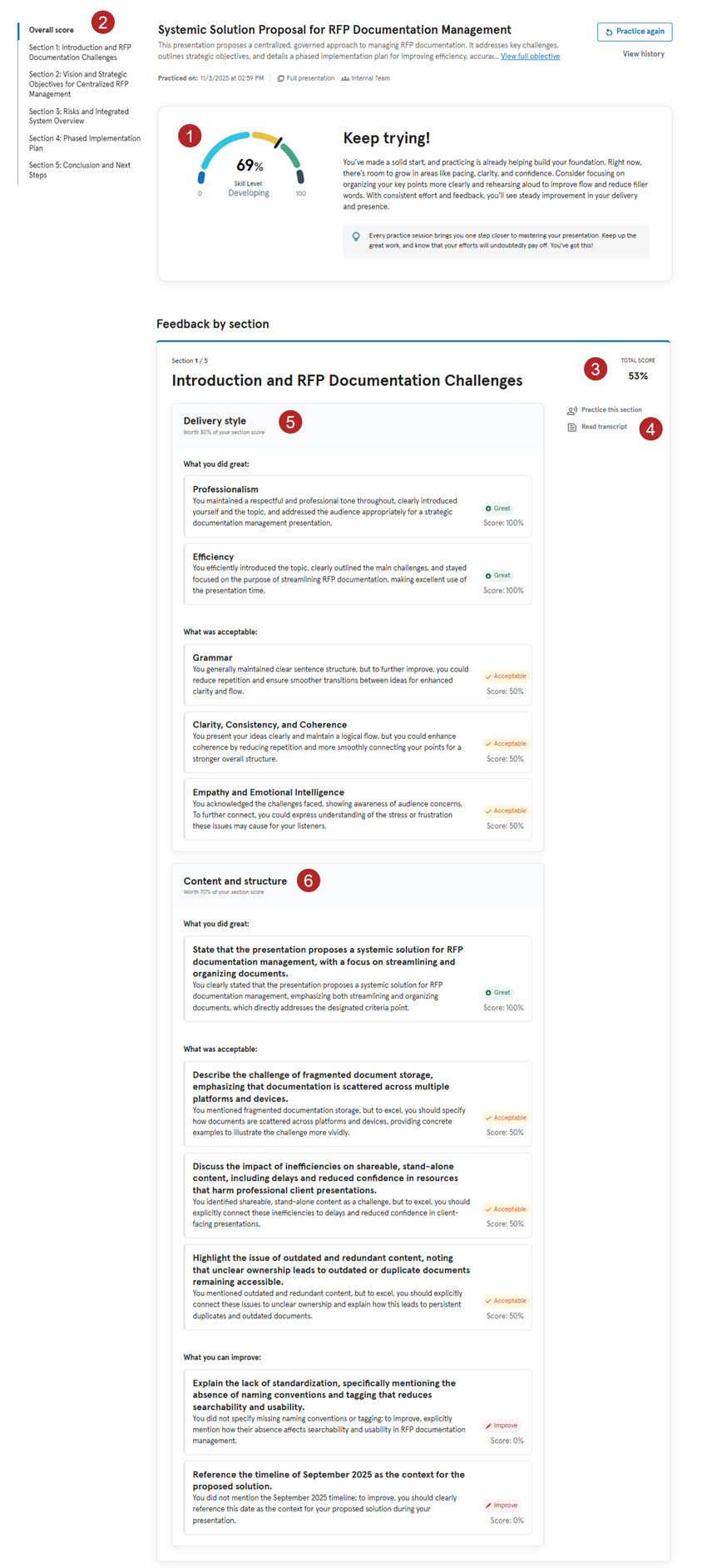
To breakdown the feedback report:
- The rating gauge shows your overall performance in presenting. The score shown here is an average of each section presented if you did the full presentation or the section score if you just did one section. You get one of the following ratings:
- Novice (0-9 points): Novice means that you are starting with very limited familiarity on the topics critical for the skill.
- Aspiring (10-49 points): Aspiring means that you have demonstrated minimal capabilities for the specific skill and should make an investment in learning to achieve proficiency.
- Developing (50-69 points): Developing means that you have some proficiency with the specific skill and only need to close a few knowledge gaps to achieve proficiency.
- Proficient (70-89 points): Proficiency means that you have met the criteria for applying your knowledge with the skill to practical challenges in your work. We recommend you strive to achieve a minimum level of Proficiency for the skills you are developing.
- Advanced (90-100 points): Advanced means that you demonstrate a thorough understanding of the skill and may be a candidate to mentor other learners within your organization.
- Use the left navigation to jump to your score for a particular section if you did the full presentation. The report could be quite lengthy if there are a lot of sections or criteria defined.
- Your score for that section. The score is calculated based on weights assigned to each criteria and each criteria group. The Delivery style criteria set make up 30% of the section score while the Content and structure criteria set make up 70% of the section score. The content administrator sets the weight of each individual criteria in each criteria set. The weight for each criteria is currently not displayed.
- These are actions you can take:
- Practice this section: When you select this option, you can practice that part of the presentation again. You cannot improve your overall score by presenting just a section, but you can use it to practice before presenting the full presentation again.
- Read transcript: When you select this option, you see what you said when you were presenting this section. Use this to improve for next time.
- Delivery style: This is a set of default criteria for each section that contributes to 30% of your overall score. Your content administrator sets the weight of each of the individual criteria so the total of all Delivery style criteria is 100%. You cannot see the weight assigned to each criteria. You receive one of three ratings for each criteria defined in this section:
- Great: You exceeded all expectations outlined by this criteria
- Acceptable: You met all aspects outlined by this criteria.
- Improve: You did not meet all aspects outlined by this criteria.
- Content and Structure criteria: This criteria is defined by your content administrator and consists of 70% of the overall section score. Your content administrator assigns a weight to each criteria so the total of all criteria in this set is 100%. You cannot see the weight assigned to each criteria. You receive one of three ratings:
- Great: You exceeded all expectations outlined by this criteria
- Acceptable: You met all aspects outlined by this criteria.
- Improve: You did not meet all aspects outlined by this criteria.
Frequently Asked Questions
 Can I ask the audience questions?
The audience can not respond to questions, however you should still ask questions as part of your presentation.
How is the presentation scored?
The presentation is scored based off of the criteria set by your content administrator. You will receive an overall rating of either novice, aspiring, developing, proficient, or advanced.
Can I practice a presentation multiple times?
Yes. You can practice the whole presentation, or specific sections of the presentation as many times as you would like.
Can I see the scores of my previous presentations?
Yes. On the Presentations feedback page, locate the history tab in the left navigation bar. Here, you are able to view the feedback from all of your previous presentation practices.
Can I go back and reference previous slides during my presentation?
Yes. You can use the back arrow to reference previous slides, however, the transcription will appear with the slide that you were originally on.