Replace an Expiring Public Key
Your Identify Provider key may expire after a set amount of time. To ease the transition and prevent login disruption when you a public key is expiring and you have a new one, Skillsoft allows you to add a second or backup key.
To add a backup key:
- Log in to your Skillsoft Percipio Platform site with your admin level account.
- From the home page click Settings > System Integration.
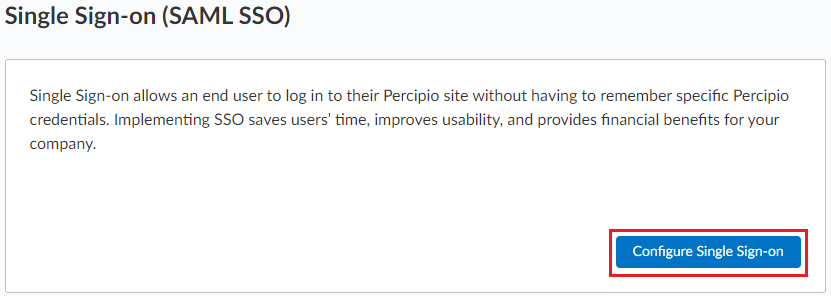
- On the System Integration page, select Single Sign-on (SAML SSO) > Configure Single Sign-on.
- From the Passport tabs, select the one whose key you want to update.
-
Locate the Public Key box. Before you replace the key, it is best to first copy any existing keys you have specified. You may have more than one key specified, copy all of them.
The key in the Backup spot, has an expiration date closest to today’s date (or already expired). The key in the Primary spot has a future date farthest from today’s date. When you replace an existing key in either spot, it automatically moves to the spot based on its date compared to the other key’s date relative to today’s date. This means if you replace the key in the Backup spot with a new key that has a date farther from today than the key in the Primary spot, the new key will assume the Primary spot and the key in the Primary spot moves to the Backup spot automatically.
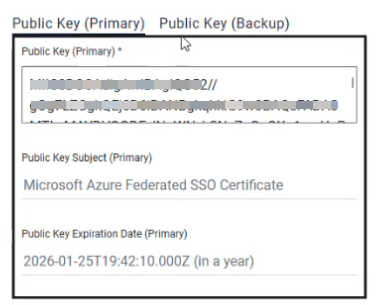
- Copy and paste your new public key in the Public Key (Backup) box. The subject and expiration date update automatically after you save.
- Select Save. As soon as you save your back up key, it becomes the primary key and your primary key becomes your back up key. The platform will check both keys when logging someone in and continues to do so until you remove your expired keys. In this way, learners avoid login issues.