Your Assignments
Your admin or manager may assign content to you and specify a due date for completion. Assignments can consist of one or more courses, books, book summaries, audiobooks, audio summaries, videos, Practice Labs, TestPreps, live courses, Aspire Journeys, or any custom content including linked content.
The assignment details show the due date, description, status, and a list of all content contained in the assignment.
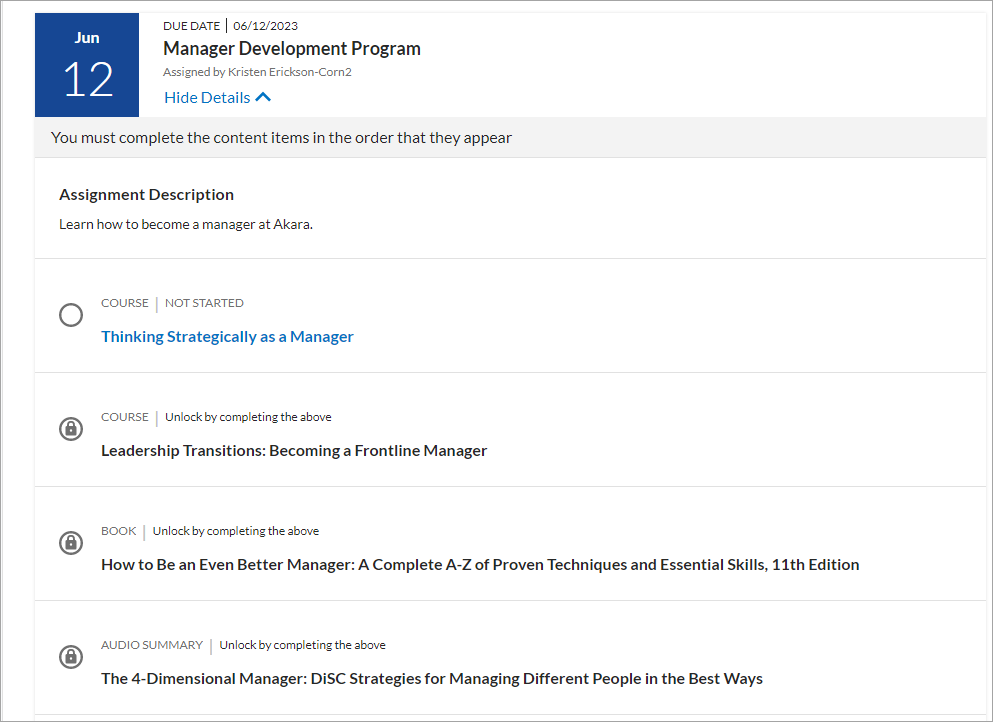
You may be required to complete the assignment in the order presented on the page (an "ordered assignment"). If you have an ordered assignment, you cannot access subsequent content until the previous content is complete. Completion criteria for each item depends on what the administrator have set. This criteria can be viewed when you launch the course.
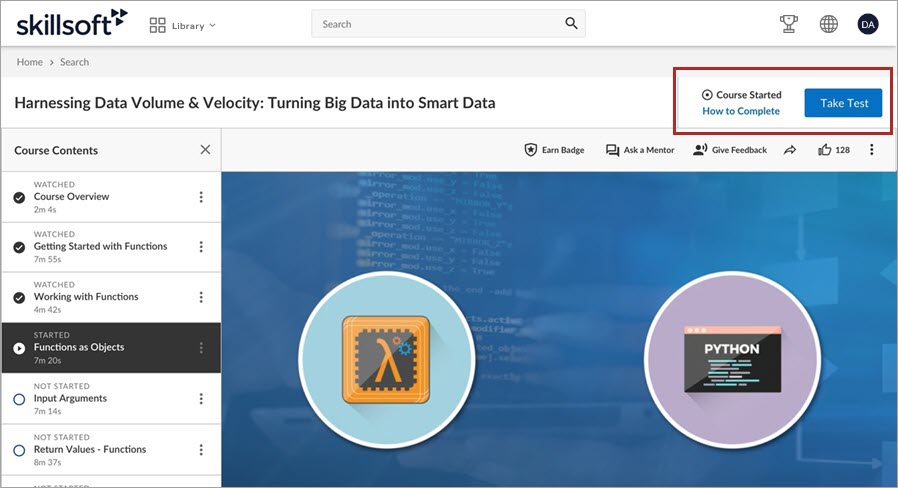
An admin or manager can also require you to restart a course or dynamic content that you previously completed in order for you to complete the assignment. If that is the case, when you launch the course or dynamic content, you see a prompt asking you to restart.
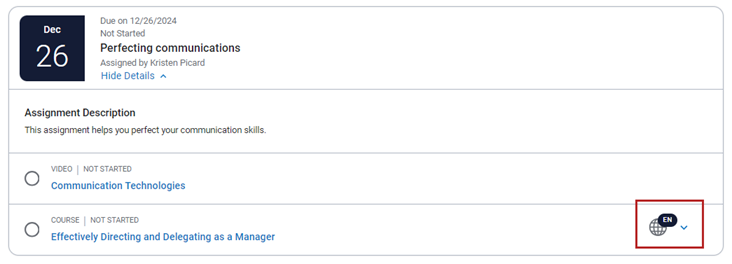
If your admins allows, you may be able to take content in any available language. If configured, you may see a globe icon,  , next to a course. This indicates that you can choose the language in which you want to take the course. You only have to take and complete the course in one language to receive credit towards assignment completion. If you start in one language and decide to switch to a different language, you will lose any progress and have to start the course over in the new language.
Recurring Assignments
You may receive a recurring assignment. This means that your admin wants you to take the same assignment on a recurring basis. These types of assignments are typically for compliance reasons where your company has to prove everyone is in compliance with some regulation. This may happen every year, every two years, or every three months.
These assignments show in your Assignment list and are indicated with a Recurring Assignment tag. After you complete an occurrence, it shows in your Completed tab. The assignment card shows the Next assignment start date and the Next assignment due date indicating when you have to take it again. These dates only show on the latest completed occurrence .
View your assignments

 For web
-
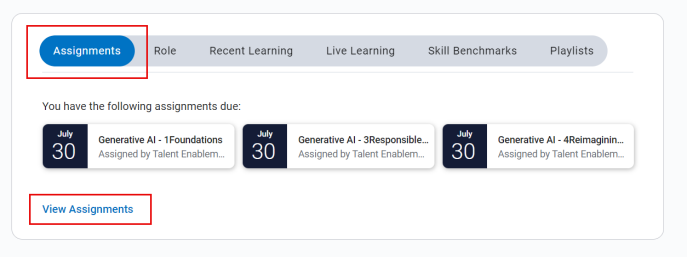
Select the Assignments tab in the top section on the Skillsoft Platform home page. This will show the next three assignments that you have due. To see the rest of your assignments, select View Assignments. This will take you to the Assignments page.
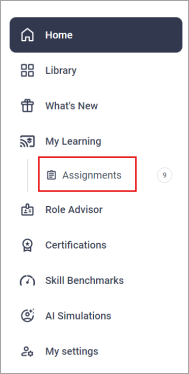
- From the left navigation bar, select My Learning, and then select Assignments.
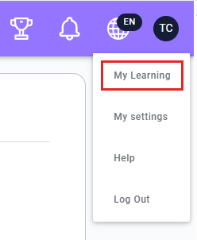
- From your Profile menu, select My Learning, and then locate the My Assignments section. This section shows the top three assignments that are due. Select See all assignments to see all your assignments.
 For mobile
- From the navigation menu, tap Assignments, or
- From the My Assignments section of the Home page, tap > .
Canceled assignments
If an admin cancels an assignment, you get an email from the platform.
The canceled assignment is then moved to the Canceled tab within your Assignments page.
Mark content completed
Some content shows a Mark as complete option on the content card or within an assignment.

You must view the content before you are able to mark the content as completed. Once you select the Mark as complete link, the content title displays on your Learning Activity page and the content card shows Completed. Items Marked as Completed cannot be undone.
If your administrator selected the Learning time entry setting, you are prompted to enter the amount of time you spent learning in the item when you mark it complete. If you enter your time, it counts in your Activity and toward your learning goals.