Edit a CAISY™ for Conversations
To edit a simulation:
- Find the simulation you want to edit and select the edit icon
 . The Design Assistant opens with your previous conversation. If you previously generated a simulation, you see the sample conversation in the right pane, otherwise, you see the design brief in the right pane.
 - You can either continue the conversation in the Design Assistant or from the left navigation bar, select one of the areas in which to make your changes. If you already generated a simulation, we recommend at this point, that you select an area to edit instead of continuing with the Design Assistant because you have more control and refinement on what you change.
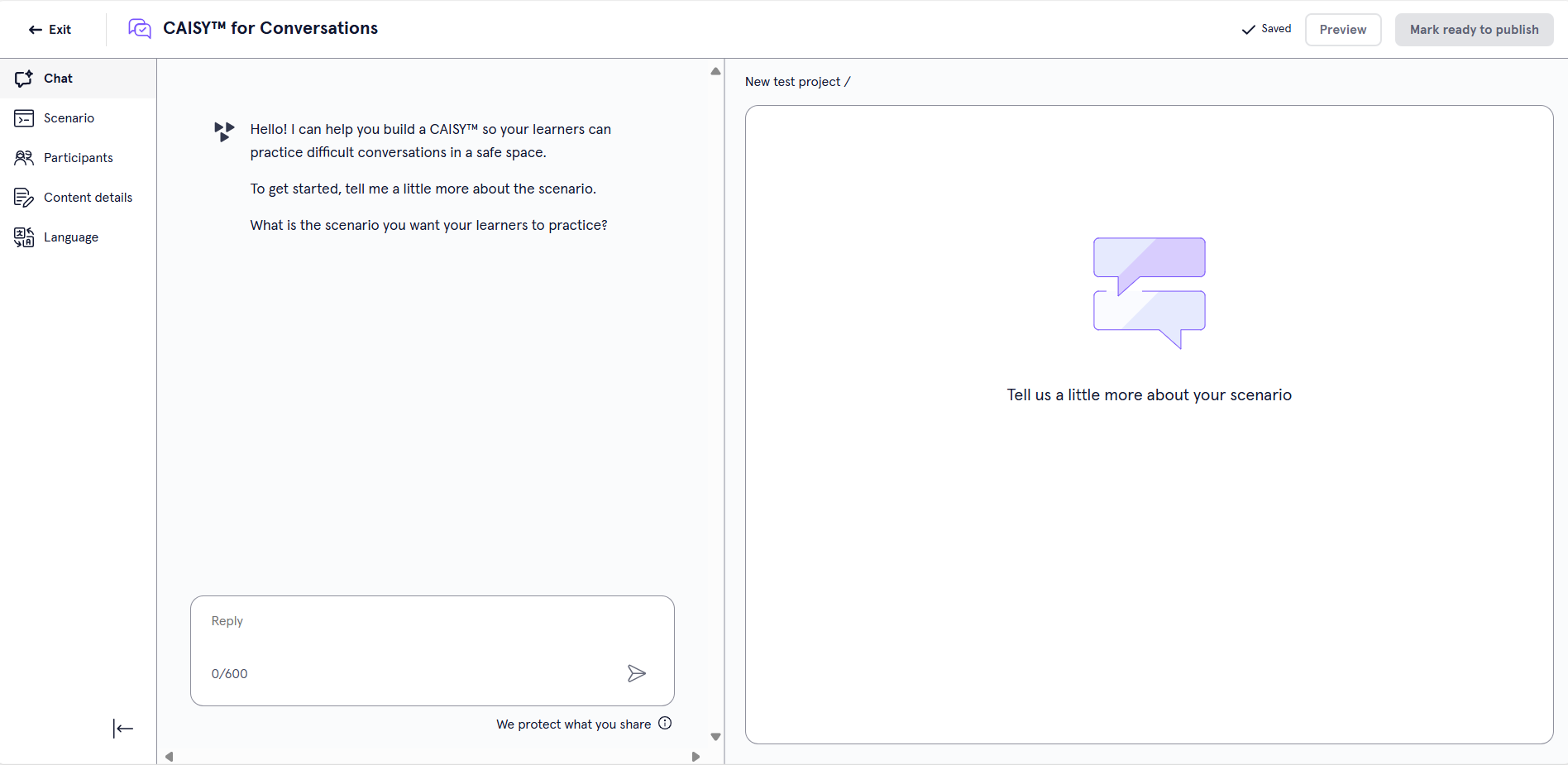
The sections you can edit are:
- Review the sample simulation on the right and make any necessary changes.
- Once you are satisfied with the sample simulation generated on the right, your simulation is complete and you have the following options:
- Preview: This opens the simulation you just created so you can test it and ensure it works as expected.
- Exit: Be sure you see the word Saved in the upper right corner before you exit. When you exit, your simulation saves as a draft that you can return to at any time.
- Ready to Publish: If you do not have publishing privileges, you can mark your content as Ready to Publish to signify to creators with publishing privileges that it is ready to be shared with learners on the platform.
- Publish: Note, you only see this option if you have LX Design Studio publishing privileges. This option publishes your content to the platform. You can make it available to a specific group of learners via search only, or add it to a channel or journey.
- Select Publish.
- Check the box: I also want to make this available to learners right away. Ensure the users who should see your draft content are included in an audience. See Create audience for details on how to create an audience and add users.
- Select Select learners, and then choose your audience from the list. By default all users in your company are selected.
- Select Save.
- Select Publish again. When you publish content, it shows in the Manage Content Items list in the platform.
- Select Go to Percipio. You see your new content in the list. People in the audience you selected should be able to search on your content title to find it. At this point they cannot browse to it.
- If you want, you can also add your new content to a channel or journey and make that channel or journey available to a select audience of reviewers that can test the new content to make sure it meets organization standards. Visit the Create Custom Journey or Create Custom Channel pages for more information on how to add custom content to a channel or journey and entitle it for just one audience.
Scenario
If you edit any information on the Scenario page, you must select Regenerate simulation.
On the Scenario page you can edit the following fields:
- Scenario Category: Add a new category or select one from the list. To see if your category already exists, start typing to see if matches are found. The category is the broader topic or skill that learners using the simulation are trying to improve. This field displays to learners and is required.
- Scenario Prompt: The tool uses the answers you supply in this section to generate the sample simulation, so you should be specific and provide as much detail as possible. This is where you can define terms you want the scenario to use and any special instructions. You can then add these to the evaluation criteria as a way to measure them explicitly.
- Default Behavior: Choose the default behavior that users see when they open your CAISY for Conversations . Users have the option to change the behavior before they start the simulation.
Participants
On the Participants page you can edit the following fields:
- AI participant's role: Describe the role of the AI in your scenario, such as a customer, or a direct report.
- Learner's role: Describe the role of the learner in your scenario. The learner is the person interacting with the simulation.
- Introduction: Write the introduction that the AI Coach gives at the beginning of the scenario to set the scene for the learner.
Knowledge Sources
You can add a knowledge source that the Design Assistant can use as reference material to help adjust the simulation with very specific points to your unique business needs.
From the left navigation, select Knowledge sources to get started.
To add files that can be referenced:- Select Add to add a new knowledge source to the content, project, or workspace.
- Locate the file you want to add as a knowledge source. This can be an file of type: .txt, .html, .pdf, .pptx, .xlsx, .csv, and .doc files, with a maximum size of 100MB per file.
- Select Next.
- Select whether the file should be accessible at the workspace, project, or content level. To help you determine the right level:
- Workspace level: The file is accessible across all projects and can be shared to other projects or workspaces later if needed. Use mostly for brand, legal, or voice guidelines.
- Project level: The file is accessible to all content items within your project and can be shared to other projects or workspaces later if needed. Use mostly for collaborating on project-specific content and standards.
- Content level: The file is applied only to specific content and cannot be shared later. It won't surface in search or be discoverable elsewhere in the platform. Use for highly tailored or one-off content.
- Select Next.
- Add a Title and Description. This helps you remember why you uploaded the content.
- Select Next.
- Select Next to confirm the file.
- Select Got it acknowledging that the file is being processed.
- After you add all your knowledge sources, you can decide whether the Design Assistant should only use knowledge source content to generate questions. If you only want the Design Assistant to use content from knowledge sources to generate questions, you must:
- From the left navigation, select the Source Content option.
- Turn on: Only use knowledge sources when generating content. This option ensures that the Design Assistant only uses content in the knowledge source to generate questions and no other sources.
Content Details
On the Content Details page you can edit the following fields:
- Title: This is the title that displays to learners, so it should reflect the main topic of learning.
- Description: This is the description of the simulation that displays to learners when they are browsing content.
- Skills: Specify up to 10 skills that learners will gain upon completion. Type one skill in the box at a time and press Enter to add the skill. Note, this field is optional. When you add skills which are mapped to job roles, you allow your employees to focus on skills necessary to progress in their careers.
- Content source: Content sources help learners discover your content and informs them about who created it.
- Duration: The estimated amount of time it takes a learner to complete the content.
- Expertise level: Choose either Beginner, Intermediate, or Expert as the Expertise level that learners can use as part of their search filter criteria.
- Select thumbnail: Choose an image that learners see in the content card that distinguishes this content from another.
- Alt text (optional): Optionally add text that describes your image.
- Recommendations: Select what content recommendations show after a learner completes the CAISY scenario. You can choose any of the following:
- Author-defined: You select from the Skillsoft library up to three content items you want to display after the learner completes the scenario.
- Skillsoft: This option uses the standard practice of the Skillsoft platform to make recommendations based on learner performance and job role.
- None: The platform provides no recommendations after the learner completes the scenario.
Language
Choose the Primary Language your simulation will display in. Learners have the option to take the simulation in any language supported by CAISY.