Manage a course
You can edit, delete, and archive courses to keep your library current. You can also move and duplicate courses to help your team access them and coordinate for refining them.
If you need to support this course with a virtual session, you can download an accompanying facilitator guide.
Find a course
- From the Home page or the Apps page, select Course Designer. You now see the Course Designer list page.
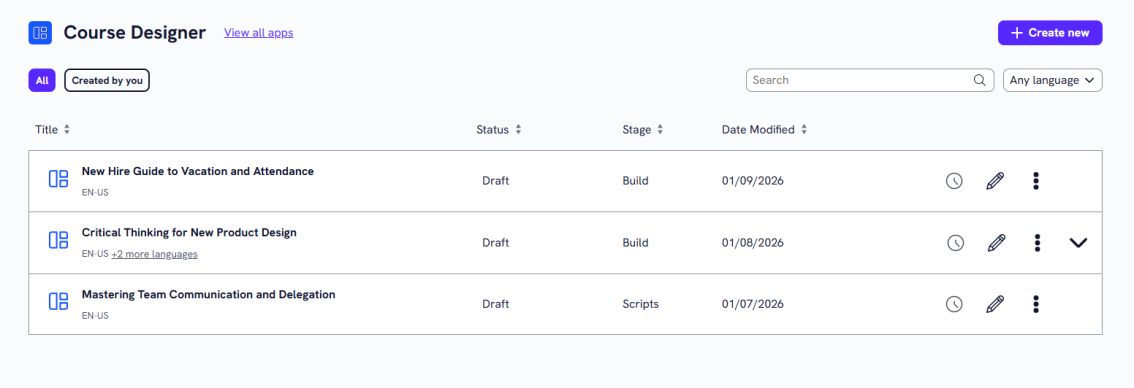
- You can do one of the following to find a course:
- Search for a specific course. If you know the name of the course you are looking for, you can use the search bar to locate it.
- Change the order of how courses display in the list:
- Use the drop-downs to display only items in a selected language
- Sort the column headings by Status, Date modified, or Modified by.
- Toggle between viewing all courses, or just the ones created by you.
Manage a course
Depending on your permissions and the status of the content, you may see the following actions to the right or under the Show options menu  for each:
- Edit: Opens the content so you can make any changes to the details. For more detailed information on editing content, see:
- View details: Allows you to view the Content details and Design brief. When you are viewing the details of the content, you have the ability to share and comment on the item.
- Preview: Opens a preview of the content item as a learner would see it.
- Duplicate: Creates a copy of the content in the same project so you can update it without impacting the original.
- Archive: If the content has already been published, you can archive it so that you no longer see it in your Projects, Apps, or Content Items pages. It is moved to a separate Archived Items page. You can access all archived content from your profile drop down. The archived content is still available to learners in the platform unless you retire it from your Skillsoft Platform site.
- Move: Moves the content to a different project or workspace.
- Delete: If a content item is still in a draft status, you can delete it from LX Design Studio. When you delete content it is moved to a Deleted Items page. You can access all deleted items for up to 30 days from your profile drop down.
If you have completed all the steps in building a course including building the slides, adding an assessment, and adding content details, you can also choose to download a facilitator guide that can accompany the course that an SME or instructor can use in a live setting or to support learners going through it online.
Duplicate a course
You might want to duplicate content if you want all the same criteria except for one or two minor changes, or if you are working with a group to refine and you want to try out different combinations. Only users with editor privileges can duplicate content in a project.
To duplicate content:
- Find the content from a list, either from the Apps page, Project page, or Content items page.
- From the action menu of the content item, select Duplicate. A copy is created in the same workspace and project as the original.
- Edit the copy to make any necessary adjustments.
Archive a course
If you no longer need content, you can archive it so it no longer shows on page lists. Only users with editor privileges can archive content in a project. Archived content shows on the Archive items list located from your profile drop down.
To archive content:
- Find the content from a list, either from the Apps page, Project page, or Content items page.
- From the action menu of the content item, select Archive. The item is moved to the Archived items list.
- You can view the Archive items list from your profile.
Restore an archived course
If you need to restore archived content, you can. To restore archived content:
- From your profile drop down, select Archived items.
- Find the content from a list.
- From the action menu of the content item, select Restore. The item is moved back to an active status and shows on the Content list, the main app's page, and the Project list. Once an item is restored you can edit it.
Move a course
If you need to relocate content, you can move it to a different workspace or project. To move content:
- Find the content from a list, either from the Apps page, Project page, or Content items page.
- From the action menu of the content item, select Move.
- In the dialog box that displays, select from the list the workspace or project that the item should be moved to.
- Select Move. The item is moved to the new location.
Download a facilitator guide
If you have completed all the steps in building a course including building the slides, adding an assessment, and adding content details, you can then choose to download a facilitator guide in a Microsoft PowerPoint format that accompanies the course. An SME or instructor can use this guide in a live setting or to support learners going through the course online.
To download a fully scripted facilitator guide in Microsoft PowerPoint format:
- Find the content from a list, either from the Apps page, Project page, or Content items page.
- Select Edit. The editor opens with all the course details.
- From the left navigation, select the Content details tab.
- From the Actions menu in the top right, select Download facilitator guide. You get a fully scripted Microsoft PowerPoint presentation of the course that you can share with others.