Page Builder Overview
Your contract with Skillsoft determines if you have access to this feature. Reach out to your Skillsoft account team for more information.
Page Builder is a feature in the Skillsoft Percipio Platform that let's you create custom landing pages for your learners. You can design your own custom pages to help guide your learners to content that your organization feels is important for developing new skills.
Use Page Builder to tailor the learning experiences for different use cases like leadership academies, new hire onboarding, or for different departments like sales, finance, and engineering.
You can have a main page and up to three levels of subpages to help guide your learners to the content you want them to see. You can create as many pages as you wish and add different component combinations to create a style that is unique to your organization and works for your culture and learners.
You can offer each set of pages in a learners local language to help you reach a broader global audience and make your site accessible to non-native speakers who may struggle with a single-language solution. Skillsoft offers an AI translation service to aid in your local language page creation.
By default site admins can create and edit pages. You can add the privilege for creating and editing pages for other admin roles through role customization and the option under Learning Management for Manage custom pages.
Best Practices for Designing Pages
Before you get started, you should plan for how you will not only set up, but also how you will maintain your pages going forward. When you keep your pages focused and relevant, learners are more likely to stay engaged. Some things to keep in mind when designing your pages:
- Less is more. Offer guidance, not choices. Learners are often overwhelmed with too many choices, make it simple for them by only offering items that are relevant to growing your business' skills and capabilities.
- If you are linking out to other websites, ensure you have all your URL's in one place to make the page creation go quickly. Use the Static cards for these items.
- Storyboard your page design in a tool other than the Skillsoft Platform and get it approved before you start creating. This can save you a lot of time on rework.
- Think of the page hierarchy you want to present to learners and guide them to the most focused and relevant pages.
- As part of your storyboarding, pick the content you want to showcase. Use the All Content Listing report to check to make sure your selected content is not retiring soon. When you showcase content, use the Dynamic card.
- If you want to add custom content and do not have a place that is accessible to all learners, you can add it as a custom content item in the platform. When you do this, you can track accesses and time spent learning through Skillsoft Platform reports.
- Some questions to ask yourself through the design and creation process:
- What are the goals for this new set of pages?
- What would I consider a successful launch?
- Have I selected the right content?
- Who can review to make sure all the links work as expected?
- Do all my learners have access to all content I'm recommending?
- What languages do I need to offer my learners?
Get started
Only users with a site admin or custom site admin roles have access to Page Builder.
To access Page Builder:
- From the left navigation bar, select Learning > Page Builder. The Page Builder page displays.
- You can either start designing a new page or pick up where you left off and edit existing pages.
Manage your pages
All pages you create display in the Your pages at a glance section at the bottom. All site admins can view, edit, and delete all public pages. If you set any of your pages to private, only you and those you name as collaborators can view, edit, and delete the pages.
Depending on the status of your pages, you have different actions available. From this section, you can:
- View your pages and page hierarchy: Select the drop-down arrow next to the page name to expand the hierarchy and see all pages associated with the main page.
- Edit the pages: Select the name of the main page to open the hierarchy where you can edit all the pages contained within it. You can edit pages in any status.
From the actions menu  for each page, you can perform any of the following actions depending on the status of the page:
- Publish: Select this to go through the publish workflow and make your page and subpages available to learners. You can have a maximum of 10 pages (not including their subpages) published at any one time.
- Unpublish: Removes published pages from learners view
- Rename: Allows you to change the name of the page. This change impacts what learners see on the left navigation.
- Preview: Opens the page in a new browser tab as learners would see it. This helps you test your pages before you put them into production.
- Manage access: Allows you to limit who can make changes to the page and subpages.
- Manage page: Allows you to view all the properties and content of the page and subpages and make any edits before republishing. You can change page title, URL, whether the page shows on the left navigation, page design and content, who sees the page, and whether the page is a default home page for the target audience. You can then publish.
- Set as default home page: Allows you to determine if the page should be the default home page for the target audience.
- Delete: Removes all pages associated with the main page. You can only delete a page that is currently in draft or unpublished status. To delete just a subpage, see Delete a subpage.
- Duplicate: Create a copy of the main page and all subpages. Use this feature if you want to create similar pages for many different audiences.
For each of the pages you created, you see the following information:
- NAME: This is the title of the page. You add the title when you first create the page. This shows to learners on the left navigation menu if you choose to make the pages available on the left navigation. You can rename the page at any time.
- STATUS: This is the status of the page. You may see:
- Draft: This means the page is currently in development and is not available to learners.
- Published: This means the page is available to learners.
- Archived: This means the page has been retired and is no longer available for use.
- Hidden: This means the page is available for learners, but is currently not visible.
- TYPE: This identifies the page as custom.
- LANGUAGE: This identifies all languages configured for the set of pages.
- TRANSLATION STATUS: If you are using the AI translation feature to translate your pages, this column indicates when the platform finishes translating your pages.
- COLLABORATORS:Indicates how many users can make changes to this page set. When you select the number, you see who the users are who can make edits.
- AUDIENCE ASSOCIATED: Indicates how many separate audiences are associated with this page set. When you select the number, you see who the audiences are that see the page set.
- DEFAULT PAGE AUDIENCES:Indicates how many separate audiences have this page set as their default home page. When you select the number, you see who the audiences are that see the page set as the default.
- MODIFIED BY:The first and last name of the person who last modified the pages.
- MODIFIED DATE: The date the set of pages was last updated.
- CREATED BY: The first and last name of the person who created the pages.
Frequently Asked Questions
 Which roles can use the Page Builder?
Only users with the role of site admin can view, create, edit, and delete pages in the Page Builder.
Where can I get the URL for the page I created?
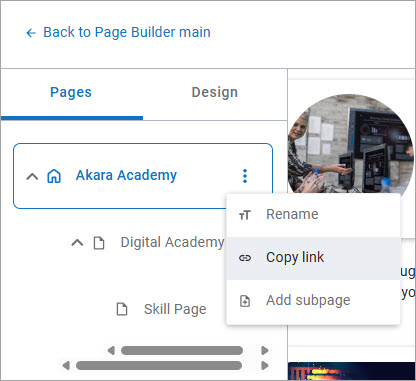
From the Your pages at a glance section, select the page name to open it in the Page Builder. From the Pages tab, select the actions menu , and Copy link. Each page and subpage has its own unique URL.
How can I change the name of the page that shows on the left navigation?
From the Your pages at a glance section, select the page name to open it in the Page Builder. From the Pages tab, select the actions menu , and Rename.
Can I make a set of pages available to only one group of users?
Yes. See manage access.
How can I make my pages show on the left navigation?
By default, all pages show on the left navigation. If you do not see your pages in the left navigation, you must unselect the option Don't show this page on the left navigation.
To find the checkbox:
-
From the Your pages at a glance section, locate the page that should show in the left navigation.
-
From the actions menu
for that page, select Rename. A dialog box displays. -
Unselect the check box: Don't show this page on the left navigation.
Only the main page has the check box available. When unselected, all pages in the hierarchy show on the left navigation.
We recommend that for subpages, you also consider adding them as target URLs to an image or static card component on your main page. Each subpage has its own unique URL.
Can I create pages in more than one language?
Yes, you can select any of the platform languages in support of your learner population.