Manage Your Content Rules
After you create a Content rule set, you can edit, delete, and download them from the Manage Content Rules page.
Before making any edits to your rules, please review the How the Rules Work - Best Practices.
Access your content rules
To access your rules:
- From the left navigation bar, select Site Settings, then select System Integration.
- From the left navigation on the System Integration page, select Content selection and sync.
- Select Manage content rules.
From this page you can:
- View recently added or retired content
- Edit a rule
- Delete a rule
- View rule properties
- Download files for use in your LMS
- View download history
View recently added and retired content
When using the AICC or SCORM download option, keep your content current by regularly reviewing recently added and retired content. When the platform detects that content from your rule set has been added or retired, you see the option to View content status.
You can also access the Content Status page any time. From the left navigation bar, select Content, then Content Status.
Use this report to see content retiring in the next 90 days, recently-added content, and recently-retired content. From this report you can download an AICC file containing just the recently added content, which you can then install to your LMS.
Edit a Rule
To edit a rule,
- Locate the rule on the page, select the Actions menu
 next to the rule, then select Edit.
 - Make any changes to the Rule name, then select Save.
- Select View Rule Summary to see what content is part of the rule, then select the Edit icon to make changes.
- To save your changes, select Review and update rule.
- Confirm you want to update the rule. Select Update rule.
- Exit back to the Manage Content Rules page.
When editing a rule:
- You cannot change the rule type.
- You can only change the selections within the rule.
- You cannot save a previously saved rule in a draft state.
Delete a Rule
To delete a rule,
- Locate the rule on the page, select the Actions menu next to the rule, then select Delete.
- To delete the rule, select Yes.
When deleting a rule:
- The rule is immediately removed from the Content rule set.
- The next time you download, the content is updated.
View Rule Properties
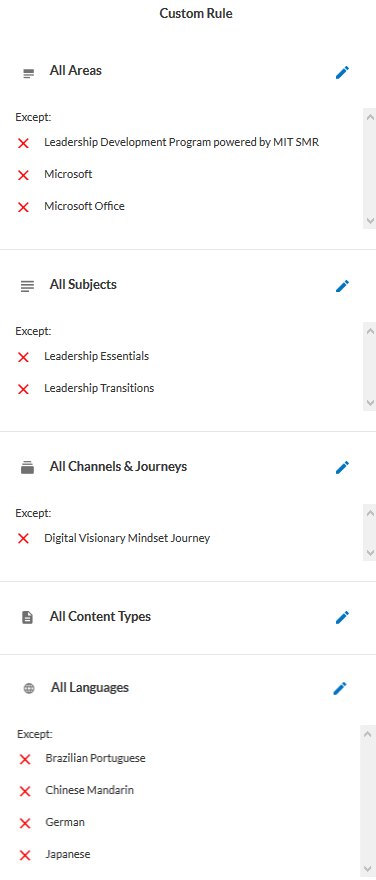
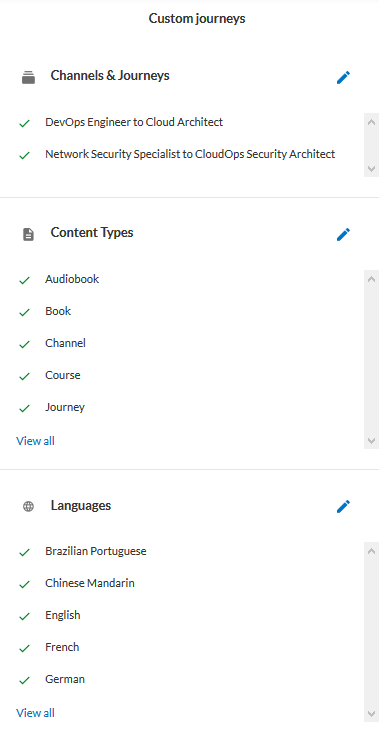
To view a rule, select the Actions menu , then select View content rule. A pop up displays on the right side showing the items either excluded or included. Click the pencil icon  next to any of the options to edit your selection.
| If you built the rule using one of these rule types: All Content Collection, All Areas, or All Subjects, you see the items you excluded. | If you built the rule using Only include specific Channels and Journeys or Only include specific content items, you will see the items you added. | |
|
|
|
Download files for use in your LMS
Under Download options you can choose the best file types to deploy to your LMS. Once you download the file to your local drive, you can deploy it to your system. You can also download additional metadata for a better content experience.
When you download a file, it includes all content defined by all your content rule sets.
To download a file:
- From the Manage content rules page, select Download options.
- From the drop-down list, select the option that best meets your needs. Your options are:
- Supplemental metadata: This CSV file contains additional metadata for your content selection of courses, books, and audiobooks that is not available in the AICC standards-based package. Metadata contained in this file include descriptions, images, and duration. When you import this information into your system, your learners have a better content experience. Refer to your system documentation on how to import additional metadata for items in your catalog.
- AICC packages: This AICC standards-based packages contain the information needed to deploy your selected content to your catalog including the mastery score data. Refer to your system documentation on how to import AICC packages to your catalog.
- SCORM packages: This SCORM standards-based zip file contains the information needed to deploy your selected content to your catalog including the mastery score data. Refer to your system documentation on how to import SCORM-wrapped files to your catalog. This option only supports SCORM 1.2.
- Share links metadata:This CSV file contains metadata for your content selection including share links.
- LTI Package: If you configured your LMS to integration with the Skillsoft Platform using LTI, you can select this option.
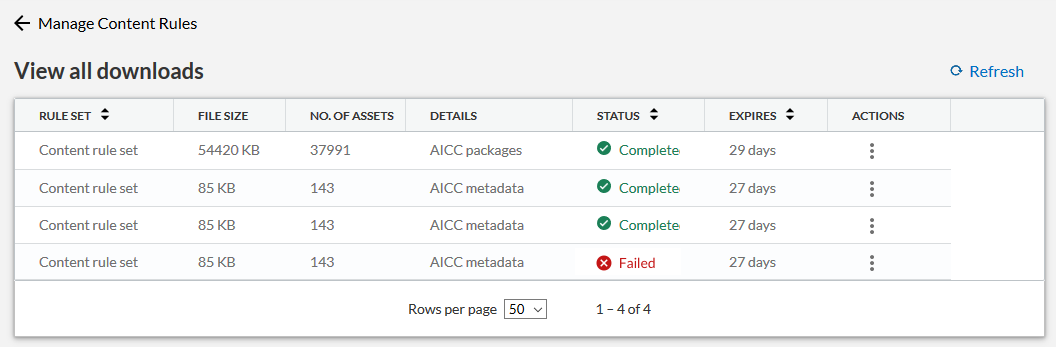
- In the pop up that displays, select Go to Content Selection Downloads. The View all downloads page shows all the files you chose to download.
- When the file finishes downloading, from the Actions menu, select Download.
View All Downloads
To see a list of all items downloaded, select Download options, then View all downloads.
View the file size, number of assets, status, they type of file, and when the file expires. For each item downloaded, you can download it again or delete it from the list.