Images
When you include images on pages you design with Page Builder, you help to engage the learner, aid in understanding an explanation, and keep them interested.
There are two concerns with images regarding accessibility:
- Although screen readers can read aloud the text that is printed on the page, they cannot read or interpret images.
- If you add images that contain text that is part of the image, the text is also an image and learners that need to adjust text to make it easier to read, such as enlarging or changing the font, color, or spacing, cannot do so when text is part of the image.
Page builder offers two solutions to these problems:
- The ability to add a text alternative to an image that provides equivalent information to someone who can't see the image. This equivalent information resides in the HTML code that assistive technologies can read to describe what the image conveys.
- The ability to add an image with a text overlay. The text overlay gets coded as text that assistive technologies can read and the text doesn't get distorted when the image is zoomed in.
Text alternatives for images
The purpose of a text alternative for an image is to give equivalent information. That is the information a sighted person gets when they see the image. It is not necessarily a description of the image and it depends on context and what the image is being used for.
For example, if the image below is being used to show learners the mandatory safety clothing the text alternative wouldn’t need to include details like four people facing the camera, or two women and two men, or one with long hair. Those details are not relevant to its informational purpose. But if the same image was on a stock photography site, those details may be very relevant because they may be exactly the information that the visitor is interested in, so the text alternative would include that information.
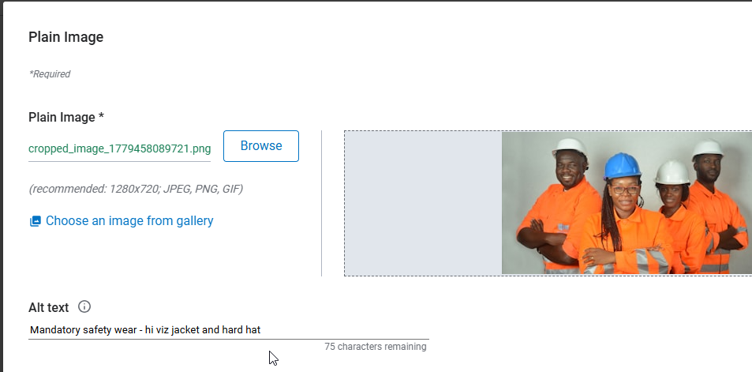
Because alternate text is situational, the judgment of what information an image provides cannot be done automatically by Page Builder. Only a human can have a sufficient understanding of the context to make that judgment.
In some cases a text alternative is not necessary. For example, if the text adjacent to the image on the page already says: the mandatory safety wear is a high visibility jacket and hard hat, the image isn’t providing any more information and doesn’t need a text alternative.
For video thumbnail images, the information is usually just the name of the video. This is likely to already be clear from the text or heading, so videos often don’t require text alternatives.
WCAG requirements for text alternatives
WCAG requires all informational images to have text alternatives. Note that this only applies to informational images. Images that are purely decorative or don’t provide any more information than is already presented in the surrounding text do not require text alternatives.
How to add alternative text to an image
In addition to the image element, most cards, strips, and banners of all types, such as Image & Text cards, Profile cards, Dynamic cards, and Promoted Content Strips, all have images.
To add alternative text to an image:
- After you add the image or card with an image to your page, select it.
- Select the Edit button. The edit toolbar displays.
- In the Alt Text field, add your description.
- Select Save to save your changes. The text you add becomes part of the HTML code for assistive technologies to read.
Text that is an image
Any image you add, may contain text as part of the image itself. So the text is a picture of text. This text cannot be selected because it isn’t real text, it’s just pixels on the screen. It also has a number of other drawbacks which make it inaccessible.
Users with visual impairments or some cognitive challenges such as dyslexia may need to adjust text to make it easier to read. This may include enlarging it or changing the font, color, letter spacing, line height, or other characteristics in order to achieve the desired visual presentation. Most of this is not possible with images of text. Although it is possible to enlarge it by zooming the page or using screen magnification software, images of text become distorted when you do this. At standard resolution they may look identical, but when zoomed to 200%, or even 400% which must be supported under WCAG, the text pixelates, becoming blurry and more difficult to read, particularly for people with visual impairments who need to zoom.
Another drawback of images of text is that they cannot be found by a text search of the page. Screen reader users often use search as a quick way to find the information they want without having to read through all the page content.
WCAG requirements for images of text
WCAG requires that text is used to convey information rather than images of text except when a particular presentation of text is essential to the information being conveyed. Examples of where a particular presentation is essential are company logos which cannot be reproduced using real text.
There is also an exception for text that is part of an image that contains significant other visual content. For example, a screenshot or a photograph that includes objects with text on them.
How to avoid using images of text in Page Builder
In Page Builder, don’t add meaningful text within image items or in images used on cards. Use the Image with Overlay object and the Heading or Paragraph Text fields of cards to add text content. In addition to using the image with overlay to present text, you must also meet the WCAG requirements for color and contrast when adding text to an image.
Page Builder does not have the capability of spotting where meaningful text has been included within images so this is a manual task that the author must undertake.