Customize Welcome and Reminder Emails
You can choose to customize the welcome emails that you send to new and updated learners.
Welcome emails are always sent in the language specified by the email template language, except if you change the welcomeEmailLanguage field during bulk uploading.
You can choose to create a welcome email from scratch or use an existing Skillsoft template as its base. If you create it from scratch, the expiring link that learners can use to access the system is not available. If you want to keep the expiring link for learners, base your custom template off a Skillsoft default template.
To customize welcome and reminder emails
- From the left navigation bar, select Emails & Notifications > Email Templates.
- Select Create template.
- From the Welcome email box, select Get started.
- Choose the language that you want to use to create the template. You can add more languages later, this is just the starting point.
- At this point you have two choices:
- You can choose to base your template off an existing one. If you want to base it off an existing one of the same type:
- Scan the list of templates from either the default (provided by Skillsoft) or from the custom list (those you previously created). You can select the preview button to view the design and layout before you select it.
- Choose Select to use the template as the base.
- From the bottom of the page, select Create with selected template.
- You can create your template from scratch. At the bottom of the page, select Create template from scratch. If you create it from scratch, the expiring link that learners can use to access the system is not available. If you want to keep the expiring link for learners, base your custom template off a Skillsoft default template.
If you are using the welcome email series which sends up to 6 different emails, you will want to create a different template for each email in the series. For each email, you can choose to start from scratch or base it off of an existing Skillsoft template.
- You can choose to base your template off an existing one. If you want to base it off an existing one of the same type:
-
Specify a Template title. This will display as the name you choose from the drop down list.
-
Specify the Subject line. This is the subject of the email. This field is required. This field supports merge tags to personalize your message. Add tags using curly braces { }. Supported tags include: {First name}, {Last name}, {Login name} and {Organization Name}.
-
Specify the Preheader text. This is additional text that appears in the inbox underneath the subject, to give recipients a better idea what the email is about. This field is required. This field supports merge tags to personalize your message. Add tags using curly braces { }. Supported tags include: {First name}, {Last name}, {Login name} and {Organization Name}.
-
Use the Editor to design or modify your template.
- In the Editor pane, you see a Block in a single column format. A block is a row that can contain content. The block segments the page into columns. You can add content to the existing block or remove it and choose another block style. From the right hand menu, you can choose different block styles and click and drag them to the Editor pane. You must have at least one block in the Editor pane before you can add content.
- After you add a block, you can add a Content type to each column of the block by clicking and dragging from the Content menu on the right to the Editor pane on the left. For example, if your block has two columns, you might choose the left column to have a headline and the right column to have an image.
- After you add your content types to your blocks, you customize each content type by selecting it in the Editor pane to open the formatting box on the right. From the formatting box, you can add URLs to hyperlink somewhere, you can format text, add images, and change settings like padding and responsive design.
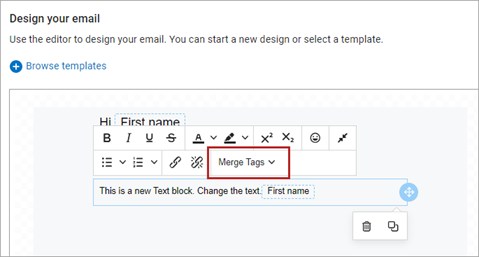
When you add Text as the content type, you can add variables or placeholders to the text to personalize the message with a first name, last name, or login name. To add a variable or placeholder, select it under the Merge Tag drop down on the text formatting bar. The Merge tag gets replaced with the user's information when the email is sent.
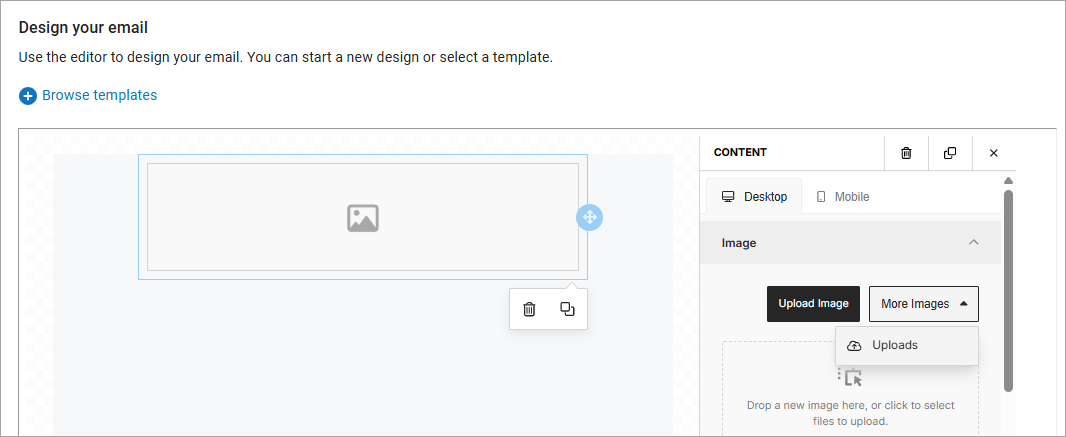
When you add an Image, you can choose to upload directly to this campaign or select from more images which is an image library list that you can configure so you can easily select the same images for future campaigns.
- You can add as many content types as you want and the page stays segmented into the same column format of the block you added.
- If you want to change the number of columns, add a new block and continue adding content. You can add as many blocks on the page as you wish.
- When you are done designing, select the Preview icon to see how your email will look on a desktop, tablet, or mobile device.

-
At this point you can Add more languages. For each language that you select, you must offer translations for all fields: Subject line, Pre-header, and email content.
When you select other languages, the platform makes a copy of the default language template layout and uses that as a base for the other languages. If you are planning to have all languages use the same template layout and you just want to offer translations, we recommend that you customize your template first, then add your languages so the platform copies your final layout. If you add your language before you customize the email content, you will have to update each language template separately. In this way, each language can have its own template or the same template with just a translation.
When you select a language, the platform adds a tab for that language. You can choose to Translate with AI or translate the text on each tab yourself. If you initiate the AI translation, you see the status for each selected language on its tab. Translations may take up to a few hours to complete depending on the complexity of your design and content. You can save your work and continue with other tasks. You receive a Message Center notification when translations are complete.
After AI finishes translating, you can edit any language template independently to ensure the best experience for your learners.
- When you are done designing your template:
- You can Save as draft to continue editing later. When you save as draft, you cannot select it from an email campaign drop down.
- You can Send a test email to make sure your design works as expected in your email inbox.
- You can Publish which makes the template available for use by the email campaign you designed it for. Before you can publish, all AI translations must be complete.
-
After you publish your custom Welcome email templates, you need to assign them to the campaign. Go to Emails & Notifications > Settings > Email campaign settings > Welcome emails.
- In the Welcome emails section, select one of these settings:
- Send full welcome email series to new users (6 emails) by default
- Send a single welcome email to new users by default
- From the Email template drop-down list, select your custom template. You can preview it to make sure it is the right one.
Default Templates
If you chose to send the series of six emails, select a template for each email. You can create a customized template for each email or you can choose to send the same template for every email in the series or a combination. See how each default template renders as an email.