Customize Completion Certificates
You can customize how completion certificates look and what information displays on them. You can create different completion certificates for different content types. This gives you the flexibility to meet the needs of your organization brand and culture, and provide custom certificates for your learners.
Any custom logos and colors are not applied to NASBA, PMI/PDU, or SLDP MIT co‑branded completion certificates.
Only administrators with access to Site Settings can customize certificates of completion.
Get Started
To start customizing a certificate, go to Site Settings > Certificate Customization.
By default, all content types use the same certificate. This is called your primary certificate. You can edit the primary certificate and have it apply to all content types.
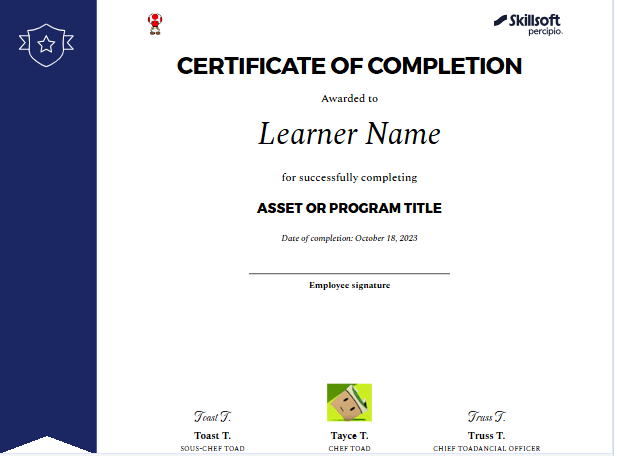
You can create a different certificate for the following content types:
- Skillsoft courses
- Skillsoft Compliance course
- Custom courses
- Custom live courses
- Journeys (custom and Skillsoft Aspire Journeys)
- Learning programs
- Dynamic content
You cannot change the design of a completion certificate, but you can tailor each certificate with:
- Colors
- Logos
- Information elements displayed on the certificate
Default information displayed on a certificate includes:
- Content type (displays on the banner)
- Certificate number
- Learner name (required)
- Asset or program title (required)
- Date of completion (required)
- Duration
Other information available to display on a certificate includes:
- Employee signature
- Up to three signature fields
Important considerations
- The primary certificate serves as the fallback for all content types
- The Apply design to all certificates option impacts only design elements (not content fields)
- Compliance certificates always include a required disclaimer in this phase
- Custom certificates allow for content-specific variation without impacting other certificates
- When a learner completes content:
- They receive the certificate associated with that content type
- If a custom certificate exists, it is used Otherwise, the primary certificate is applied
Customize primary certificate
To customize the primary certificate:
- Select Site Settings > Certificate Customization.
- Under the Primary completion certificate section, select Edit certificate.
- Under the Design tab, specify the colors and logos.
- Background color: Color that occupies the entire background of the certificate, including the badge outline in the banner. Default color is #FFFFFF.
- Foreground color: The color for the banner strip on the left side. Default color is #151C36.
- Text color: The color of all text on the certificate. Default color is #000000
- Logos: You can choose to have two logos on your completion certificate. One displays in the upper left, the other in the upper right. The platform checks all uploaded images for viruses.
- Recommended file specifications: maximum size of 2 MB and transparent .png.
- Recommended minimum image dimensions: 480x120 pixels
- Uploaded images scale down to a 160x40 pixel size, so uploading any multiple of these dimensions scales accordingly (for example, 480x120, 640x180, 800x200, etc.).
- If you do not specify a logo for the upper right, the platform uses the Skillsoft logo.
- You do not need to specify a logo for the upper left.
- If you want your branding to apply to all certificates, select Apply design to all certificates under the Design tab. When you check this box and save your changes, all certificates use the same colors and logos. They retain their information elements configured on the Content tab.
- Under the Content tab, turn on the information elements you want displayed on the certificate. Your options are:
- Content type (displays on the banner): The type of content the learner completed, course, live course, learning program, journey, dynamic content.
- Certificate number: A unique number generated for the certificate for each learner.
- Learner name: the name of the learner as specified by the first and last name fields of the user profile in the Skillsoft platform. This element is required.
- Asset or program title: The name of the item the learner completed. This element is required.
- Date of completion: The date the learner completed the content. This element is required.
- Duration: This is the time it took the learner to complete the content.
- Employee signature: A space for the learner to sign the certificate with their name printed below.
- Custom fields: You can add up to three signature fields. Specify the person's name and title and either generate their signature from the name you added or add an image of their signature.
- Select Save changes to apply all changes.
- Select Save to confirm the changes you made. To ensure your learners see their completion certificates, ensure the feature is turned on from Settings - Site Configuration - Completion Settings.
Create a content type certificate
To create a custom certificate for a specific content type:
- Select Site Settings > Certificate Customization.
- If you haven't created a content type certificate previously, select Create certificate. If you are creating an additional certificate, from the Custom certificates section, select Add more.
- Select the content type from the dropdown list and select Next. You start with the primary certificate design.
- Under the Design tab, specify the colors and logos.
- Background color: Color that occupies the entire background of the certificate, including the badge outline in the banner.
- Foreground color: The color for the banner strip on the left side.
- Text color: The color of all text on the certificate.
- Logos: You can choose to have two logos on your completion certificate. One displays in the upper left, the other in the upper right. The platform checks all uploaded images for viruses.
- Recommended file specifications: maximum size of 2 MB and transparent .png.
- Recommended minimum image dimensions: 480x120 pixels
- Uploaded images scale down to a 160x40 pixel size, so uploading any multiple of these dimensions scales accordingly (for example, 480x120, 640x180, 800x200, etc.).
- If you do not specify a logo for the upper right, the platform uses the Skillsoft logo.
- You do not need to specify a logo for the upper left.
- Under the Content tab, turn on the information you want displayed on the certificate. Your options are:
- Content type (displays on the banner): The type of content the learner completed, course, live course, learning program, journey, dynamic content.
- Certificate number: A unique number generated for the certificate for each learner.
- Learner name: the name of the learner as specified by the first and last name fields of the user profile in the Skillsoft platform. This element is required.
- Asset or program title: The name of the item the learner completed. This element is required.
- Date of completion: The date the learner completed the content. This element is required.
- Duration: This is the time it took the learner to complete the content.
- Employee signature: A space for the learner to sign the certificate with their name printed below.
- Custom fields: You can add up to three signature fields. Specify the person's name and title and either generate their signature from the name you added or add an image of their signature.
- Select Save changes to apply all changes. The content type is removed from the primary certificate. All learners completing this content type see this design.
- Select Save to confirm the changes you made. To ensure your learners see their completion certificates, ensure the feature is turned on from Settings - Site Configuration - Completion Settings. If you specified learning programs as your content type, ensure the certificate feature is turned on when you create a learning program.
Edit a content type certificate
You can edit a certificate if needed. Any design and content changes are reflected in certificates generated after the changes are saved.
To edit a custom certificate for a specific content type:
- Select Site Settings > Certificate Customization.
- From the Custom certificates section, select Edit next to the certificate you want to change.
- Make any changes and select Save changes.
- Select Save to confirm the changes you made.
Delete a content type certificate
You can delete a custom certificate if it is no longer needed. When you delete a certificate:
- The custom configuration is removed. This action cannot be undone.
- The affected content type will revert to the primary certificate configuration.
To delete a custom certificate for a specific content type:
- Select Site Settings > Certificate Customization.
- From the Custom certificates section, select Delete next to the certificate you want to change.
- Select Delete to confirm your deletion.
- Select Got it.