Recommendation Emails
If your learners are active, and accessed Skillsoft Percipio Platform content within the last 30 days, a Recommendation email is available to them. When you turn on Recommendation emails, the platform sends a weekly, personalized email that includes new and recommended content as a reminder to continue learning.
Recommendation emails are meant to work with our Re-engagement emails, which are sent to users who are not active on Skillsoft Percipio Platform. By enabling both emails, most of your learners receive a relevant, personalized email with recommendations. These emails are a proven, effective way to drive learner engagement by reminding your learners about the platform’s content and resources.
Learners with an email address in their profile receive Skillsoft Percipio Platform-generated emails during the work week (Monday through Friday). They can opt out of these emails any time via their My Settings page or from the Unsubscribe link at the bottom of each email.
These emails capture learners’ attention with personalized subject lines and learning recommendations based on recent activity, content to resume, and their skill interests. The recommendations include all content types, including custom and linked content. When learners click on a link within the email, they are automatically logged into the platform with the corresponding page or content item opened. The automatic login only works once per email per user and expires after 60 days. That means, if learners attempt a second click within the email, they are prompted to log in.
Turn the campaign on or off
Recommendation emails can be either on or off:
- (Default) On: Sends Recommendation emails to learners who have accessed content within the last 30 days.
- Off: Does not send Recommendation emails. If this setting was on and you turn it off, Recommendation emails stop immediately.
When this setting is turned on, learners can still opt out of these emails at any time via their Account Information page or from the Unsubscribe link at the bottom of each email.
You cannot customize the copy within recommendation email nor send the email in an ad hoc capacity. If you want to send a reminder email, you can use the Custom email campaign feature. If you want to ensure the recommendation email uses your brand, see Brand your email.
This email campaign is on by default. You can turn it on or off.
- From the left navigation bar, select Emails & Notifications.
- Select the Settings tab.
- Select Email campaign settings.
- Use the toggle switch to change the state. Make any adjustments to the settings if available.
Sample Recommendation Emails
The Recommendation email includes content suggestions based on the learner's recent activity, content to resume, and selected skill interests. The recommendations include all content types, including custom and linked content. It also includes the learner's login ID, a link to the site, and the site name for Mobile App access.
There are three template styles for the Recommendation emails and each style can be composed of up to three different sections. This ensures that learners get a variety of emails with different recommendations and content each time.
Template 1: Only goes to learners who have specified a current or aspirational role. It contains recommendations based on the learner's current and aspirational roles
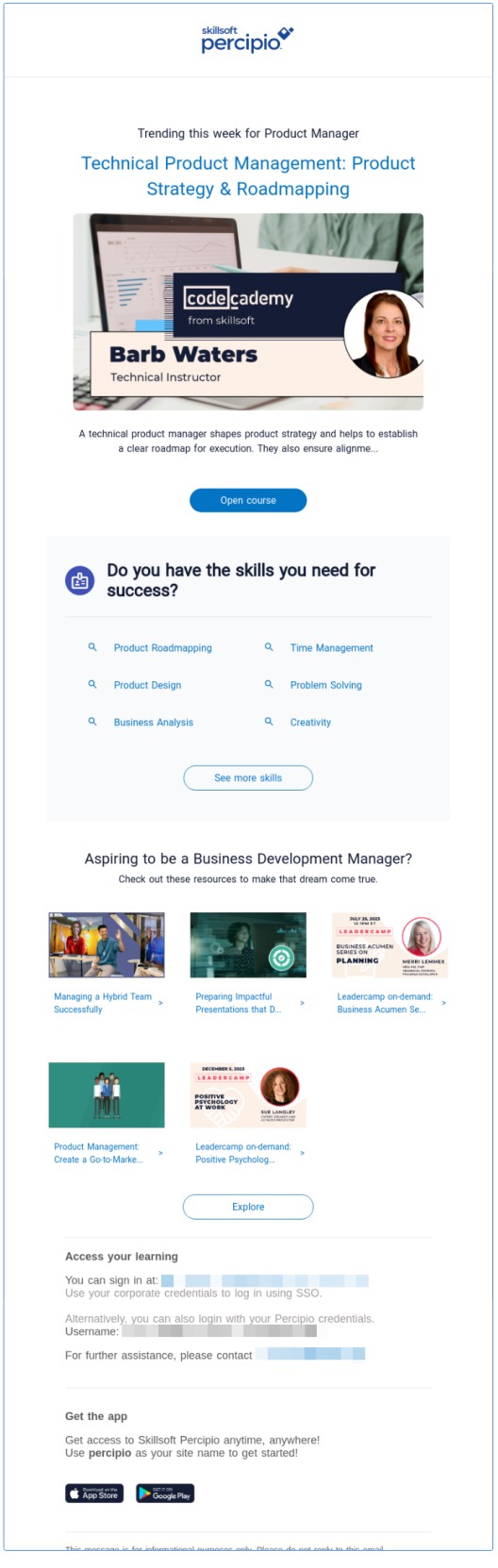
Template 2: Will always include recommendations based on either a user’s role, their recent activity, or their declared interests. In addition to the content recommendations, to keep learners engaged, Template 2 could contain any of the three sections:
- Earn a badge
- CAISY
- Skill Benchmark retake reminder: If the learner completed a skill benchmark and did not achieve at least a 96% proficiency, they also see a reminder to retake it so they can gauge their progress. The reminder to retake a skill benchmark only shows after the specified retake interval has passed.
- Learning goal reminder
- Message center
- What’s new
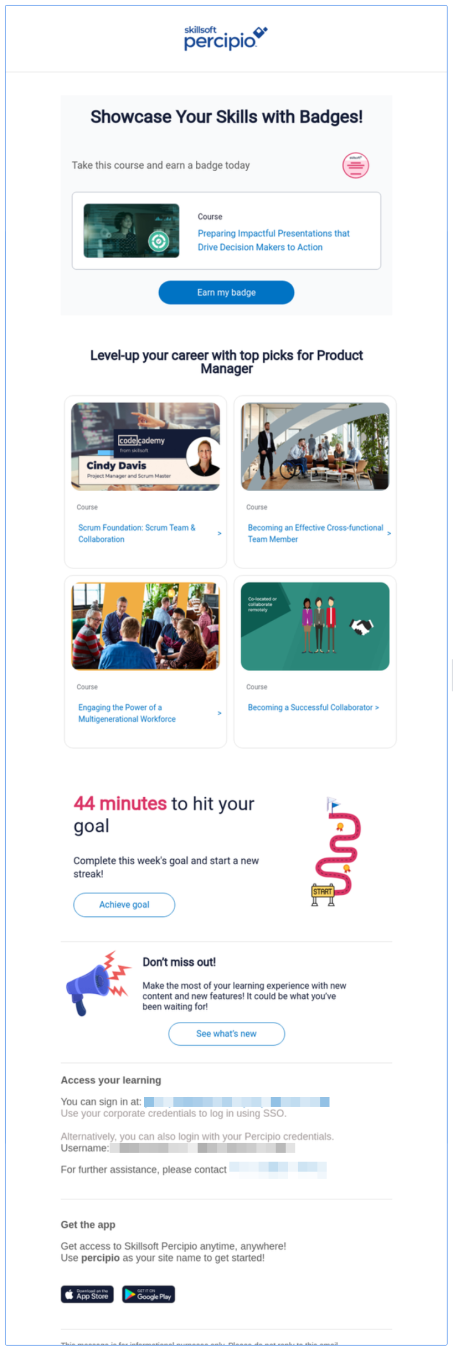
 Template 2 sample
The following example shows the following sections: Earn a badge, Learning goal reminder, and What's new.
Template 3: Will always include recommendations based on either a user’s role, their recent activity, or their declared interests. In addition to the content recommendations, to keep learners engaged, Template 3 could contain any of the two sections:
- Earn a badge
- CAISY
- Skill benchmark retake reminder: If the learner completed a skill benchmark and did not achieve at least a 96% proficiency, they also see a reminder to retake it so they can gauge their progress. The reminder to retake a skill benchmark only shows after the specified retake interval has passed.
- Learning goal reminder
- Message center
- What’s new
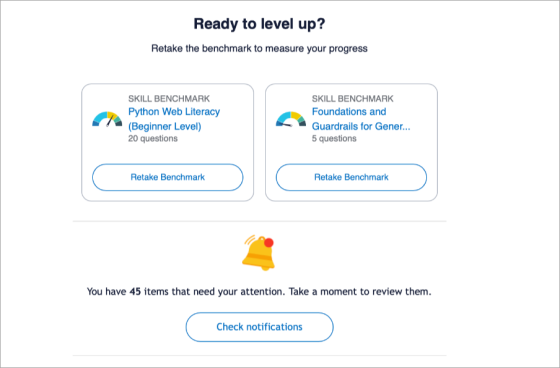
Templates 2 and 3 sample
The following image shows what the Skill Benchmark and Message center sections could look like in Templates 2 and 3.
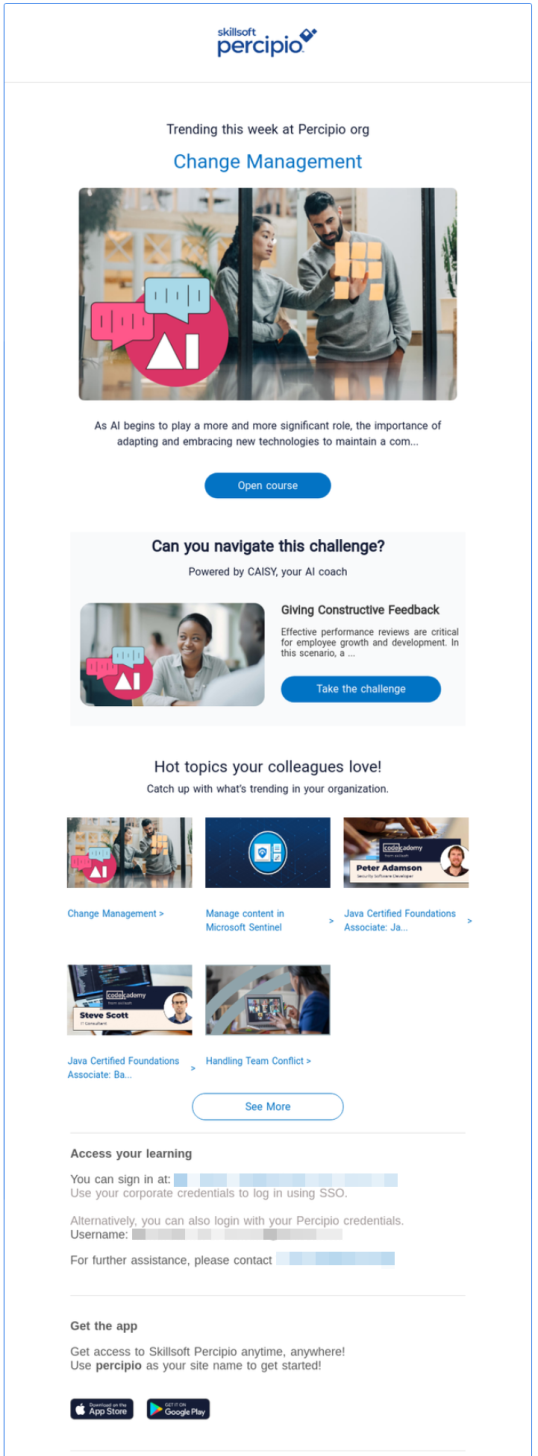
Template 3 sample
The following Template 3 example shows the following sections: CAISY and What's new.
Recommendation Email FAQs
How do Recommendation emails work?
When enabled, a Recommendation email is automatically sent to learners each week if they are active and accessed Skillsoft Percipio Platform content within the last 30 days.
How do I turn on the Recommendation emails?
Skillsoft Percipio Platform sends the Recommendation emails to all active learners who accessed Skillsoft Platform content in the last 30 days.
These emails are on by default.
If you've turned these emails off and want to turn them back on, go to the Email & Notifications > Settings > Email campaign settings page and turn on the Recommendation emails toggle.
How do I turn off the Recommendation emails?
When you disable the Recommendation emails, email delivery ceases immediately, and no further Recommendation emails are sent.
If you've turned these emails on and want to turn them off go to the Email & Notifications > Settings > Email campaign settings page and turn off the Recommendation emails toggle.
My learners only access Skillsoft Percipio Platform Compliance content, not the rest of the platform. Will they receive the Recommendation emails?
No, these emails are only sent to learners with a license to use the Skillsoft Percipio Platform core platform. They do not go out to Compliance-only learners.
How are the emails triggered?
When you enable Recommendation emails:
- Skillsoft Percipio Platform sends a weekly Recommendation email to all active learners who accessed Skillsoft Platform content within the last 30 days.
- If a learner does not opt out using the Unsubscribe link in the email or via the Account Information page, they receive an email each week.
- If a learner does not access content for 30 days, the Recommendation emails stop and, if you have Re-engagement emails enabled, those begin. See How are the (Re-engagement) emails triggered? for more information.
Do managers get different emails than learners?
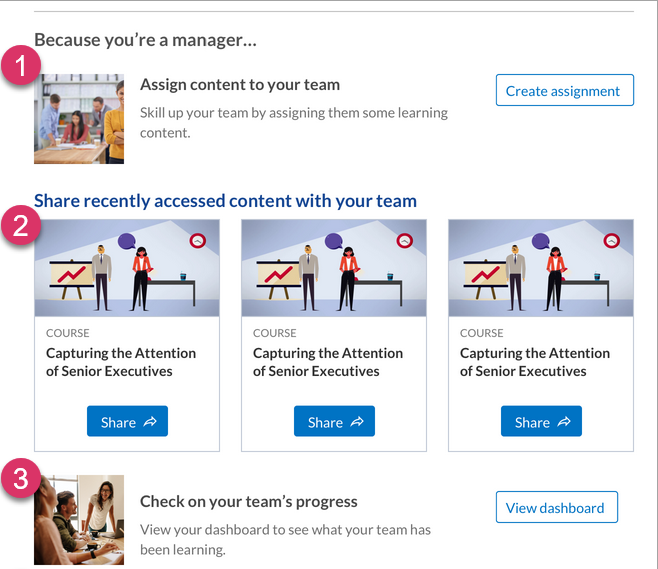
To help users who have the Skillsoft Platform role of manager encourage learning in their team, the email contains a special manager section. For every email, the platform randomly chooses one of the following options to put in this section:
- Assign content to team (this option only displays if managers have the custom privilege to assign content.)
- Share recently accessed content with team
- Check on team’s progress
Can I brand my emails?
Yes, you can brand emails with logos, colors, organization name, and from line. See Brand your email.