Live Courses (Instructor-Led Training) Overview
Live courses are a way for you to list and track your instructor-led training (ILT) in the platform. Adding instructor-led training in the platform provides access to a wide variety of learning opportunities in one place including online courses, videos, books, and labs. When all learning happens in one place, you can easily analyze data trends and adjust your programs to better meet learners' needs.
Get started with Live Courses
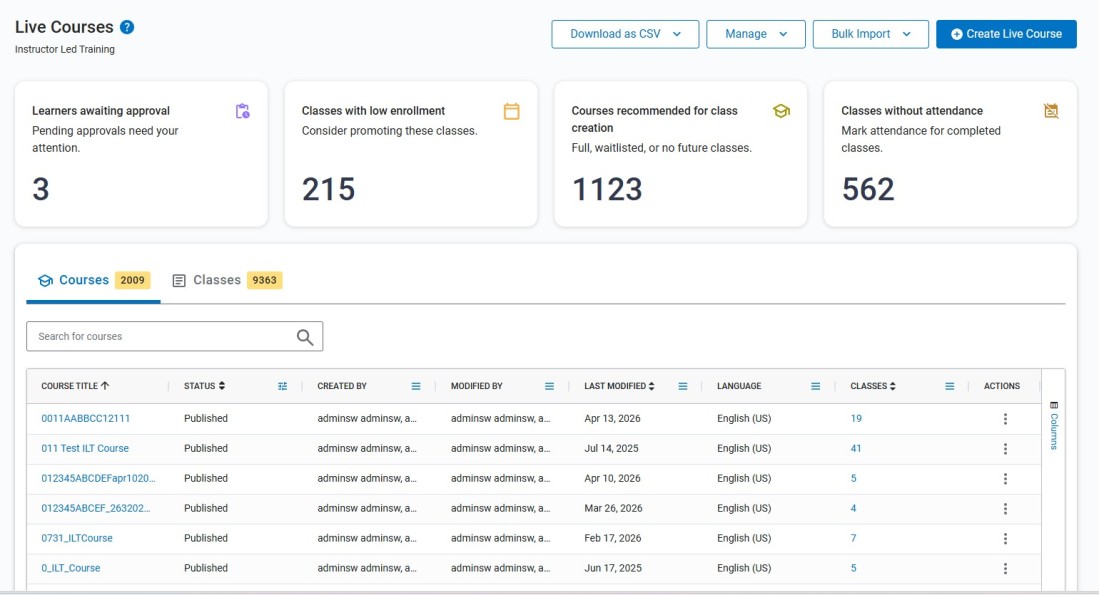
To get started with any task pertaining to live courses, from the left navigation bar, select Content > Live Course (ILT). The Live Course list page displays. The fields on this page are only populated once there is Live Course data to show. If you, or others in your organization have not created any live courses, you do not see data on this page.
Actionable insights
At the top of the Live Course list page, you see four boxes highlighting key areas that require your attention regarding the live courses and classes you manage. If you change the filters, the numbers in these boxes updates to reflect that.
Each box is a hotspot that when clicked, takes you to a page where you can take action.
- Learners awaiting approval: This actionable insight brings awareness to learners waiting for approval on a class registration. When you select this metric, you see a consolidated view showing a list of all learners who are waiting for a response to their approval request. It shows the class they registered for and when. On this page, you can approve or reject the pending approval for each learner from the Actions menu
 .
. - Classes with low enrollment: This metric shows how many of your upcoming classes have not yet met their enrollment threshold. When you select this metric, you see a list of all the classes and how many learners have enrolled compared to the threshold, and the start date of the class. Use this information to make decisions on rescheduling classes, promoting courses, or canceling a class. From the Actions menu for each class, you can edit the details to reschedule or cancel the class. Consider using banner promotions or ad hoc email campaigns to promote the class if there is still time to recruit learners.
- Courses recommended for class creation: This insight highlights live courses that currently have no available classes for learners. A course may be included on this list if it has no future classes scheduled, all classes are full, or available classes only allow waitlisted registrations. When you select this metric, you see a list of all courses and the reason they are on the list. Use this information to make decisions about the future of the course. From the Actions menu for each course, you can add a class, view all classes, or retire the course.
- Classes without attendance: This insight highlights the number of classes that have ended, but have not yet been verified, which means that all learners have not been marked complete or incomplete. Stay on top of attendance with this actionable insight. When you select this metric, you see a list of all classes that have ended, the associated instructor, how many learners have not been verified, and the end date. To complete attendance for a class on this list, select the Actions menu , then Manage roster.
Available actions
From the Live Courses (ILT) page, you can perform the following actions:
- From the Download as CSV drop down, you can download the Live Course list or download the imported Live Course list to a CSV file.
- From the Manage drop down , you can navigate to the Manage class attributes or Manage locations & instructors pages.
- You can create a new live course.
- To see all classes associated with a specific course, select the number in the Classes column of the Courses tab.
- Use the Filter icons
 at the top of each column to sort the data in the table by that attribute.
 - Use the search bar at the top of the Courses or Classes tab to find a specific item in the list. Use the options under the Actions menu to manage your course or class.
How it works
As an administrator, you set up instructor-led training (ILT) by specifying when and where the training takes place, any instructions for attendance and completion, who teaches it, and how learners enroll. One instructor-led training class could be one day or span multiple days.
Instructors are Skillsoft Platform users who teach a live course. They can manage the roster for classes they are teaching, including registering learners, moving learners off the waitlists and marking completions.
Learners register for the training and the platform sends calendar invitations with attendance details. After learners attend the training, either in a designated classroom or using a virtual meeting tool, such as Webex or Zoom, they receive a completion that also appears in their learning activity.
You can follow a best practice workflow for managing your live courses.
Understand the Basics
If you have not used instructor-led training in the platform before, review the following.
If you are migrating from Skillport:
Common Tasks
The following are common tasks that administrators and instructors perform:
- Manage the location and classroom list
- Managing Class Attributes
- Manage the instructor list
- Create a live course
- Add a new class to a live course
- Manage class registrations, waitlists, and completions
- Make changes to or delete live courses and classes
Frequently asked questions
 I am migrating from Skillport, what are the differences?
Differences between Skillport ILT and Skillsoft Percipio Platform live courses can be found here.
How do I distinguish between Skillsoft online courses and instructor-led training in the platform?
When you add instructor-led training, learners see it as a live course under the Type filter. Learners see Skillsoft online courses as a course under the Type filter.
When viewing reports and dashboards, you can filter on the Asset type: Scheduled content - live course.
How do learners find instructor-led training in the platform?
Learners can search and browse for instructor-led training in the library as they can with all other types of learning. They can filter on live course as a Type to easily locate instructor-led training. They will see instructor-led training under the Attend tab when viewing channels.
If a class date is less than 30 days out, learners can see a calendar banner on the home page. See live courses for learners for additional details on the learner interface and actions they can take.
What user roles can create instructor-led training?
By default, users with a role of site admin, content curator, or content coordinator can create and edit live courses and classes. For learning admins and managers you can add the privilege of creating and editing live courses and classes.
Can I assign instructor-led training to my learners?
Yes. After you create instructor-led training and add it to a published channel in the library, you can select it when adding content to a new assignment. Learners have to register for a class and attend, then instructors or administrators mark the class complete for credit.
Can I bulk add class attributes, locations, classrooms or instructors?
You cannot bulk add class attributes, locations or classrooms at this time.
You can bulk add instructors by running a user bulk import and setting the isinstructor column to Yes.
Can I bulk add course and class details?
Yes, you can bulk add course and class details. For more details, see Bulk import courses and classes.
Who can add learners to a roster?
Any user with instructor privileges who has been assigned to the class as an instructor can manage the roster. Site admins can also manage any roster.
Site admins, content curators, content coordinators, and scoped admins with instructor privileges can bulk add learners via CSV to the roster. Users with the learner role who have instructor privileges can only add other learners individually.