CAISY™ for Presentations
CAISY for Presentations is a great way for learners to practice giving presentations. You can create a presentation simulation to:
- Coach your sales team on pitching your product
- Prepare an executive for a big meeting
- Train your trainers so all are teaching the same material in the same way
- Upskill employees on delivering presentations and practicing their public speaking
Learners can practice these presentations or parts of the presentations repeatedly in a safe realistic environment, and get instant feedback on their performance based on a custom rubric. When you create a presentation, you upload a slide deck and determine the criteria that learners should aim to meet when they deliver the presentation to an attendee group comprised of AI personas. Your AI personas can ask questions of the learner which tests the learner’s knowledge. At the end of the practice, learners receive instant feedback on how well they performed based on the custom rubric.
CAISY for Presentation content you publish to the Skillsoft Platform is not currently accessible. This is called out in the Percipio LP ACR.
Find a presentation
- From the Home page or Apps page, select CAISY for Presentations. You now see the CAISY for Presentations list page.
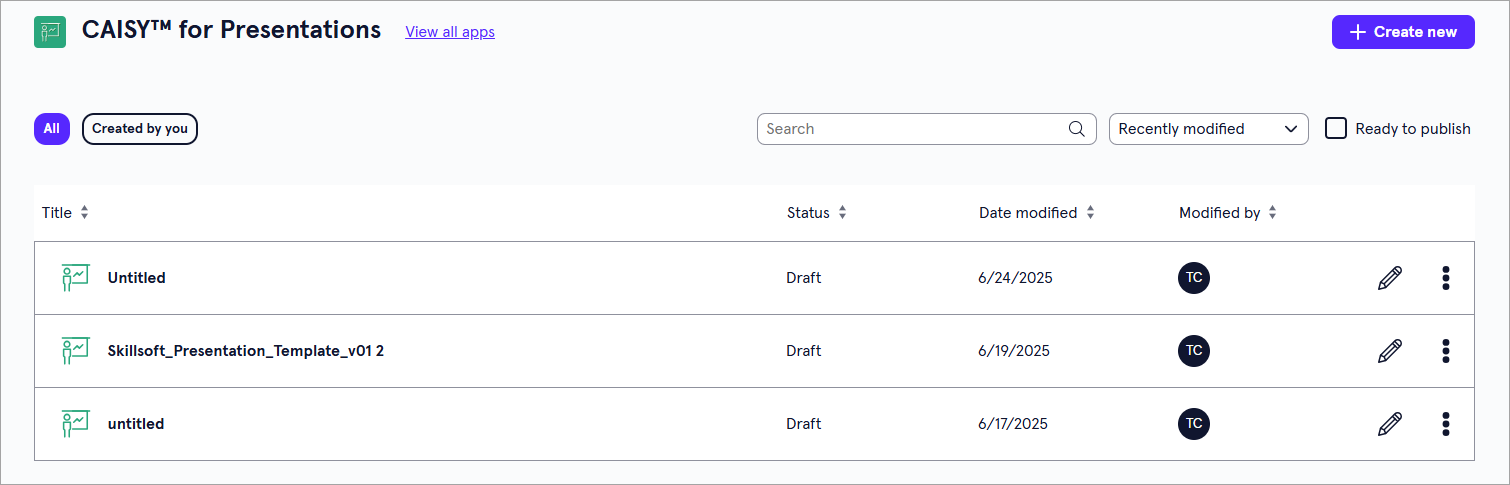
- You can do one of the following to find a presentation:
- Search for a specific presentation. If you know the name of the presentation you are looking for, you can use the search bar to locate it.
- Change the order of how presentations display in the list:
- Sort the column headings by Status, Date modified, or Modified by.
- Toggle between viewing all presentations, or just the ones created by you.
CAISY for Presentations list page overview
For each presentation in the list, you see the following information:
- Title: This is the name given to the CAISY for Presentations.
- Status: The statuses you may see are:
- Draft: The presentation has been created, but has not yet been published.
- Published: The presentation has been published to the platform.
- Processing: The presentation file has been uploaded but is still being processed by the system.
- Date modified: The date of the most recent time the presentation has been modified.
- Modified by: The person who most recently modified the presentation.
Depending on your permissions and the status of the content, you may see the following actions to the right or under the Show options menu  for each:
- Edit: Opens the content so you can make any changes to the details. For more detailed information on editing content, see:
- View details: Allows you to view the Content details and Design brief. When you are viewing the details of the content, you have the ability to share and comment on the item.
- Preview: Opens a preview of the content item as a learner would see it.
- Duplicate: Creates a copy of the content in the same project so you can update it without impacting the original.
- Archive: If the content has already been published, you can archive it so that you no longer see it in your Projects, Apps, or Content Items pages. It is moved to a separate Archived Items page. You can access all archived content from your profile drop down. The archived content is still available to learners in the platform unless you retire it from your Skillsoft Platform site.
- Move: Moves the content to a different project or workspace.
- Delete: If a content item is still in a draft status, you can delete it from LX Design Studio. When you delete content it is moved to a Deleted Items page. You can access all deleted items for up to 30 days from your profile drop down.
Share the CAISY for Presentation
After you create the content, you can share it with others on your team to get their feedback. These team members must have a Skillsoft platform user account, but do not have to have access to LX Design Studio. When you share, the members get an email notification with a link to the content item. If those users do not have access to LX Design Studio, when they click the link in the email, it opens in a preview mode in the Skillsoft platform. All users can make and respond to comments.
To share your content with others on your team:
-
From the main content page, locate the item you want in the list.
-
From the Show options menu, select View details.
-
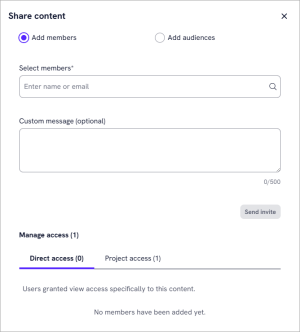
On the Details page, select the Share button. The Share content dialog box displays.
-
Select either Add members or Add audiences. Select Add members when you want to add one or more individual users to receive the email share request. Select Add audiences when you want to add one or more audiences whose members should receive the email share request. If you do not have access to more than one audience, you do not see the Add audiences option.
-
Start typing the name of the users or audiences who should receive the email in the box. Select the name from the list. Only users and audiences defined in the Skillsoft Percipio platform show in the list. If the user you select does not have the LX Design Studio privilege or is a member of the workspace, they will not be able to access the link from the email and comment.
-
Specify a personal note in the Custom message box.
-
Select whether the users or audiences should have access to just the content or to the project in which the content resides.
-
Select Send invite. The users get an email with a link to the content so they can review and comment.
Make and manage comments
As the content owner or reviewer of a content item, you have the ability to make comments, review comments, resolve comments, and delete comments.
You get notified by email when:
- You are @mentioned in a comment
- You receive a reply to your comment (child comment), even if you are not tagged
- A non‑owner adds a comment, and you are the owner
- Content is shared with you for review
- A content access request is submitted
- An access request is approved or declined
When there is a notification, you also see a red dot indicator in the top navigation in the comment or bell icon depending on where you are in LX Design Studio.
To access comments:
- You have multiple ways to access comments:
- From the content item: From the main content page, locate the item you want in the list. From the Show options menu, select View details. On the Details page, select the Comment button to open the comment pane.
- From an email: Select the link from the shared email. The content item opens with the comment pane expanded.
- From the top navigation bell icon: You can also access comments from the bell icon in the top navigation. Select the bell icon to see all the comments and select one to open the comment pane.
- With the Comment panel open, you see all comments made. You can:
- Start a new comment thread by typing your comment in the bottom box.
- Respond to an existing comment by selecting the reply to comment button or selecting from the emoji options.
- Resolve the comment to let others know you addressed it.
- Delete the comment to remove it all together because it's not relevant.
- Close the Comment panel when you are done commenting and reviewing other comments.
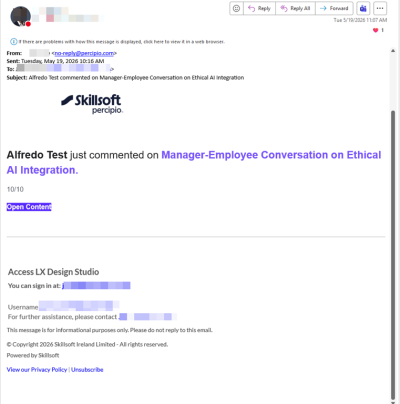
Sample email
When you share or make a comment, recipients get an email notification in addition to in app notifications in the top navigation. A sample email notification follows.