Copy an Audience
You can copy an audience so you don't have to start from scratch when creating a new audience. You cannot copy the All Users audience or audiences created through team automation.
To copy an audience
- Select Users > Audience Management from the left navigation bar.
- Locate the audience you wish to edit .
- In the ACTIONS column,select Copy. The audience specifications are copied and the Edit Audience page displays.
- Modify the audience name.
- Optionally, select the audience administrators and audience owners.
- Audience administrators can create and manage child audiences which are subsets of the main audience that they administer. They must be a learning admin or manager with the Manage child audiences as an administrator permission enabled. They cannot change the characteristics of the audience they administer, only the child audiences they create. An audience administrator has all the privileges of an audience owner.
- Audience owners must have a user role of Learning Admin or Manager. Not all audiences need owners. Audience owners may receive an email notification when they are added or removed.
- Modify your audience definition. To assist you in your modifications, you see the current user attributes and users included and excluded from the audience. You also see the total number of users in the audience. You can add or remove either user attributes or individual users. The Skillsoft Platform recalculates the total number of users in your audience based on your new selections.
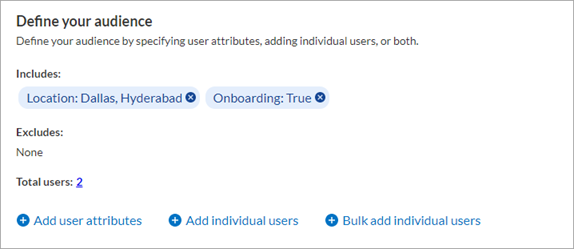
 To add user attributes
Users need to meet all attribute conditions to be included in the audience. User attributes do not apply to individual users added to the audience. To add user attributes:
- Select Add user attributes.
- Create your first condition by selecting the user attributes and values for the audience. The attributes are grouped by standard and custom. All those listed can be used to group your users into audiences. If you choose more than one value, the user must meet either value to be added to the audience.
You have the option to select either Equals or Does not equal when choosing to include or exclude users. Sometimes it may be easier to exclude one or two values, than to include 35.
For a string-type attributes and list type attributes, you can paste values that are line delimited into the Attribute value box that you copied from elsewhere. For example, you can copy a column of data from an Excel spreadsheet or copy a list of items from a document file provided that there is one item per line.
For date-type attributes you can choose to create an audience with any of the following operators:
- Equals: Includes all users who have a date matching the date you specify.
- Does not equal: Includes all users who have a date not matching the date you specify.
- Before: Includes all users who have a date prior to the date you specify.
- On or after: Includes all users who have a date that matches or is after the date you specify.
- Between: Includes all users who have a date that is between the two dates you specify, not including the dates you specify.
- Days after: Includes all users who have a date that is after the date you specify. When you use the number of day after a date value, you can have assignments automatically go out to users 30 days after they join your company, for example.
- Days before: Includes all users who have a date that is before the date you specify.
- Optionally, select And if you need to further refine your condition to add users to the audience. If you specify more than one attribute using And, the user must satisfy at least one value from each line to be included in the audience.
- Optionally, select Or if you want to capture additional users not defined in the first condition. If you specify more attributes using Or, the user must satisfy the requirements of at least one condition to be included in the audience.
- When you are done adding all attributes, select Done.
The following rules apply when composing an audience based on user attributes:
- If you have only one rule where the condition is Equals, at least one of the user values has to match one of the rule values for the user to be included in the audience. Said another way, if the user does not have any values that match the Equals value, they are not included in the audience.
- If you have only one rule where the condition is Does not equal, the user must have any value (including unspecified) other than the values defined in the rule to be included in the audience. Said another way, if the user has at least one value that matches the Does not equal value, they are not included in the audience.
- If you have more than one rule defined, the user must meet the condition of both individual rules to be included in the audience.
- To add individual users.
- Select Add individual users.
- Enter a user name, user email, first name, or last name in the search field. All active users containing the search term(s) display. You cannot add inactive users to new audiences.
- Locate the user in the list.
- Select
 .
. - Repeat for additional users.
- Select Add to audience.
- To remove attributes or users
- Select
 next to the users and/or user attribute rules you wish to remove from the audience definition. If there are more users than what displays:
- Select Add individual users.
- Select the Selected users tab.
- Select
 the checkmark to unselect all users that should no longer be in the audience. The user is immediately removed from the list.
 - Select Add to audience to save your changes.
- Select
- Select Create Audience.