Assignment Summary Report
The Assignment Summary report provides summary information on assignments that are in draft, in progress, or archived. Canceled one-time assignments do not display in this report.
Report Insights
The Assignment summary report gives you the following insights:
- Information about of all the assignments on your Skillsoft platform including who created them, when they were created, their status, and type.
- How many users have been assigned to each and what percent have completed them.
Use this information to keep your assignments current and remind learners to complete their assignments.
Get Started
This report is a Skillsoft template report These reports contain all data and activity going back to your initial contract start date with Skillsoft. Because the data in these reports is stored in our data warehouse, you cannot get up-to-the-minute information. Use these reports for trending and year over year analysis. These are flexible reports that allow you to create and save a customized view for later, as well as download and share it. but does contain near real-time data.
To access the report and customize it for your needs:
- From the left navigation bar select Analytics, then select the All Reports tab.
- From the Assignments section, select Assignment Summary.
-
Set global filters
To see just the data you need, specify global filters for this report. You find all filters under the Filters drop down.
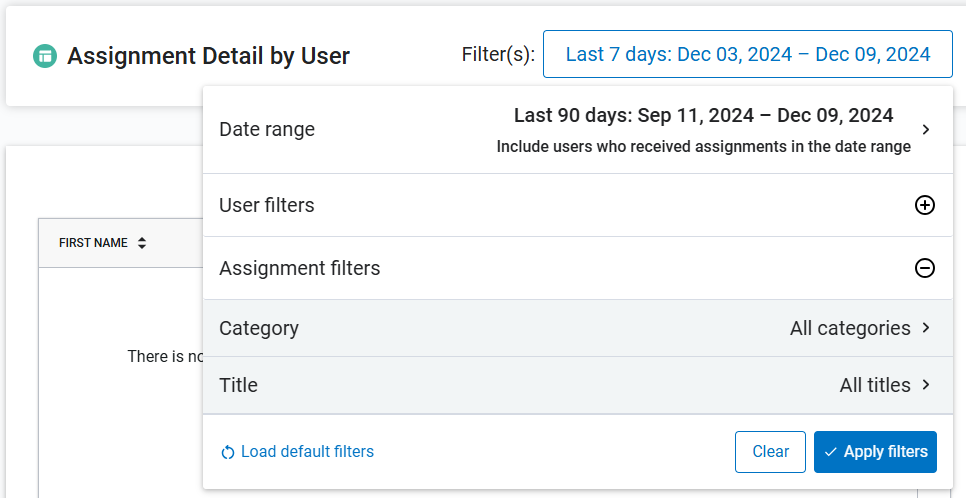
You can filter data on this report by date range, users or audiences, assignment titles and categories.
What you select for filters here impacts what you see on the rest of the page.
- After you set filters, select Apply filters to update the data shown on the page. If you want to reset filters, you can select Reset to default.
-
If you want, you can create and save your data view
After applying filters, the table loads with a default set of columns presented in a default order. To use your data in a way that makes the most sense to you, you can organize the columns in the table by sorting, filtering, changing the order, and choosing which ones to display. You can also pin columns and group by them.
To create and save your own view of the Assignment Summary report:
-
Organize the columns to present the data in the way that makes the most sense
The following options are available to organize the columns in the report:
Column Action How to Use Sort From within the column heading, select the arrow button  to toggle between ascending and descending.
Filter To filter a column for select data, from within the column heading:
- Select the more options button
 , then select the filter button
  .
. - Choose how you want to filter. Options will vary depending on the data contained in that column. You may see: equal, greater than, less than, not equal, contains, does not contain, starts with, ends with, or in range.
- Enter a value in the space provided. This field is case sensitive. For example if you select contains and enter akara,the platform does not find a match with and item containing Akara.
- If available, you can add more filters using the inclusion of AND or OR. If you select AND, data must meet both conditions to display. If you select OR, data must meet at least one condition to display.
- The filter is applied immediately. Select anywhere outside the filter to close the filter box.
If a column is filtered, the filter icon shows in the column header.
Pin (Anchor)
To pin or anchor a column so that it does not scroll left or right off the page:
- From within the column heading, select the more options button .
- Make sure the more options tab is highlighted and select Pin.
- Choose Pin left or Pin right. If you select Pin left, the column is moved to the far left. If you select Pin right, the column is moved to the far right.
- To remove the pin and reposition the column back to its original location, select No pin.
Autosize If you want to ensure you can read the longest value within a column, you can autosize it. You can do one column at a time or all of them at once.
- From within the column heading, select the more options button .
- Make sure the more options tab is highlighted and select Autosize this column or Autosize all columns.
Group Sometimes it is helpful to see your data grouped in a particular way, for example, by user role or by status. You can create groups within groups for further segmentation.
There are two ways to group your data:
- From within the column heading:
- Select the more options button .
- Make sure the more options tab is highlighted and select Group by [this column]
- To remove the grouping: select Ungroup by this column.
- Select the more options button
- From the right column expansion list:
- Locate the column in the list you want to group by.
- Select and hold the group icon
 .
. - Drag the column to Row Groups at the bottom.
- Select the X next to the Row Group to remove it.
Hide/Show To only show the data relevant to your needs, you can select which columns display.
From the right Column expansion list
 :
: - Locate the column in the list you want to show or hide.
- To show a column, make sure you check the box. To hide a column, uncheck the box.
Reorder To change the display order of the columns, you can click and drag a column heading left or right to reposition it within the table. - Select the more options button
- To save this exact view of the report for future use, under Actions, select Save as new template.
- Enter a Template name for this report. The saved report displays under the Journeys reports section on the All Reports tab.
-
- You can select to Download report at this point so you can share with others in your organization.
- You can choose to create a report schedule. Under Actions, select Create report schedule. When you schedule a report, the report runs automatically and you get notified by email when it is available to view.
- You have the option to do any of the following with a saved custom report template:
- View downloaded reports: If you chose to download the report, it shows on the Report downloads tab.
- Share your report: If you downloaded your report, you can share it with others in your organization
- Create/edit a report schedule: If you want the report to run regularly, set up a schedule.
- Share/unshare your template: Let others in your organization use your report as their own.
- Edit your template details: Change the name of your template if need be.
- Delete template: Remove the template from the list and future use.
- Edit your custom report: Make changes and save them for future.
- Delete your custom report: If you no longer need your custom report, you can delete it.
Filters
Filters you can set for this report include:
- Date Range: Filters the data by a specified range of dates that you select from the drop-down list. When you select the date range, you must also select the type of report you want to see. You can choose up to three of the following options:
- Launched: Select this option to only show assignments that launched within the specified date range. As long as the assignment launched within the date range, you will also see learners who completed it and who are overdue.
- Due: Select this option to only show assignments that have a due date within the date range selected. With this option selected, you can choose dates into the future.
- Completed: Select this option to only show assignments that were completed in the date range selected.
-
User filters: Under the Users filter option, you may see options for:
-
User scope: You only see this option if you are a domain admin and have shared assignments to child sites. When you expand this option, you can choose to get data in the report from just the parent site; select Parent site only. Or, you can choose to get data in the report from the parent and selected child sites; select Include child sites. If you need data from just the child site, run the report from the child site.
-
Audiences: You see this option if you have access to audiences or are an owner of an audience. You can only select from audiences you own or have access to. Use audiences to select many users that have been grouped together because of a similar attribute or reason.
-
Users: Use this option to select one or more users.
To choose users or audiences: Select the plus to expand the option you want to specify. Search for the audiences or users you want to see, then select them from the list. You can perform multiple searches and make multiple selections and see them on the Selected tab. You can select up to 20 criteria. When you are done selecting all audiences or users, select Apply filters to return to the main filter list or expand the next filter group.
-
- Show Inactive: Select if you want to include users whose account status has been set to inactive because they left the company or went on leave.
-
Assignment filters: There are three filters under this section. Select the plus sign to the right of the option you want to specify. When you are done selecting all items, select Apply filters to return to the main filter list or expand the next filter group.
- Category: Select from the drop down list. Admins specify a category when creating the assignment.
- Titles: For assignment title, search for the item(s) you want to see, then select them from the list. You can perform multiple searches and make multiple selections and see them on the Selected tab.
- Status: Select from the drop down list. By default, active and archived assignment statuses are selected. Canceled status is not selected.
- User assignment status: Select which users to include in the report based on the status of their progress in the assignment. You can select started, not started, completed, or canceled.
Columns
The following columns are available in the Assignment Summary report:
- ASSIGNMENT TITLE: The title of the assignment
- ASSIGNMENT UUID: A unique identifier for a specific assignment.
- ASSIGNED BY: The assigner's name and User ID.
- ASSIGNMENT TYPE: The type of assignment, either One time or Recurring.
- LEARNERS ASSIGNED: The number of users who have the assignment.
- % COMPLETED: The percentage of assigned users who have completed the assignment.
- LEARNERS OVERDUE: The number of learners that are overdue for this assignment.
- ASSIGNMENT STATUS: The status of the assignment, either Active or Archived. Active means the assignment is in progress.
- ASSIGNMENT CREATED DATE: The date when the assignment was created.
- FINAL LOOKBACK DATE: The new date specified for the initial occurrence that will be used to determine whether the user's completion is to be honored.
- LOOKBACK DATE CHANGE TIMESTAMP: The date the admin made the change.
- REASON FOR LOOKBACK DATE CHANGE: The reason entered in the confirmation modal when the admin changed the date.