Manager Dashboard
The Manager dashboard is your central hub for monitoring your team's learning activity. When all widgets are turned on, you have a comprehensive view of assignments, progress, and engagement.
Access the Manager Dashboard
Before you can access the Manager dashboard, you must have:
- A Skillsoft Platform user role with admin access.
- Been identified as a Direct Manager for a user using the system attribute Direct Manager.
- If you have a scoped role such as manager or learning admin, you must also be assigned as an audience owner. Non-scoped roles such as site admins, content coordinators, and content curators do not need to be an audience owner to see the Manager dashboard.
With these conditions met, you can access your Manager dashboard from the web or your Skillsoft mobile app. Tap the dashboard widget in the mobile app to see the Manager dashboard.
If you have the role of manager:
- If you have a role of manager, ensure your left navigation is in the admin menu view. To get there, select Switch to my Manager View. If you see Switch to my Learner View, that means you are on the manager view.
- From left navigation bar, select My Dashboard. The dashboard displays.
If you have any other admin role:
-
Ensure your left navigation is in the admin view. To get there, select Switch to admin view. If you see Switch to my Learner View, that means you are on the admin view.
-
From the left navigation, select Manager Dashboard.
-
Select the tab to change views. Available tabs are:
- My Dashboard: Provides you with insights into your team’s learning activity. You can see which of your employees are overdue on assignments, which assignments are at risk of not being completed on time, how many of your learners are engaged in learning activities, who has signed up for live learning, and how you rank compared with other managers in your company regarding your level of activity as a multiplier of learning.
- Assignments: Provides you details about all assignments made to learners in audiences that you own.
- My Team: Provides a hierarchical view of all members of your team, along with learning statistics for each member.
-
If a widget from any tab has a download icon, you can download the data from that widget in CSV format.
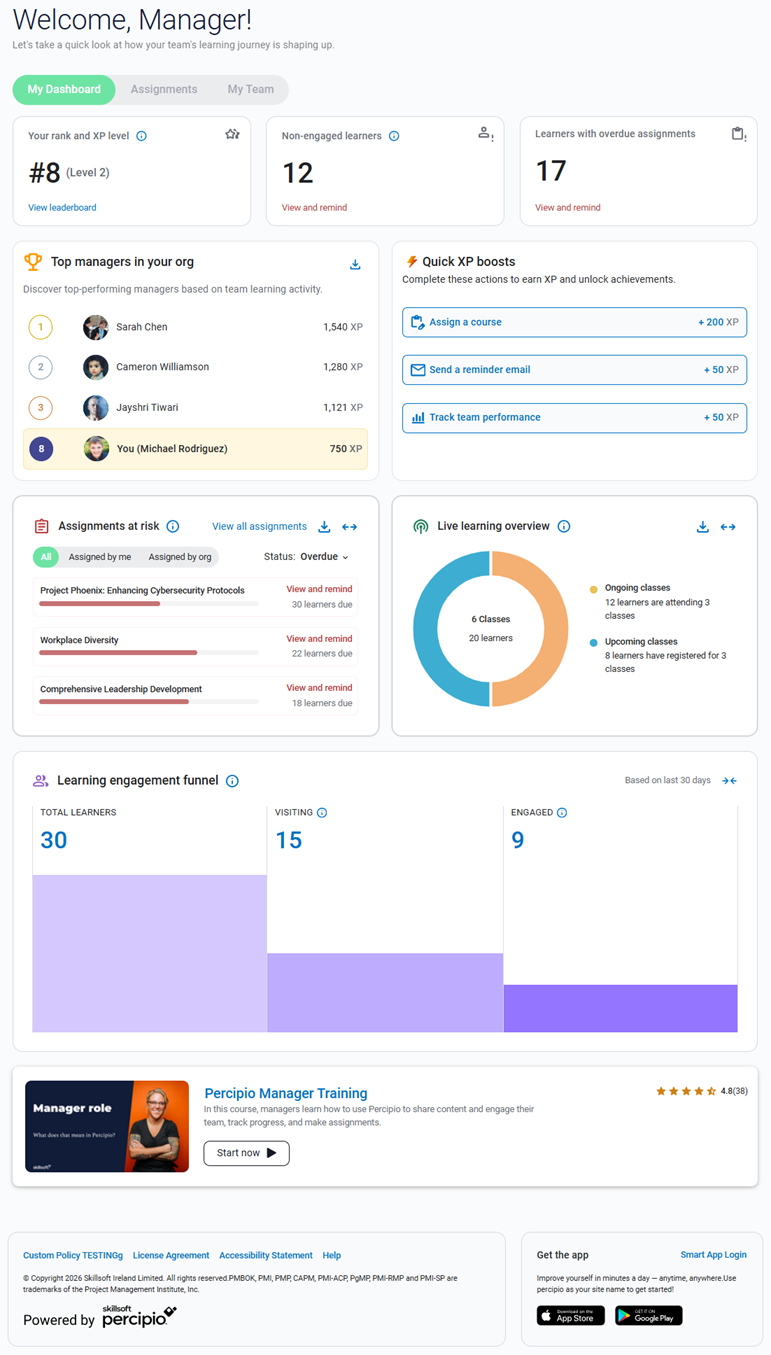
My Dashboard
Use the Manager dashboard to get insights into which of your learners are learning and which are not. You can nudge them with email reminders. You can also see how you rank among other managers in your company regarding being actively involved.
Depending on how your administrator configured the Manager dashboard, you may not see all available widgets on your dashboard. In addition, XP widgets are only available to managers who have a platform role of manager. If the manager has a platform role of learning admin or site admin, they do not see XP widgets because they cannot earn XP for manager tasks. Only users with a manager role can earn manager XP.
The following widgets are available:
- Your rank and XP level: At the top of the dashboard, you may see a widget showing your rank and level based on the number of experience points you earned performing managerial activities only. You can find your rank and XP earned through learner activities from the XP Tracker.
- Non-engaged learners: At the top of the dashboard, you see a widget showing the number of learners who have not accessed any content within the last 30 days. When you click the View and remind link, you can see a list of learners, their role, and when they last logged in. If they have never logged in, you see a note indicating that. From that list you can select learners and send them an email reminder.
- Learners with overdue assignments: At the top of the dashboard, you see a widget showing the number of learners who are overdue on at least one assignment. When you click the View and remind link, you can see a list of learners and which assignments are overdue for each. From the list you can select the learners and send them an email reminder.
- Top managers in your org: This widget shows the three managers who earned the highest number of XP by completing manager activities. If you are not in the top three, it also shows your name and rank. From this widget you can select the View leaderboard link to open a dialog box that shows the full list of all managers on the leaderboard and their rank.
- Quick XP boosts: This widget shows actions you can take as a manager to earn manager XP. You can select an action from the list.
- Assignments at risk: This widget shows assignments where your learners have missed a deadline or are at risk of missing a deadline. This helps you ensure they are staying in compliance. You can filter assignments by overdue or due soon and switch between all assignments made to learners in your audiences, assignments made just by you, or assignments made by someone else in the organization. You can select the View and remind link to send reminders.
- Live learning overview: This setting displays a widget that shows ongoing and upcoming instructor-led training sessions and how many from your team have enrolled.
- Learning engagement funnel: This widget shows data for the last 30 days. It shows how many learners you are responsible for, of those learners how many accessed or visited at least one page within the learning platform, and it shows how many accessed content.
- Percipio Manager Training: This widget shows a link to the Percipio Manager training course. The course provides you an overview of how to engage your learners, make assignments, and run reports.
Assignments
On this tab, you see summary information about assignments that learners on your team have. Use the information on this tab to ensure your team stays in compliance.
The information on this tab includes the following:
- Total assignments: This shows the total number of all assignments that all learners on your team have. If an assignment is only made to one learner in an audience you own, it is counted here. If an assignment is made to many learners, it is counted once for every learner assigned. For example, if your team as 5 members who each have 4 assignments, the total assignments shown is 20 (5 learners x 4 assignments).
- Overdue: This is the percent of learners who did not complete active assignments by the due date based on the total number of assigned learners across all assignments. For example, if one of the 5 learners is overdue and has not started on any of their four assignments, but all other learners have started or completed, then the overdue percentage is 20% (1 learner x 4 overdue assignments divided by 20 assignments).
- In Progress: This is the percent of learners who are in progress in active assignments based on the total number of assigned learners across all assignments. For example, if one learner has started on 2 of their assignments, but has not yet completed them, and all other learners are in a different state, then the In Progress percentage is 10% (1 learner x 2 assignments divided by 20 total assignments).
- Completion rate: This is the percent of learners who achieved a status of completion based on the total number of assigned learners across all assignments. For example, if three of the five learners have completed all four assignments, but the other two learners have not, then the completion percentage is 60% (3 learners x 4 assignments divided by 20 total assignments).
- Assignment source: This widget shows the percent of assignments that you made compared to the assignments made by someone else in your organization to learners in audiences that you own.
- Assignment progress: This is a table that shows the top 10 assignments. For each assignment it shows:
- TITLE: The title of the assignment.
- BUSINESS OBJECTIVE: The business objective that is linked to the item. For a complete listing of available business objectives, see Business objectives.
- ASSIGNED BY: The first and last name of the person that assigned the item.
- DURATION: The amount of time the user has to complete the assignment after it has been assigned.
- NOT STARTED: The number of learners who have not started the assignment.
- IN PROGRESS: The number of learners who launched at least one piece of content in the assignment.
- COMPLETED: The number of learners who completed all content in the program or assignment.
- OVERDUE: The number of learners who did not complete all content in the assignment by the due date specified.
My Team
This tab shows a hierarchical view of all learners on your team.
It is a best practice to check this view to ensure all people you have reporting to you are listed so you can track their progress. If you see learners on this list who are no longer part of your team or do not see learners that should be there, contact your system administrator.
For each learner on your team, you can select their name and see up to two tabs: Personal report and Team report.
Both reports show users with overdue assignments and provide you the option to send a reminder. Each user receives an email notification listing all assignments that they have that are overdue.
Personal report
The information you see on the Personal report depends on whether the user is a manager or a learner, what activity they have completed, and what options you have enabled on the site. Information on the Personal report is directly associated with the selected individual. Available options that you may see include:
- XP earned
- Total learning hours
- Badges
- Completions
- Last active
- Overdue assignments
- Weekly goal progress
- Best streak
- Learning days
Team report
The Team report shows information about the team as a whole. Depending on the options you have turned on and who has done what you may see any of the following information on the Team report:
- Total active users
- Total learning hours
- Completion rate
- List of direct reports
For each user in the list of Direct reports, you can view that user's full profile to see their details from the Personal report.