Admin Dashboard
If you are an administrator for LX Design Studio, you have access to the Admin Dashboard.
The dashboard provides high-level statistics about what is happening in your LX Design Studio space. You see total users, workspaces, projects, and content items that your team is working on. You can also manage all workspaces from the Workspaces tab and get a detailed log of all activity that occurred in LX Design Studio from the Activity tab.
Access the dashboard
To access the dashboard, you must be an administrator of LX Design Studio.
- Ensure you are in LX Design Studio. From the platform experience, select the 9-dot menu from the upper left corner, then select LX Design Studio. The Home page launches in a new tab.
- From your profile icon, select Admin Dashboard. The dashboard page displays.
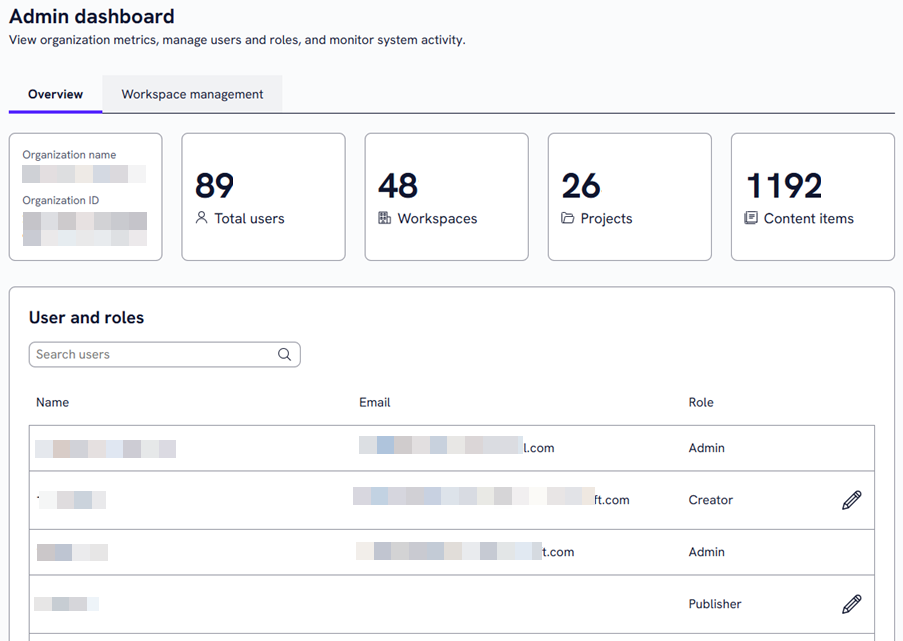
Dashboard insights
The dashboard contains three tabs:
Overview tab
The Overview tabs shows you the following:
- Total users: The total number of users who have access to LX Design Studio.
- Workspaces: The total number of workspaces set up on your instance of LX Design Studio.
- Projects: The total number of projects set up on your instance of LX Design Studio across all workspaces.
- Content items: The total number of content items created across all workspaces and projects on your instance of LX Design Studio. This total does not include archived items.
From this tab, you can:
- Grant a user access to LX Design Studio who already has a Skillsoft platform user account.
- Change a users permission: You can change a user's role from Publisher to Creator or from Creator to Publisher to grant the necessary access without having to exit LX Design Studio to the Skillsoft Percipio platform User Management area.
- Remove a user's access to LX Design Studio if you no longer want them to create, review, or edit content.
Workspace Management tab
The Workspace Management tab allows you to Manage workspaces.
When you are on the workspace tab, you can pin a workspace, rename a workspace, manage members, change the publish settings, and delete them.
Activity tab
The Activity tab shows you a log of all activity that occurred across LX Design Studio within the last 90 days. For example, you can see who created, edited, published, or archived what content and when they did it, who added resources as knowledge sources or to the Media Library, who added a project, and who shared or moved an item. It may take up to 24 hours to see an activity.
To help you trace down a particular activity, you can filter the list on:
- Start date: Narrow your search within a specified date range. Add the date from which the platform should start searching. You cannot have a start date more than 90 days before todays' date.
- End date: Add the date from which the platform should not search beyond. You cannot have an end date beyond today's date.
- Workspaces: Narrow your results to activities that happened within a particular workspace. Select one from the list.
- Users: Narrow your results to activities performed by a specific user. If you don't specify a workspace, the list shows all activities for the specified user across all workspaces.
- Item types: If you are looking for activities performed on a specific content type or area of the platform such as workspaces, projects, or media library, select one from the list to narrow the results.
The results based on your filters, show in the table. The following columns provide you activity detail:
- Time stamp: This is the date and time in Eastern time that the user performed the action.
- User: This is the first and last name of the user who performed the action.
- Action: This is a one word description of the action performed.
- Item type: This is what the action was performed on.
- Details: This is a detailed description of the action taken.