Instructor-led Training Report
The Instructor-led Training report provides metrics on learner engagement with Skillsoft and your custom live courses.
Report Insights
This report helps you answer questions such as:
- What live courses and classes are most popular?
- How many learners are accessing the live courses, how many are registered or canceled?
- How many learners are completing the classes?
- How much time have learners spent on live courses?
- What types of delivery methods are most popular?
Get Started
To access the Instructor-led Training report:
-
From the Analytics menu, select View all reports.
-
From the Activity section, select Instructor-led Training.
To make the most out of this report, we recommend the following:
-
 Set global filters
To see just the data you need, specify global filters for this report. You find all filters under the Edit Filters drop down.
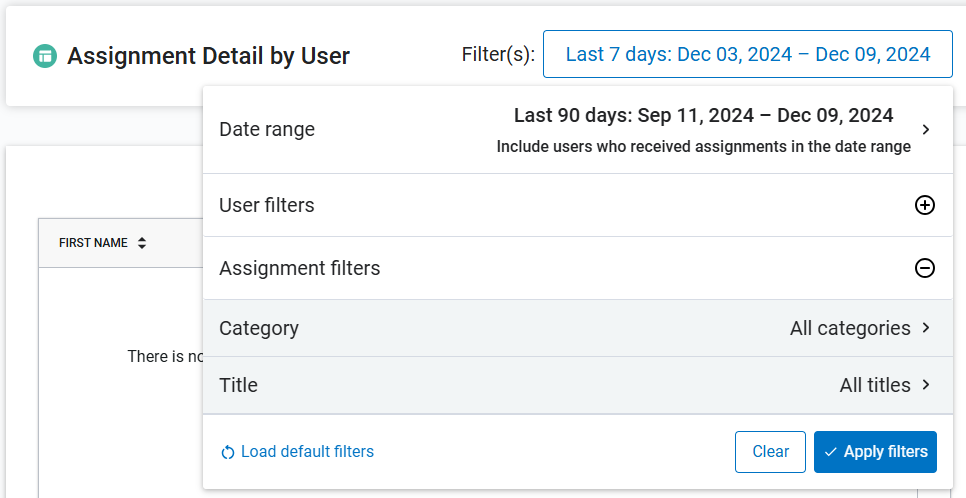
You can filter data on this report by date range, users or audiences, titles, delivery mode, and instructors.
What you select for filters here impacts what you see on the CSV export file.
- After you set filters, select Apply filters to update the data that will show on the report. If you want to reset filters, you can select Clear changes.
- You see two tabs. One for Course View and one for Classes View. You can select either tab. You can also select a specific course or class from the view to get more detail.
-
Create and save your data view
To create and save your own view of the report:
- To save this filtered version of the report for future use, select Save as template.
- Enter a Template name for this report.
- Select Save template. The saved report displays under the Activity reports section on the View All Reports page.
- You can select to Download report at this point so you can share with others in your organization. If you select the Class view, then select a class, you can also download a detailed view of that class similar to the ILT Export report.
- You have the option to do any of the following with a saved custom report template:
- View downloaded reports: If you chose to download the report, it shows on the Report downloads tab.
- Share your report: If you downloaded your report, you can share it with others in your organization
- Create/edit a report schedule: If you want the report to run regularly, set up a schedule.
- Share/unshare your template: Let others in your organization use your report as their own.
- Edit your template details: Change the name of your template if need be.
- Delete template: Remove the template from the list and future use.
Filters
This report has the following filters available:
- Date filters: When selecting your date filters, you can apply those dates to actual activity of past class registration data or to future class registration. Mark the radio button accordingly, then select the date range.
- Date Range Presets: A drop-down list of date ranges that filters the data to the selected range. Select Custom to enter specific dates.
- Start: Instead of using a Date Range preset, use this to specify a start date. When you enter a Start date, the Date Range Presets filter changes to Custom.
- End: Instead of using a Date Range preset, use this to specify an end date. When you enter an End date, the Date Range Presets filter changes to Custom.
- Audience: Predefined group of users. Enter the name of an audience and then select it from the list. You can display the data for multiple audiences at the same time by entering more than one audience name. You can select up to 20 audiences.
- User: Individual with a Skillsoft Platform user account. Enter a user's name to filter the report to include that user. You can display data for up to 20 users at the same time by typing in more than one user name. You can display data for up to 10 users at the same time by typing in more than one user name.
- Instructor: Identify one or more instructors in this filter to only show classes and sessions taught by them in the report. Select All instructors if you are focused more on classes and sessions overall.
- Content titles:By default all live courses show in the report. To narrow the number of titles shown, select the down arrow and then select the specific live courses you want.
- Language: Select only one option from the drop-down list. All Languages is set by default.
- Delivery mode: Choose if you want your report to contain only courses that were in person, online, or both. The default is all delivery modes.
- Source: Select if you want to include custom live courses only or Skillsoft one too.
- Include inactive users: Select this box if you want to show inactive users in your report, otherwise the report only shows active users.
Columns for the Course View
The following columns are displayed by default in the Instructor-led Training CSV Export report:
- COURSE TITLE: The title of the course.
- INSTRUCTOR: The first and last name of the person who taught the class.
- DELIVERY MODE: The way the course was delivered: online, in-person, or blended (a combination of the two). SOURCE: Indicates whether the live course is custom or Skillsoft.
- UNIQUE LEARNERS: The number of unique learners who registered for at least one class associated with the course.
- TOTAL COMPLETIONS: Of all the classes concluded, this is the total number of learners across all classes who completed the course. If a learner completed two or more classes from the course because of recurrence, the user is counted that many times.
- DURATION: The amount of time it takes to complete the course.
- CLASSES: The number of classes associated with the course.
Columns for the Class View
When you select a course to see more detail, you get the Class view filtered to classes just for that course. You can also access the Class view from the Class view tab, when you do that, you see all classes for all courses within the filters selected. The class view shows a new row for each class associated with the course. You also see the following additional columns:
- CLASS TITLE: The title of the class. This may be the same as the content tile with differentiating text at the end.
- SESSIONS: The number of sessions associated with a class.
- LEARNERS: The total number of learners associated with the class.
- REGISTERED: The number of learners who are registered for the class.
- STARTED: The number of learners who are registered in the class after it started.
- COMPLETED: The number of learners who completed the class.
- CANCELED: The number of learners whose registration was canceled.
- DENIED: The number of learners whose registration was denied.
- PENDING APPROVAL: The number of learners whose registration is pending approval.
- WAITLIST: The number of learners who are waitlisted for the class.
- CLASS START DATE: The date that the class starts.
- CLASS END DATE: The date that the class ends.
Columns for Detailed Class View
When you select a class, you see a detailed class view. This view shows a new row for each learner for each session associated with the class. You also see the following additional columns:
Default columns
The following columns are displayed by default in the detailed class view:
- SESSION DATE TIME: A session is the dates and times of a single class. If a single class runs for multiple days and times, you will see a separate row for each date and time that the class takes place and for which there is learner activity.
- LEARNER: The first and last name of the learner who attended the session.
- RECURRENCE: The number of times a learner returned and re-completed the content.
- AUDIENCE: The audience(s) in which users are a member.
- SESSION STATUS: The status of the session. Values included Started, Completed, Not started, Registered, Pending approval, Canceled, Denied, and Wait listed. If a learner has not launched a session, they do not show on this report.
- % COMPLETED:The percent of the total time of the session that a learner has progressed through as of the date the report is run.
- SCORE:The score for the session as entered by the instructor or site admin when they verify the class.
- SESSION DURATION (HOURS): Total amount of time it takes to complete the session specified in the Session Date Time column. Something that takes 90 minutes to complete is listed as 1.50 and something that takes 15 minutes is listed as 0.25.
- COURSE STATUS: The status of the live course. The status is not impacted by the Date filters. For all content items you could see Started or Completed because learners who have not started do not show on this report.
Additional columns
Other columns not previously listed that you can turn on in the detailed class view:
- LEARNING HOURS (SECONDS): The total number of hours a learner spent in content learning. If the item is a Skillsoft course, the total includes time spent watching videos while in the course (not the time spent on the same videos if launched in video-only mode) and working on knowledge checks within the course. If you see learners with a completed status and with 0 duration, the learner only took the test and did not watch any of the content. Time is listed in total seconds.
- LEARNING HOURS (HOURS): The total number of hours a learner spent in content learning. If the item is a Skillsoft course, the total includes time spent watching videos while in the course (not the time spent on the same videos if launched in video-only mode) and working on knowledge checks within the course. If you see learners with a completed status and with 0 duration, the learner only took the test and did not watch any of the content. Time is listed as fraction of hours. Something that takes 90 minutes to complete is listed as 1.50 and something that takes 15 minutes is listed as 0.25.
- LEARNING HOURS (HHMMSS): The total number of hours a learner spent learning in this content item. If the item is a Skillsoft course, the total includes time spent watching videos while in the course (not the time spent on the same videos if launched in video-only mode) and working on knowledge checks within the course. If you see learners with a completed status and with 0 duration, the learner only took the test and did not watch any of the content. Time is listed in (00h00m00s) format.
- LOGIN NAME: The value entered in the Login name attribute for the user.
- USER ID: The value entered in the User ID field. It is used to identify a user inside the platform.
- FIRST NAME: The value entered in the First name user attribute. Usually the user's first name.
- LAST NAME: The value entered in the Last name user attribute. Usually the user's last name.
- EMAIL ADDRESS: The value entered in the Email address user attribute; the user's email address.
- USER STATUS: The status of the user in the platform. Valid values are active or inactive.
- CONTENT ID: Unique identifier for the Skillsoft content item.
- ASSET TYPE: Only Scheduled Content is displayed in this report.
- CONTENT TYPE: Live Courses is the only Content Type included in this report.
- NUMBER OF CLASS SESSIONS: The total number of sessions that the class specified in Class title has associated with it.
- CLASS REGISTRATION DATE: The date the learner registered for the class.
- REGISTRATION STATUS: The status of the learner's registration. You may see values of registered, canceled, pending approval, approved, or denied.
- CLASS PROGRESS STATUS: This is the status of the overall class, which may be multiple sessions. The class progress shows Started when the start date of the first session arrives. It shows completed after the date of the last session. Other values include Not started, Registered, Pending approval, Canceled, Denied, and Waitlisted.
- COURSECOMPLETED DATE: The date in UTC the user completed the content. This date is not impacted by the Date Range Presets filter. You may see completion dates outside your Date filters if there was any type of asset activity within the selected date range. The time stamp of t00:00:00Z is expected. For scheduled content this could be the last date of the last class or the date the admin entered the completion and scores.
- COURSE SCORE: The learners overall score for completing all sessions associated with the class for this course. This is the average across all sessions.
- ESTIMATED DURATION (SECONDS): Total estimated amount of time it takes a learner to complete the specified content. Time is listed in total seconds.
- ESTIMATED DURATION (HOURS): Total estimated amount of time it takes a learner to complete the specified content. For online courses this only includes the video playback time. Time is listed as fraction of hours. Something that takes 90 minutes to complete is listed as 1.50 and something that takes 15 minutes is listed as 0.25.
- ESTIMATED DURATION (HHMMSS): Total estimated amount of time it takes a learner to complete the specified content. Time is listed in (00h00m00s) format.
- SESSION DURATION SECONDS: Total amount of time it takes a learner to complete the session. Time is listed in total seconds.
- SESSION DURATION HHMMSS: Total amount of time it takes a learner to complete the session. Time is listed in (00h00m00s) format.
- User Attributes (varies): These fields are defined by (and are unique to) your organization. For more information, see User Attributes. If you are using an attribute type of Skillsoft Platform User, the value in the field can be either first and last name, email address, login ID, or external user ID. The value that appears depends on what has been specified for the individual user.