New Features and Enhancements as of November 17, 2026
Foundational enhancements for all
The items in this section apply to all customers who have the Skillsoft Percipio Platform.
 Coming Soon: AI model updates planned to support regulatory requirements
To support evolving regulatory requirements, including the EU AI Act, Skillsoft may update the AI models used by certain Skillsoft Percipio Platform AI-powered capabilities. We will provide the specific model information as model selection and validation are completed.
Prepare now for new Library experience: New admin settings for branding and default view
With this release, you now have the ability to brand the library experience and set the default view before the new experience goes live for your learners on December 1, 2026.
- Brand the library: From Site Settings > Site Branding, you see three sections for the Library Page: Custom Areas, Skill Areas, and Banner. Here you can change the banner color, heading, tagline, and colors for area cards.
- Set default view: From Site Settings > Site Configuration > Content Settings > Library view settings, you can set your default view of the library to show area cards with or without images.
Providing these settings now helps to ensure you avoid showing learners an unbranded, default view when the new Library launches to learners on December 1, 2026. The changes you make now, do not affect learners until the new Library experienced is released.
To help you prepare your organization for these changes, see November 3, 2026 Release Notes.
Optional content approval process for publishing custom hosted content
You can now require approval before someone publishes custom hosted content (SCORM or AICC packages) to your Skillsoft platform. From Content > Manage Publishing Approvers, you can enable the approval process and determine who the approvers are.
Once enabled, content creators must request approval before they can publish. Approvers receive an email and an in-app notification when they have an open request. Approvers review pending items from the Content Item page. Requestors receive notification when their content is approved, at which point they can publish it.
This update helps you apply consistent governance, reduce duplicate approval setup, and be able to audit approval decisions.
Unified Language Experience now applies to custom areas, subjects, and channels
When you have the Unified Language Experience setting turned on, it now translates your custom areas, subjects, and channels. Previously, this setting only translated Skillsoft areas, subjects, and channels. With this new functionality, your learners can more easily find the right content and use translated closed captions to play in their local language.
If you have custom areas and subjects set up in other languages, those display to learners when their site language matches the area language. The Unified Language Experience only applies to custom areas, subjects and channels when learners choose a site language that you have not defined.
New custom content attributes for custom hosted content
Site admins can now create organizational content attributes and add them as part of the hosted custom content upload process. Custom content attributes are metadata fields that let your organization tag, govern, and report on its own content the same way it does Skillsoft content, such as tracking accreditation credits or assigning a point of contact.
When you create an attribute, you can make it required or optional. You can specify whether the creator can enter text or choose from a list of options. Finally, you can require an attribute to have a specific value before the creator can publish the hosted content. You might use this option as a validation question for the author, such as does the content contain PII. They must respond no to publish the content.
Creators of hosted custom content see the content attributes under Organization details in the first step when they Describe and configure content. These attributes also show in reporting.
Configured Compliance courses now show in both Skillsoft and Custom collections
In the Detailed Activity and Content Listing by Title report, configured compliance courses now show under both their original Compliance collection (e.g., Compliance Suite ES&H) and the Custom collection filter. This ensures reports filtered by compliance collections accurately capture all relevant activity for customized compliance content.
Dynamic content: Content ordering and forced completion order
Administrators can now define the display order of content within Dynamic Content and optionally require learners to complete items in that defined sequence. This enhancement supports compliance, onboarding, and certification programs where learners must finish training items in a specific order based on their profiler answers.
Coming December 15, 2026: AI-enabled certification data capture and validation for file uploads
When learners upload certification files, AI will automatically capture certification details and confirm that the uploaded file represents a professional certification, avoiding reliance on manual entry and improving accuracy and consistency at the point of submission. This new AI feature will be on by default, but you will be able to turn it off.
Learners can review and adjust the extracted information before submitting. This enhancement gives organizations greater confidence in the validity of uploaded certifications while ensuring more complete and representative certification reporting.
Enhancements for features existing on your platform
If your Skillsoft Percipio platform currently has the features pertaining to the items listed in this section, you see the following enhancements in addition to the foundational enhancements.
Instructor-Led Training and ILT CSV Export reports: New columns for Session Break Duration and Session Actual Duration
You can now see how much of each live course session was spent on instruction and how much was break time. The new columns display next to the existing Session Duration column in the session-level view of the Instructor-Led Training report and in the Instructor-Led Training CSV export:
-
Session Break Duration: The total break time recorded for the session when originally set up. Three columns support this option in hours, seconds, and HHMMSS.
-
Session Actual Duration: The instruction time, which is the scheduled session duration minus session break time. Three columns support this option in hours, seconds, and HHMMSS.
Child sites can now inherit equivalency groups
If you use multi-site hierarchies, you can now share course and translation equivalency groups defined at the parent level with child sites.
Child sites can now inherit dynamic content
You can now add dynamic content once on a parent site and push it down to selected child sites. The platform maintains any changes from the parent with a connection that syncs automatically with the child sites when changes are made. This helps you manage your multi-site environment more consistently and efficiently.
The domain admin is the only role who can push or share to a child site. Child sites cannot push changes back to the parent or to other child sites. Site admins on the child site cannot edit dynamic content that have been pushed from a parent.
Additional enhancements for those with the full platform
The items in this section pertain to the fully licensed version of the Skillsoft Percipio Platform which includes LX Design Studio, AI Coach, and Page Builder. Customers with this level of access get these features and enhancements in addition to the ones above.
LX Design Studio
New content attributes for LX Design Studio content
Site admins can now create organizational content attributes and add them as part of the LX Design Studio content creation process. Custom content attributes are metadata fields that let your organization tag, govern, and report on its own content the same way it does Skillsoft content, such as tracking accreditation credits or assigning a point of contact.
When you create an attribute, you can make it required or optional. You can specify whether the creator can enter text or choose from a list of options. Finally, you can require an attribute to have a specific value before the creator can publish the content. You might use this option as a validation question for the author, such as does the content contain PII. They must respond no to publish the content.
Creators of LX Design Studio content see the content attributes under Organization details in the Content Details section prior to publishing. These attributes also show in reporting.
Optional content approval process for publishing LX Design Studio content
You can now require approval before someone publishes LX Design Studio content to your Skillsoft platform. Site admins can go to Content > Manage Publishing Approvers, to enable the approval process and determine who the approvers are.
Once enabled, creators must request approval before they can publish. Approvers receive an email and an in-app notification when they have an open request. Approvers review pending items in LX Design Studio. Requestors receive notification when their content is approved, and then they can publish it.
This update helps you apply consistent governance, reduce duplicate approval setup, and keep approval decisions auditable across platforms.
Course Designer
Enhancements to animation timing controls for icons
When authoring video courses in Course Designer, authors can now control the animation timing for slide icons with the same precision and consistency as text elements.
Previously in the Animation tab of the Slide Editor, fine-grained time stamp controls were primarily focused on bullet points and on-screen text, which could result in icons animating out of sync with corresponding text or voice-over narration.
With this update:
- Synchronized animation controls: Icons now include dedicated, consistent timing controls alongside text elements in the Slide Editor’s Animation tab.
- Precise narration alignment: Authors can set exact timestamps or capture current playback positions to ensure icons appear at the exact moment their supporting concepts or narration points are introduced.
- Polished video generation: Generated topic videos reflect smooth, coordinated entrance animations between icons, text, and audio, delivering a more professional learning experience for viewers.
Course template migration
To give content authors greater flexibility and consistency when creating video courses in Course Designer, standard legacy PowerPoint-based templates (such as Classic) are being migrated into the built-in Canvas Template Manager.
With this migration to the Canvas-based template structure:
- In-platform customization: Authors can open, clone, and edit standard templates directly within Course Designer's full-screen canvas editor without having to download or alter external PowerPoint files.
- Granular design control: Authors can adjust brand colors, typography, background styling, shapes, and slide layout variations to match company branding while retaining standard slide structures.
- Seamless storyboard generation: Migrated templates fully integrate with automated storyboarding and video generation, preserving layout integrity and element positioning across course topics.
Existing courses using these templates remain unaffected.
Skillsoft Coaching Enhancements
For customers of Skillsoft Coaching, this section reports on changes made to Skillsoft Coaching and the platform to support the interaction.
Targeted for December 2, 2026: AI Model updates to support regulatory requirements
We are targeting to update our AI models for Coaching AI Assistant and Coaching Skill Mapping and Summarization. Learners are not likely to notice any changes when interacting with any of these features.
This update is part of our commitment to stay current with the latest advancements in AI technology and to support evolving regulatory requirements, including the EU AI Act. Our goal is to continue to provide you with the best possible security and user experience. If you require additional information, please reach out to your Skillsoft account team.
For details on these enhancements, please see the Coaching Knowledge Base.
Coming Soon reminders, in case you missed it
The items in this section highlight changes to AI elements in the platform so you can stay in compliance with your internal processes and guidelines.
Coming later this year: Channel page user enhancements
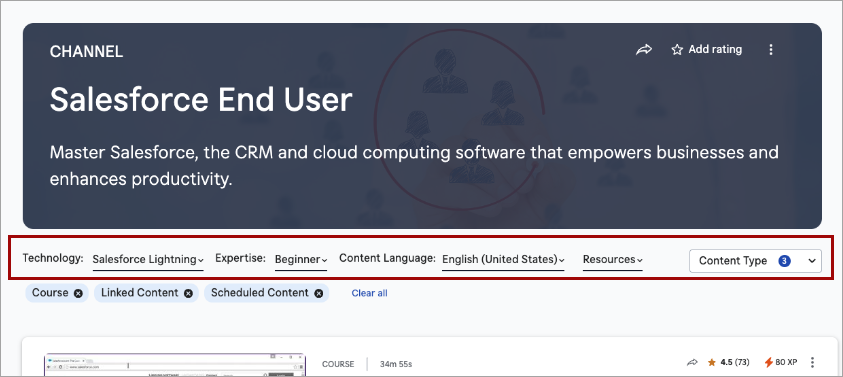
To help learners more easily locate content within a channel, they will soon see enhancements to the Channel pages of the Library, including:
- The channel filters, such as expertise level, duration, and source, which previously displayed in the banner, now display in the page content area, where they sit between the banner and the content list. The simplified banner now only shows the channel title, description, and hero image/background.
- The modality tabs no longer display. All content shows in one list.
- A new Content type filter that mimics the Content type filter on Search display alongside the channel filters. All content types contained within the channel are shown by default, but learners can filter on just the content types they want to see.
- Learners can use Load More to progressively browse content without a full page refresh. The first set of results loads initially, and additional items are appended as they are requested.
Coming soon: Run reports using natural language with AI Assistant
You will soon be able to use the AI Assistant to run, download, and schedule analytics reports using natural language. The AI Assistant may help identify the appropriate report, apply supported filters, and return results without requiring manual report configuration.
With this enhancement to the AI Assistant, you can:
- Run analytics reports using natural language prompts.
- Download report results as CSV files.
- Schedule report delivery by email on a one-time, daily, weekly, or monthly basis.
Natural language filtering currently supports date ranges, audiences, users, and content titles. Report scheduling is available for Standard Reports and Skillsoft Template Reports; custom templates are not currently supported. AI Assistant does not currently return dashboards.
So we can continually improve, please submit feedback using the thumbs up/down icon in the response.