New Features and Enhancements as of April 21, 2026
Expanding skills of your workforce
The items in this section provide ways to grow your talent and fill critical skill gaps, building mastery with confidence.
 Enhanced Certification Credit Discovery and Tracking
This release finds three enhancements to help learners better track and prepare for their certifications:
-
A dedicated Certification Renewal Content section on the Certification Center. From this section, learners can select the specific credit type — CompTIA CEU, SHRM PDU, NASBA CPE, PMI PDU, HRCI RCH — to see a dedicated page where all eligible courses for that program are consolidated and organized. Each course card also shows the number of credits. This gives learners a single, focused place to browse and complete the content they need for renewal.

-
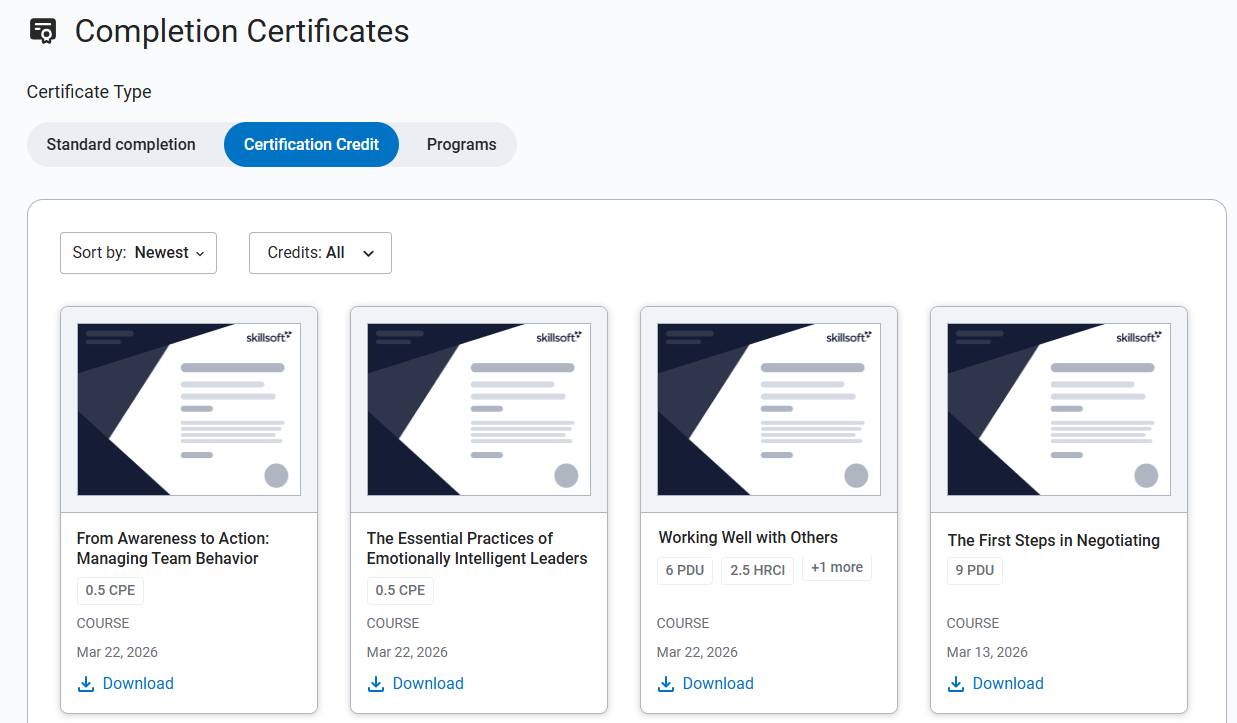
New credit-specific completion certificates. When learners complete their credit courses, they can download new, credit-specific completion certificates which they can then use as evidence when submitting credits to their certification bodies. They can download the certificate from My Learning > Achievements > Certificates. The Certificates page contains a new Certification credit tab where learners can sort and filter for credit-specific completion certificates for any of the five supported credit programs.
-
Enhanced search filters: Learners can more easily locate credit-eligible courses, including new filters for CompTIA CEU and SHRM PDU credits.
Personalized search now available for learners
If you did not previously turn it off, learners will see a new search filter called Personalized search. When learners turn on the filter, they will see more relevant and meaningful search results tailored to their specific job role. The new filter will retrieve up to 60 search results based on the learner’s search query and will re-rank them using an LLM that takes into consideration the learner's job role context. The re-ranked results ensure that higher-quality, role-relevant items display at the top, improving engagement and learning outcomes. Note that personalization affects the ranking of search results, not their visibility.
You can locate the Personalized search setting at: Site settings > Site Configuration > AI Settings > Personalized search
Engaging your learners to build a learning culture
The items in this section provide ways to engage your users so they want to learn and make learning a habit.
Enhancements for Experience Points (XP)
This release introduces targeted improvements to the XP experience, making progression more transparent for learners and giving administrators greater control over XP configuration.
For all users, the content item cards, including those that show in the top banner promotion, now display how many XPs they can earn for completing the item.
From the XP Tracker page, learners can now see the following changes:
- Expanded XP history view: Learners can now view XP earned over the last 3, 6, or 12 months using a new time‑range selector on the XP History tab.
- Extended XP levels: Learners can view up to 10 XP levels, if configured, each showing a level name, icon, and XP threshold to clearly define progression milestones.
- Auto‑updating level progression: When learners reach a new XP threshold, their current level updates automatically to reflect the newly achieved level.
- Completion message: A contextual message confirms when a learner has reached the highest XP level and that no additional levels remain.
Admins now have more configuration settings to help meet your company’s culture and gamification requirements:
- Up to 10 Configurable XP levels: You can now view, rename, and adjust XP thresholds for up to 10 levels.
- XP control: You can now choose, by marking a checkbox, which items are available for learners or managers to earn XP, allowing customization of the XP journey.
- Daily frequency option: You can now choose to have XP reset daily in addition to weekly, bi-weekly, or monthly.
- New manager‑specific items: Managers can now earn XP if they visit the Manager dashboard.
New Settings
To help you better manage new features and enhancements that come out with this release, this section contains a summary of new settings that you can configure in Percipio.
Leaderboard controls for different views
You can now configure exactly which leaderboard views display to learners so you can align gamification with your organization’s goals and policies. You can independently toggle leaderboard views for XP, badges, and completions. You can turn on all views, select any combination, or show just a single view.
All views are turned on by default. However, the existing user group leaderboard settings (all users, by attribute, by audience) retain the values you previously set, so if they are all off, learners still do not see any leaderboards.
Manage, promote, and measure learning
The items in this section provide the tools you need to manage users and content, promote learning, and measure learning effectiveness on your bottom line.
Managers will start receiving Daily Overdue Assignment Digest emails
On April 28, if you did not previously turn off the email campaign, managers will start receiving daily reminders when one or more learners from their team has an overdue assignment.
This email campaign is on by default. If you don’t want managers to receive the daily reminder about overdue assignments, you can disable the campaign at: Emails and Notifications > Settings > Email campaign settings > Overdue assignment digest for managers.
We recommend that you keep it on as another way to ensure overdue learners complete assignments. This email is in addition to the CC manager setting within an assignment (if turned on for an assignment).
Configured Courses now inherit base course retirement date extensions
To keep your catalog consistent and reduce manual work, when you extend the retirement date of a Skillsoft course, all associated configured versions of the course now automatically inherit the same retirement date extension. Likewise, if you remove a retirement date extension from the base course, the extension is automatically removed from all configured versions.
For any configured course whose parent already has an extended retirement date at the time this feature is enabled, the extension is automatically applied without requiring any additional action from you.
Instructor Led Training (ILT) supports multiple completions with automatic restarts
In this release, learners can complete the same custom live course multiple times. When a learner registers for a new class within the same custom live course, the platform automatically restarts the course at the class start date, creating a new activity record while preserving the prior record for reporting. Each restart is treated as an independent completion record. You can see these records in both the Learner Activity and Detailed Activity reports.
Learners can only register for a new class after the previous class end date has passed.
When a restart occurs, the previous activity record is frozen and can no longer be updated by instructors or administrators. Attendance must be taken before a learner starts a new class, as frozen records do not allow additional attendance actions.
Analytics Updates
The items in this section showcase changes to reports and dashboards to help you more effectively and efficiently manage your programs.
Question-level analytics from the Skill Benchmark dashboard
With the new Question-level analytics view from the Skill Benchmark Overview dashboard, you can now drill into performance at the individual question level for a specific benchmark assessment to better understand where learners are struggling. These insights help you make more informed decisions about skill measurement and design more targeted learning paths so learners receive the right content to close specific proficiency gaps.
In addition, if you are creating custom benchmark assessments, you can use the question-level analytics to identify questions with low success rates that may be too difficult, ambiguous, misaligned, or otherwise under-performing. You can use the data to refine or replace problematic questions and improve the reliability of your custom benchmarks.
New filter added to Assignment reports and dashboard
A new User assignment status filter now exists on the Assignment Summary, Assignment summary by User, Assignment Detailed by user, and the Assignment dashboard. This filter allows you to select which user assignment status to show in the report: Started, Not Started, Completed and Canceled. By default, Started, Not Started and Completed are selected.
Enhancements to the Assignment Dashboard
In this release, the Assignment Progress widget in the Assignment Dashboard has the following enhancements:
- Assignment Summary: This now shows a summary of all assigned learning in your organization. The chart displays all learners statuses within assignments, including canceled if selected as a filter option.
- Assignment Progress: This now shows the assignment name, the number of learners assigned a particular assignment (not including canceled users), who assigned it, the status of all learners within the assignment, and the percent of learners that are overdue, which is calculated by number of learners overdue/(Total learners-canceled) * 100.
Select up to 20 options on a report or dashboard filter
Previously, you could only select up to 10 options per filter when creating a report or dashboard. You can now select up to 20 options per filter. This includes filters such as users and audiences as well as other multi-select filters such as content or assignment titles.
Mobile App Updates and Enhancements
The items in this section pertain to the Skillsoft Percipio Platform mobile app.
Interface updates for Journey and Certification pages
When viewing any journey or certification page in the mobile app, you now have a refreshed and cleaner visual experience for easier navigation and understanding of your progress at a glance.
No existing functionality, settings, or behaviors have been added, removed, or changed.
Compliance, Ecosystems, and Integrations
The items in this section help you to integrate Skillsoft platform across your learning ecosystem and promote how Skillsoft works with its partners.
Configure Translations for Compliance Suite
With this release, you can now create and manage translations for your Compliance suite content configurations directly in the interface, eliminating the need for manual Excel files and support requests. From the Content Configuration page, you see a new Manage translations option under the More actions menu for each configuration. Using this option, you can:
- View all existing translations for a configuration.
- Create new translations with just a few clicks.
When you create a translation, AI automatically translates all custom text strings from your original configuration into the selected language. Learners see the translated text when they access that localized configuration. Please note:
- You must still upload translated media assets (such as videos, policy documents, and audio files) if you want them to match the new language.
- While editing a configuration, you can easily view and switch between available translations to review or adjust localized content. For more details, please see the knowledge base.
LX Design Studio Enhancements (Platform only)
The items in this section pertain to LX Design Studio, a suite of AI-driven apps and tools that allows you to easily design custom content tailored to your organization's policies, programs, and skills. LX Design Studio is available to customers who have purchased the Skillsoft Percipio Platform.
LX Design Studio now supports 50 left-to-right languages
If you set your Skillsoft Percipio platform language to one of the 50 supported left-to-right languages, when you launch LX Design Studio, it launches in that same language providing a consistent, localized experience across all design apps.
If you prefer to work in a different language while in LX Design Studio, you can switch your language from the language drop down in the top navigation.
Interactive preview capability for assessments
With the new interactive preview mode for custom skill benchmarks in LX Design Studio, you can more accurately validate assessments before they go live, resulting in higher quality benchmarks and a more consistent experience for learners. Instead of a static, exhaustive list of questions, authors now see a learner-like, interactive preview that includes:
- A randomized subset of questions, similar to what learners encounter.
- An interactive assessment flow that mimics the real test experience.
- Immediate feedback showing whether selected options are correct or incorrect.
Select level when uploading a knowledge source
When you upload a knowledge source from the Design Assistant or from the Design Brief when editing or creating a content item, you can now choose at what level that knowledge source is available: at the workspace, project, or content level. This gives you more control over governance, visibility, and reuse of knowledge sources across your environment.
Please note, your ability to save at to the project or workspace level depends on your permissions for the project or workspace.
Manage Design Studio users and their role from the Admin Dashboard
From the Admin Dashboard in LX Design Studio, you can now edit roles for users who are already creators and publishers. This simplifies the process of managing which users can create and publish content, ensuring that your team can do the job required of them
View your profile details
You can now view your profile information in LX Design Studio. Your profile page shows:
- Your name, email address, and role
- Workspaces you own
From your profile page, you can create a workspace or switch active workspaces.
Coming Soon reminders, in case you missed it
The items in this section highlight changes to AI elements in the platform so you can stay in compliance with your internal processes and guidelines.
Coming soon: Set data retention period for Skillsoft Conversation AI Simulator (CAISY™)
When you allow Skillsoft to collect the learner side of the conversation during a CAISY interaction, you now have the ability to set how long Skillsoft retains that data. When AI optimization and improvements setting is on, by default, Skillsoft retains the data for 180 days. You now have the option to reduce it to 30, 60, or 90 days.
Please note that if you do shorten the retention period, you may limit our ability to improve AI feedback and accuracy and learners only see their conversation history for that retention period.
Coming soon: AI-enabled certification data capture and validation for file uploads
When learners upload certification files AI will automatically capture certification details and confirm that the uploaded file represents a professional certification, avoiding reliance on manual entry and improving accuracy and consistency at the point of submission.
Learners can review and adjust the extracted information before submitting. This enhancement gives managers and HR greater confidence in the validity of uploaded certifications while ensuring more complete and representative certification reporting.
Instructor‑Led Training (ILT) will support attendance corrections
Administrators will soon be able to revise previously marked attendance to correct errors. Admins will be able to update attendance one time per record: If a learner was marked complete, the completion can be revoked. If a learner was marked incomplete, the record can be updated to complete. Please note: Admins will only be able to adjust classes that start after May 5, 2026.
Coming in June: Instructor-Led Training (ILT) Control Center (Custom ILT Administration Update)
ILT Administration, now called the ILT Control Center, is getting a redesigned, insight‑driven experience that makes managing live training faster and more intuitive. A new dashboard surfaces actionable insights—like learners awaiting approval, low‑enrollment classes, missing attendance, and courses that need new classes—so administrators can act immediately. Clear, tabbed navigation now separates courses and classes, with enhanced tables, smarter search, persistent filters, and a dedicated drill‑down for all classes for complete visibility. Together, these updates reduce admin effort, preserve context as you work, and give you sharper control over ILT scheduling, enrollment, and outcomes.
♣A little something extra we squeezed in after the release notes published.