New Features and Enhancements as of October 20, 2026
Foundational enhancements for all
The items in this section apply to all customers who have the Skillsoft Percipio Platform.
 Prepare now: New Library browse experience coming December 1, 2026
We are planning to introduce an updated Library experience with the goal of making it easier for learners to find relevant content, navigate more intuitively, and focus on the skills most relevant to them. The new design introduces a clean, uncluttered interface with clear visual hierarchy, streamlined navigation, and personalized content discovery.
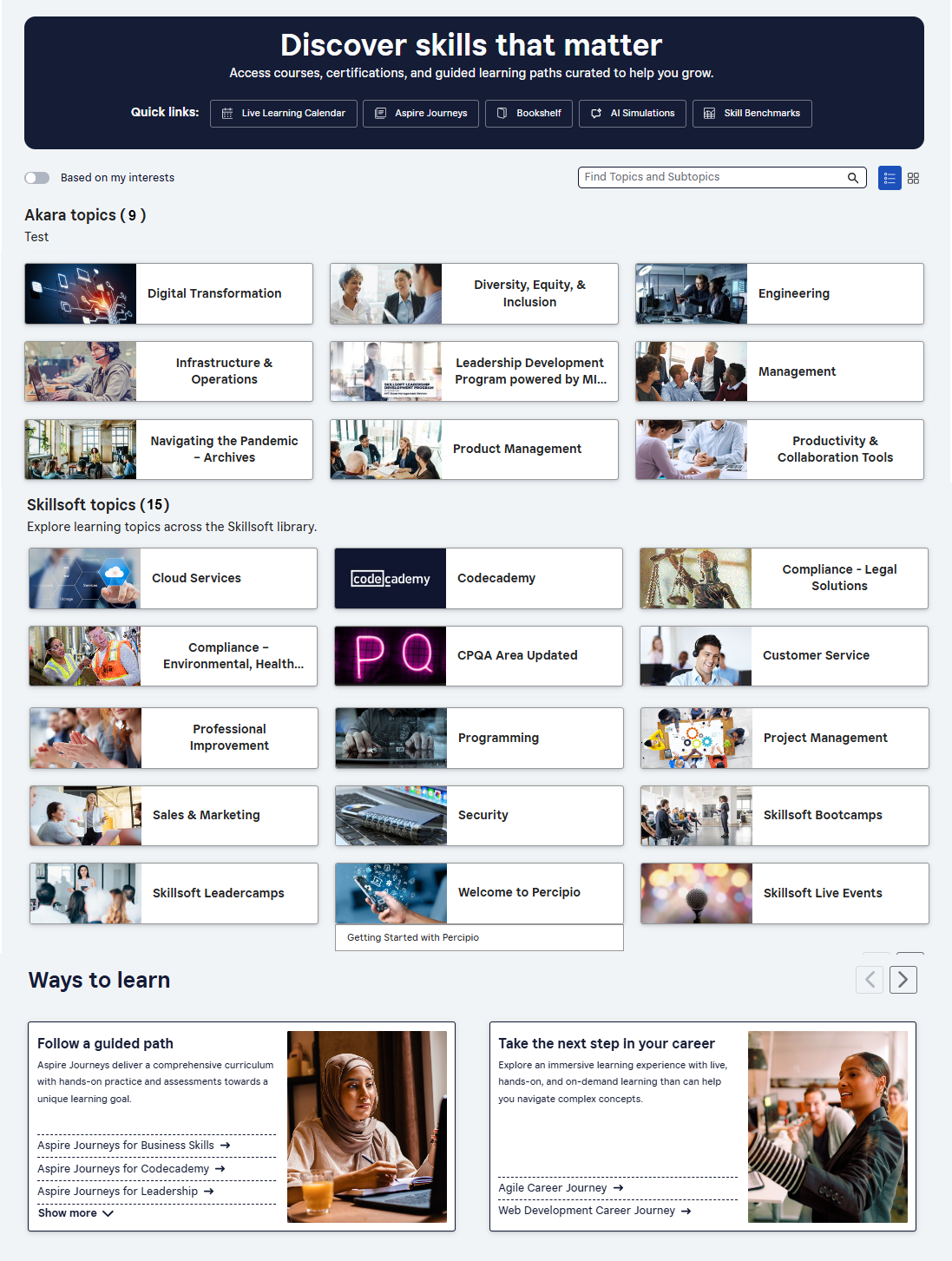
Changes you'll see include:
- Renaming of Areas to Topics and Subjects to Subtopics.
- An anchoring banner that contains quick links. Previously, there was no banner, just a line of quick links.
- Subtopic search bar that returns results inline highlighting subtopics and their associated topics. Previously, there was no search bar.
- New toggle to show topics relevant to the learner if they specified them in My Learning > Skill Interests. Previously, you could only view all content areas or topics.
- New setting that allows learners to toggle the view to show images on the topic cards instead of just text if you added images when creating the area and subject cards (now topics and subtopics).
- Enhanced Ways to Learn section that presents in a carousel instead of all at once, and when selected, launches to a new page.
To help you prepare your organization for these changes, we have created:
- A video highlighting changes in action (coming soon)
- A comparison table indicating where to find things
- A message you can share with your learners (coming soon)
Document submissions: Role permission access and approval workflows
This release finds two updates to the document submission feature.
- Document Submission now supports an approval process. When you create a Document Submission content item, you can choose, No Approval Required, Approval Required, or Approval & Evaluation Required. Submissions that require approval display in the new Approval page, where you can review submission details, view submission history, and approve or reject submissions. When rejecting a submission, you can also choose whether to allow the learner to resubmit.
- New user role permissions. All site admins can access the Approval and Learner Submissions pages. You can now grant access to both pages for other roles using Role customization. Use the Approval Management permission to allow learning admins and managers to approve or reject submissions from learners in audiences that they own. Use the Manage learner submission setting to allow learning admins and manager to access the Learner Submission page where they can review submissions from learners in audiences that they own. For learning admins, you can also allow them to delete submissions from the Learner submission page. Go to Site Settings > Role Customization to grant access.
Skillsoft app supports document submission
With this release, learners can use the Skillsoft app to view and track approvals for their document submission items. They can:
- See approval status.
- View document metadata such as submitted by, current submission date, submission version, score, passing score, and whether resubmission is allowed. You’ll find these updates on the Document landing page and the main container page where documents display.
- Access the history page and view versions, details, and comments in reverse chronological order.
- Use dark mode colors.
New Content Listing reports now available and retiring of existing reports
You now see three new content reports that make it easier to review and manage content across your site:
- All Content Library Export: This report replaces the All Content Listing report. In addition to the existing functionality, it allows you to view videos and modules. This is only available for export because of the potential size of the report.
- All Content Listing by Title: This report contains a full list of all content on your site by title. For each content item you have more flexibility on filtering and can see more content metadata such as retirement information, first/last published dates, and last modified dates.
- All Content Listing by Container: The report replaces the Content Status report and improves how you identify the containers where content that is scheduled for retirement exists.
The existing Retired Content report will be updated with all content that has been retired. It will no longer just include accessed content from your site that has been retired.
As part of this enhancements, both the All Content Listing and Content Status report will be retired. Your existing schedules for these reports will continue to run even after retirement.
Assignment Summary report: New overdue columns
The Assignment Summary report now includes four new columns indicating how many days learners are overdue: 1-29 days, 30-59 days, 60-89 days, and 90+ days overdue. This helps you quickly identify overdue volume and how long learners have been overdue, so you can prioritize follow-up and remediation.
The columns display by default, and they are sortable, groupable, and filterable. They also show in CSV exports.
Enhancements for features existing on your platform
If your Skillsoft Percipio platform currently has the features pertaining to the items listed in this section, you see the following enhancements in addition to the foundational enhancements.
Add live courses to recurring assignments
You can now add a Live Course to a recurring assignment so learners can get a new completion for a live class each time the assignment recurs.
Set up the recurring assignment in Assignments, add the Live Course, choose the recurrence frequency, and add the learners who must complete it. Each new recurrence counts only Live Course activity after the assignment start date, while earlier attendance, completions, and activity stay on the learner’s record. For learners, the assignment remains incomplete until they complete the live class with a start date after the start date of the assignment occurrence.
Manager dashboard now available on the Skillsoft app
Managers who have access to the Manager Dashboard, can now view the dashboard from the home page on their mobile device. Tapping the dashboard widget opens the detailed view, where managers can review overdue assignments, non-engaged learners, and assignments at risk, as well as send reminders to team members.
New Instructor Led Training report
A new Instructor-led Training report gives you a single place to review both Skillsoft and your custom ILT data. The report includes learner, course, class, and session information, along with class registration, session attendance, class completion, and course status. You can use this report to replace the Bootcamp and Leadercamp reports.
XP Detailed report now has an XP category filter
You can now filter your XP Detailed report by categories that earn XP, such as completing an asset, making an assignment, or sending reminders. This update lets you scope report results to one or more categories so the totals and row results reflect only the categories you select. If you do not select a category, the reports include all categories by default. The available category list is driven from the platform’s existing XP category values.
Add breaks into class sessions
You can now turn on a setting that allows you to add a duration for breaks when you create a class for a live course. When you add break duration to your class sessions, you can more accurately track actual learning time for learners who attend lengthy sessions with multiple breaks.
Create live course custom email templates
You can now create custom live course email templates to better meet your organization’s needs. There are nine live course emails that automatically go to learners, instructors and site admins when an event is triggered. You can select which template is used for each of the nine emails.
To create your templates, go to Emails & Notifications > Email templates > Create templates > Live course email. To set which template to send for each triggered event, go to Emails & Notifications > Settings > Email Campaign Settings > Live Course emails.
Additional enhancements for those with the full platform
The items in this section pertain to the fully licensed version of the Skillsoft Percipio Platform which includes LX Design Studio, AI Coach, and Page Builder. Customers with this level of access get these features and enhancements in addition to the ones above.
General platform features
Communities now live for learners
Help your organization increase learner engagement, improve knowledge retention, and build a culture of peer-to-peer learning with the new Communities feature. The Community feature lets learners share insights, discuss how to apply new skills, and ask questions of others going through similar learning experiences.
With this release, if you did not turn off Communities from Site settings > Engagement > Social learning > Communities, your learners now see them.
Only those learners with the create community privilege, can create communities, both public and private ones. All learners can join a public community and only learners invited can join a private community.
From the new Communities area, learners can browse public communities, join open groups, post questions or insights, and reply to others to keep discussions connected to learning. Community owners and moderators can manage posts.
Coming December 15, 2026: AI-enabled certification data capture and validation for file uploads
When learners upload certification files, AI will automatically capture certification details and confirm that the uploaded file represents a professional certification, avoiding reliance on manual entry and improving accuracy and consistency at the point of submission. This new AI feature will be on by default, but you will be able to turn it off.
Learners can review and adjust the extracted information before submitting. This enhancement gives organizations greater confidence in the validity of uploaded certifications while ensuring more complete and representative certification reporting.
Custom assessments and CAISY for Conversations can now be shared to child sites
If you used LX Design Studio to create custom assessments or CAISY for Conversations, you can now share those content items with child sites either individually or in bulk. Use the standard Content sharing process to share them.
New Data-as-a-Service (DaaS) Option
Your organization now has more flexible access to learning activity data with Data-as-a-Service. From the admin area, you can manage data access, including API keys and export scheduling, so you can connect Skillsoft learning data to your business intelligence (BI) tools and reporting workflows. This update was made to help you build custom dashboards, combine learning data with business metrics, and reduce manual reporting requests.
LX Design Studio
CAISY for Conversation now cites your knowledge sources
To help you improve content trust and traceability, you now have a summary with links to the knowledge source pages when CAISY for Conversation uses knowledge source content in the scenario.
From the Knowledge source step, select the Action menu on the knowledge source, then select the View summary option. The platform opens a summary of citations used in the development process with links to where in the original source the material was obtained. This update helps you verify where generated content came from and supports content governance and compliance workflows.
This feature will soon be available for other LX Design Studio apps.
CAISY for Conversation supports segment tagging for comments
To hep improve the review process in LX Design Studio, reviewers can now attach comments to specific text segments, visual elements, and whitespace, so feedback is easier to understand and act on. This update helps you reduce multiple review rounds and gives your content creators clearer context when reviewing feedback.
The new tagging options are available in the Share/Comment experience in LX Design Studio for CAISY for Conversations.
This feature will soon be available for other LX Design Studio apps.
Coming Soon reminders, in case you missed it
The items in this section highlight changes to AI elements in the platform so you can stay in compliance with your internal processes and guidelines.
Coming later this year: Channel page user enhancements
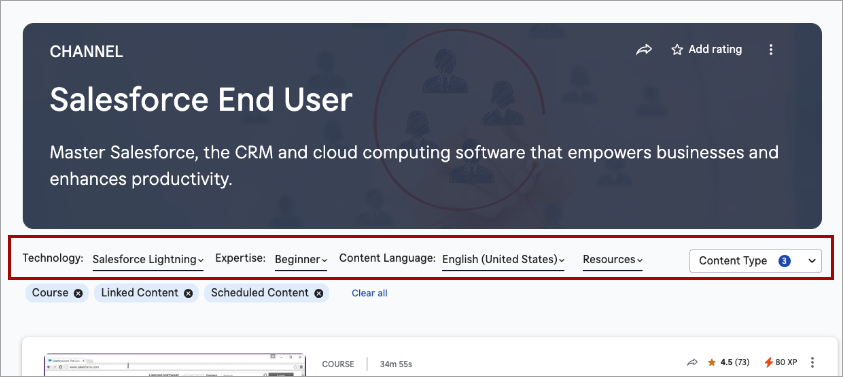
To help learners more easily locate content within a channel, they will soon see enhancements to the Channel pages of the Library, including:
- The channel filters, such as expertise level, duration, and source, which previously displayed in the banner, now display in the page content area, where they sit between the banner and the content list. The simplified banner now only shows the channel title, description, and hero image/background.
- The modality tabs no longer display. All content shows in one list.
- A new Content type filter that mimics the Content type filter on Search display alongside the channel filters. All content types contained within the channel are shown by default, but learners can filter on just the content types they want to see.
- Learners can use Load More to progressively browse content without a full page refresh. The first set of results loads initially, and additional items are appended as they are requested.
Coming soon: Run reports using natural language with AI Assistant
You will soon be able to use the AI Assistant to run, download, and schedule analytics reports using natural language. The AI Assistant may help identify the appropriate report, apply supported filters, and return results without requiring manual report configuration.
With this enhancement to the AI Assistant, you can:
- Run analytics reports using natural language prompts.
- Download report results as CSV files.
- Schedule report delivery by email on a one-time, daily, weekly, or monthly basis.
Natural language filtering currently supports date ranges, audiences, users, and content titles. Report scheduling is available for Standard Reports and Skillsoft Template Reports; custom templates are not currently supported. AI Assistant does not currently return dashboards.
So we can continually improve, please submit feedback using the thumbs up/down icon in the response.