AI Coach Overview
AI Coach is designed to give you real time, personalized recommendations to help you reach all of your professional aspirations through real behavioral changes. AI Coach guides you in setting goals and reflecting on your current state so you can continue growing and improving your skills. Because AI Coach is aware of your unique skill data, role, and aspirational career goals within the Skillsoft platform, it uses that context to make coaching more relevant. In addition to having a conversation, it surfaces targeted Percipio courses, AI conversation simulation (CAISY®) practice scenarios, and other resources based on your specific coaching goals and development challenges
It’s a dedicated coaching environment, distinct from learning content, that bridges skill development and on-the-job application. Skillsoft's AI Coach is aligned with all International Coaching Federation Core Competencies, ensuring a professional coaching experience that works for you in your local language. AI Coach launches in the same language that you set for the Skillsoft Platform.
For more information on how to setup and configure AI Coach, see Administer AI Coach. For more information on how AI Coach uses artificial intelligence, see the AI Coach FAQ.
With AI Coach, you set goals and track progress through periodic assessments. If your organization has the setting enabled, you can also invite managers and/or colleagues to give you feedback on your performance and progress. If your organization has these settings turned off, your ability to request feedback from others at your organization is limited.
Access to AI Coach
Your administrator turns on AI Coach and configures how you use it. They do this from the admin menu, Site Settings > Site Configuration > AI Coach Settings.
After they turn on AI Coach and configure it, you can access AI Coach, from the Skillsoft Percipio Platform's nine-dot menu  , and AI Coach. They can also choose to send you an email prompting you with a link to get started with AI Coach.
Admins can configure AI Coach so only a limited number of users have access to it. So if you do not see the option for AI Coach under the nine-dot menu, ask your administrator about it.
After admins turn on AI Coach, they can monitor progress with the AI Coach dashboard.
AI Coach Home Page
Access AI Coach either from a link in a welcome email or from the Skillsoft Platform, select the nine-dot menu , then AI Coach. You land on the AI Coach Home page.
AI Coach launches in the same language you set for your Skillsoft Platform. If you want you can change it from the language icon in the top navigation.
From the Home page, you can access your to-do tasks, start a chat with your AI coach, explore resources, or navigate to any of the other pages in AI Coach.
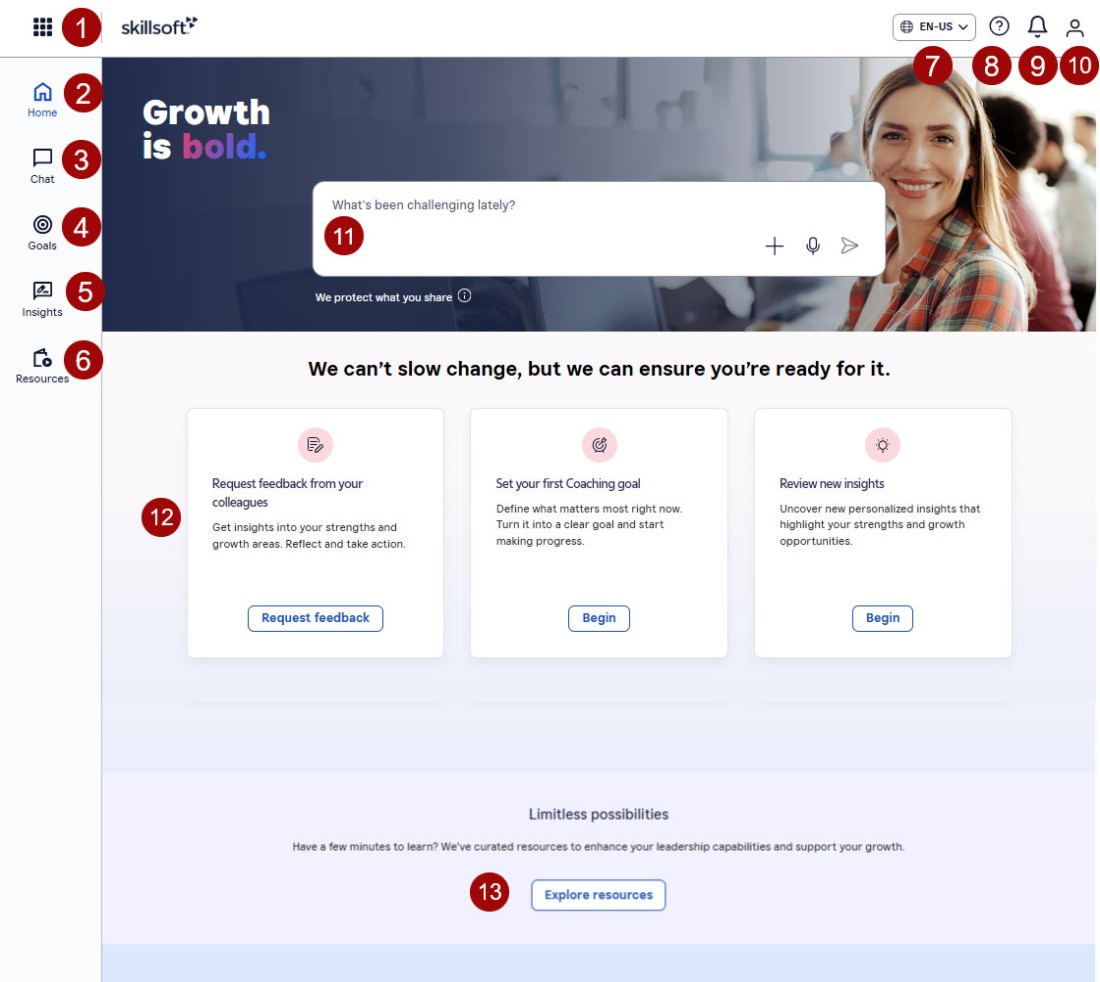
The different areas of the Home page as seen above are:
- Nine-dot menu: Select the nine-dot menu to navigate to your other Skillsoft platforms.
- Home page: You can access the Home page at any time by selecting Home from the left navigation.
- Chat: Select Chat from the left navigation to start a new chat or access past chats with your AI Coach.
- Goals: Select Goals from the left navigation to access the goals page. Here, you can see and manage your current and past goals or create new ones.
- Insights: Select Insights from the left navigation to request and manage feedback from your colleagues and managers.
- Resources: Select Resources from the left navigation to see content recommended by your AI Coach to help you reach your goals.
- Language: Select the language that best suits your needs. AI Coach is offered in all Skillsoft platform languages.
- Help: Select the Help icon if you need support using or navigating the AI Coach platform.
- Notification: Select the bell icon to see if you have any notifications that you need to address.
- Profile: Select the profile icon to log out of the platform.
- Chat: Answer the chat prompt or ask your coach anything else you have on your mind. When you send the chat it opens in a new chat window.
- Tasks: The tasks you see vary depending on the current state of your coaching experience. Tasks are designed to keep your coaching on track and moving in the right direction.
- Explore resources: Select this to access the Resources page and see content your AI Coach has recommended for you.
Task Cards
On the Home page, you see a series of task cards with action items to keep your coaching engagement moving forward. The tasks you see depend on how long you have been working with your AI Coach, when your performance checks are, and what your goals are. Tasks you may see include:
- Request feedback from your colleagues: You see this task once a year after you complete your Self Assessment. Select Request Feedback to invite colleagues and managers to give you feedback on your performance. Note, you only see this task if your organization allows you to request feedback from colleagues or managers.
- Set your first goal: You see this task when you first access AI Coach. Select Set goal to open a chat and work with your AI Coach to create a goal.
- Set a new goal: You see this task if you have completed all current goals. Select Set goal to open a chat and work with your AI Coach to create a goal.
- Explore what's holding me back: You see this task periodically throughout coaching. Select Begin to open a chat with your AI Coach and discuss challenges you are facing in your learning.
- Prepare for a difficult conversation: This prompt shows periodically. Select Begin to open a chat with your coach and get advice in preparation for a difficult conversation you may need to have at work.
- Prepare for your performance review: You see this task when you have a performance review coming up. Select Begin to open a chat with your AI Coach and get advice on how to prepare for your review.
- It's time for your pulse check: Your organization sets the frequency of your pulse checks. Select Start to open your pulse check and answer the questions.
- Limitless learning: This prompt shows periodically. Select Begin to access resources aimed at helping you improve leadership skills.
- Clarify what matters most to me: This prompt shows periodically throughout coaching. Select Begin to open a chat with your AI Coach and discuss the topics that you want to focus on most in coaching. This helps keep your learning on track and working for you.
- Review new insights: You see this task when you have received feedback from managers or colleagues. Select Begin to access the Insights page.
- Prepare for 1:1: You see this task when you have a performance review coming up. Select Begin to review your completed goals.
- Check in with your coach: This prompt shows periodically. Select Begin to open a chat with your AI Coach and discuss what is working well and what needs improvement when it comes to your coaching experience.