New Features and Enhancements as of September 8, 2023
Expanding skills of your workforce
The items in this section provide ways to grow your talent and fill critical skill gaps, building mastery with confidence.
 Introducing CAISY™ — Skillsoft's Conversation Artificial Intelligence Simulator
CAISY provides interactive, scenario-based content powered by AI where a learner can practice new skills in a safe space by providing secure and realistic simulations. This AI simulation content allows learners to choose a role, practice specific skills by responding to AI prompts, and receive adaptive, personalized feedback to guide their development. Having CAISY in your developmental toolkit can reduce the need for expensive, time-consuming, instructor-led training because the solution is scalable across departments, employee-levels, and situations. Employees can train at their own pace, eliminating scheduling conflicts and time away from work. When your employees receive the targeted training and coaching they need, it can lead to better decision making reducing your legal risks and increasing your operational efficiencies.
You can assign, promote, and track this new content like you can with all other content in the platform.
If you have any one of the Expert collections or the Skillsoft Leadership Development Program, you can make this content visible to learners by turning on the AI optimization and improvement setting. This setting is on by default for US-based learners. Before you enable this setting, please review all the interaction and security FAQs.
For more information on the learner interface, see AI Simulator Content.
Role Advisor — Learners have one place dedicated to improving skills for their role
Acting as a virtual, skill-building concierge, Role Advisor provides learners with:
- Quick references to trending content for their role.
- Learning recommendations grouped by content type such as courses, books, audiobooks, and labs.
- Top skills related to their role with content recommendations for obtaining those skills.
- An array of skill benchmarks that they can use to identify and close skill gaps.
From the My Learning section of the home page, you can access the Role Advisor page from the Role tab.
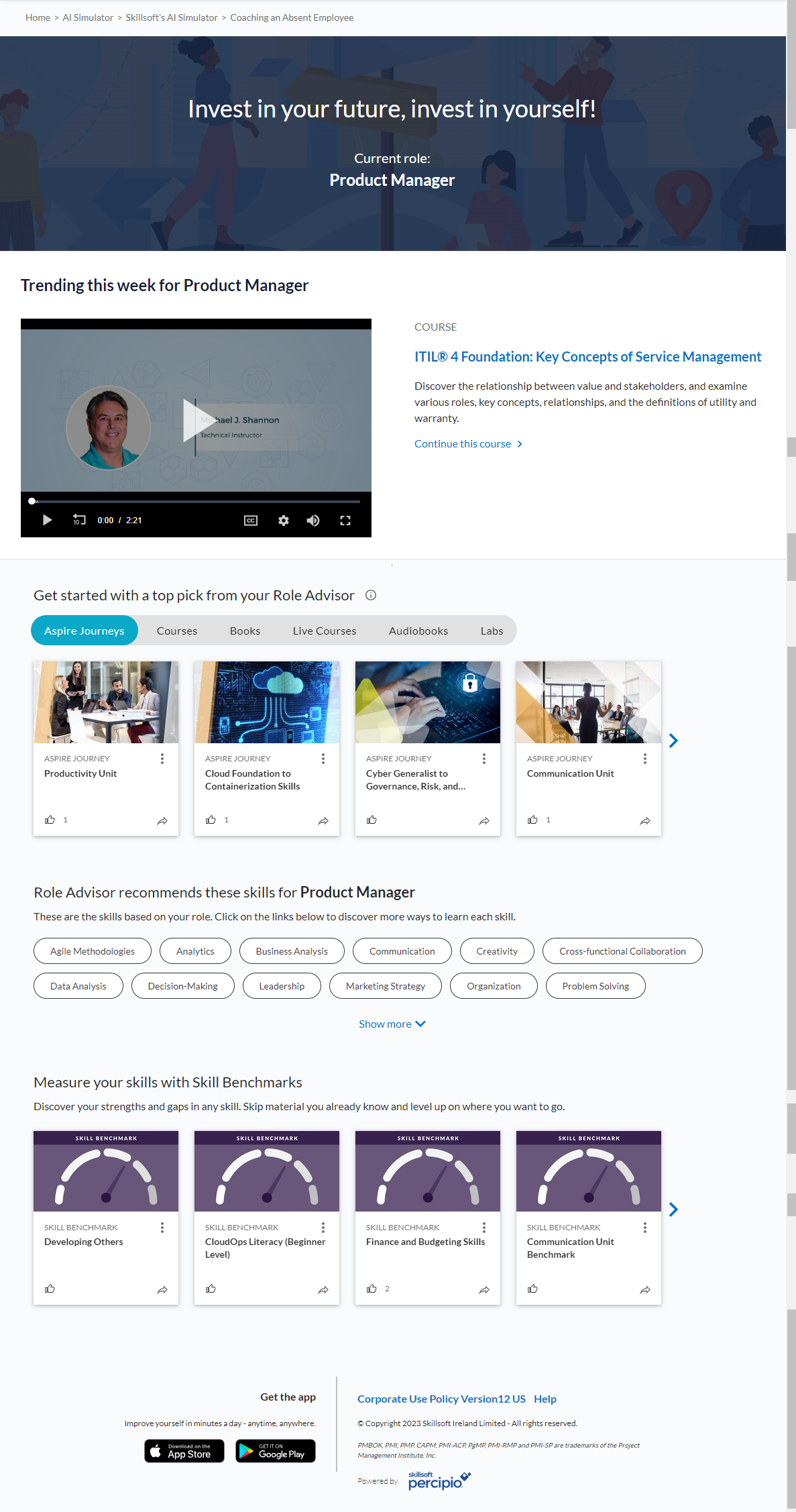
For more information, see Role Advisor.
Live Course Calendar can now show all Global Knowledge (GK) live courses
To see GK live courses, you must first contact your Skillsoft account team to get them added to your site.
After you add GK live courses to your site, create a license distribution. and enable it for your learners, they can see all GK live courses from the Live Course Calendar. They can also see GK live courses in search results if they filter the Type for Live Courses and in appropriate channels under the Attend tab.
Depending on your agreement with Skillsoft, learners will either have to enter a credit card to purchase the live courses they find in the platform, or use your pre-paid subscription.
For more information on the learner experience, see Live Courses.
Engaging your learners to build a learning culture
The items in this section provide ways to engage your users so they want to learn and make learning a habit.
Learners can see leaderboards from the mobile app
Leaderboards show learners how they rank among their peers and colleagues within your company. Every time they earn a badge or complete a learning item, they get a new ranking.
To access leaderboards from the Skillsoft Percipio mobile app, go to Profile and select Leaderboard.
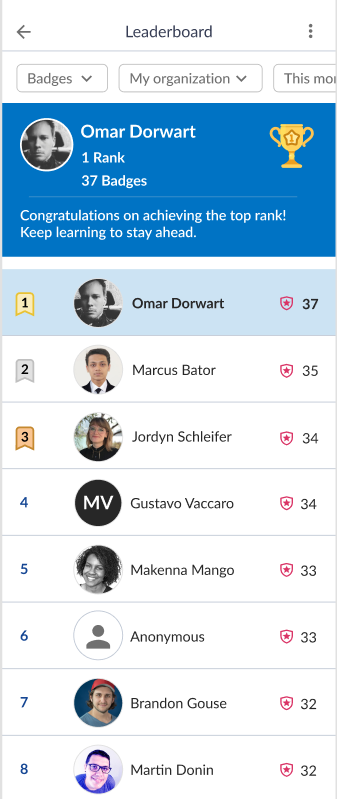
For more information on setting up leaderboards, see Engagement and Notifications, Leaderboards.
For more information on using leaderboards as a learner, see Leaderboards.
External learning supports Certification as a type
When learners add an external learning item, they can now select Certification as a Type from the drop down list. This helps learners and admins track which certifications a learner achieved.
For more information on how to add external learning, see Activity, External learning.
Learners can view assignments by status
When learners view their Assignment page, they can now view their assignments by those that are Active (contains both assignments that are upcoming as well as overdue), Completed, and Canceled. This helps learners to focus on things that are upcoming or overdue.
Share content to social sites
Learners can share Skillsoft English content on social sites. With a Skillsoft English content item open, select the share option. In the dialog box that displays, they see the option to share to Facebook, LinkedIn, and Twitter ( X ) in addition to the already available options for Copy link, email, and MS Teams.
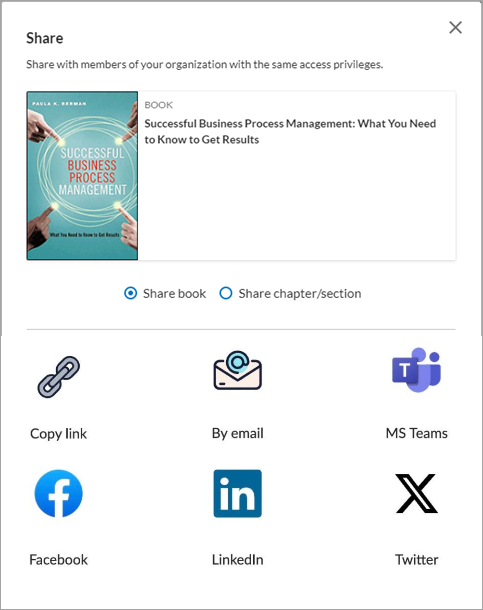
For more information about sharing, see Working with Content, share content.
Manage, promote, and measure learning
The items in this section provide the tools you need to manage users and content, promote learning, and measure learning effectiveness on your bottom line.
When scheduling reports, you can opt to send a test file to your SFTP location
If you are scheduling reports and sending them to an external location like an SFTP, you can now send a test file first to ensure the report is going where you think it should be going.
For more information, see Schedule reports, send to external location.
Team automation rules can be deleted
Admins can now delete automation rules and the audiences created by those rules.
For more information, see Delete team automation rules.