New Features and Enhancements (as of March 26, 2022)
Expanding skills of your workforce
The items in this section provide ways to grow your talent and fill critical skill gaps, building mastery with confidence.
 Announcing Skill Benchmark assessments
Learners can now gauge their level of proficiency for a certain skill by taking a Skill Benchmark assessment on either the Skillsoft Platform for the web or the mobile app. Each assessment is based on specific learning objectives defined by a subject matter expert. Learners take a Skill Benchmark assessment, get a score, and receive recommendations for improving the skill. After 30 days, the learner can retake the assessment to gauge improvement. The learner can repeat this process until they achieve proficiency.
For Learners:
- Learners can search the term: Skill Benchmarks to see all benchmarks available to them through their licensed content.
- When searching using other keywords, learners can filter on the Skill Benchmark type to find Skill Benchmarks.
- Skill Benchmarks display in channels under the new Assess tab.
- Learners can see Skill Benchmarks as promoted content, in custom channels, and in recommendations, including email notifications.
- After learners take an assessment for the first time, a benchmark recommendation strip displays on their Skillsoft Platform home page so they can easily return to take relevant content.
- When learners are eligible to retake an assessment, the platform includes a reminder in the recommendation and re-engagement email notifications.
For Admins:
- Admins can add Skill Benchmarks to custom channels and promoted content. Support for adding Skill Benchmarks to custom journeys and assignments is coming soon.
- For each Skill Benchmark assessment, admins can view the proficiency of learners in their organization using the Skill Benchmark Dashboard.
- Skill Benchmark assessments are included in existing license pools.
- When learners are eligible to retake an assessment, the platform includes a reminder in the recommendation and re-engagement email notifications.
- A new Assess tab shows as a modality when creating custom channels. You can add Skill Benchmarks to custom channels.
- A new search Type filter, Skill Benchmark, is available when searching for content to hide or when searching for content to add to custom channels and promotions.
- For role customizations, admins can turn off the ability to show the Best score column on the Skill Benchmark dashboard.
- For the Learner Activity Report:
- A new Recurrence column displays that captures how many times a learner has returned and accessed a Skill Benchmark.
- A new Asset type called assessment.
- A new Status called abandoned that indicates if a user leaves a Skill Benchmark without completing it.
For Integration Customers:
If you integrate the platform with a Learning Management System (LMS) using Connector Integration:
- Learners see Skill Benchmarks as an item with Assessment in the title.
- If needed, learners can experience the Skill Benchmark with the Skillsoft Platform navigation suppressed (Chromeless experience).
- All LMS's report on the Skill Benchmark completion and score except for Cornerstone OnDemand, which just reports on the completion.
- Support for Skill Benchmarks in SumTotal Learn and Workday is coming soon.
- For all LMS's, Skill Benchmarks use the asset type of Course except in Degreed where it uses an Assessment type.
Skill Benchmarks are not available with Content integrations (AICC).
Engaging your learners to build a learning culture
The items in this section provide ways to engage your users so they want to learn and make learning a habit.
Learners can now reinforce learning using flashcards in the mobile app
Flashcards provide a question on one side and the answer on the other. After a learner completes a course that has flashcards, they can access the cards from the Mobile app Flashcard page. They can also access flashcards from the Resources tab of the course player.
To reinforce learning, learners read the question and when they think they have the answer, they flip the card to see the answer and rate themselves.
If you have Learning Reinforcement Notifications turned on, your learners can now receive the push notification with a link to the flashcard page.
For more information, see Flashcards.
Learners can now create multiple playlists and share them
You now have the ability to create more than one playlist to help you organize your favorite content in way that makes the most sense for you. You can then share a playlist with colleagues to keep learning fun. This new function is available on both web and mobile versions of the platform, but not for Chromeless integrations.
If you have an existing playlist, that moved under the playlist entitled:Saved for Later. You can create new playlists based on your own logical categorization and move your existing content into the new playlists.
For more information on how to create, edit, delete and share playlists, see Playlists.
Updates to the Skillsoft Percipio app for Microsoft Teams
If you use the Skillsoft Percipio app for Microsoft Teams, updates include:
- Learners whose Microsoft account email address is the same as their Skillsoft Platform external UserID can now access the app without having to provide their login credentials. However, they still must enter their site URL.
- Learners can create multiple Skillsoft Platform tabs when working within a Team or in a personal chat. Each Skillsoft Platform tab can contain separate content items for an easy way to organize topics.
- Learners who are members of a Microsoft Team now receive notification in the general Post tab when:
- Someone adds new content to a Skillsoft Platform tab
- Someone removes a Skillsoft Platform tab from the Microsoft Team
- Learners can now have separate conversations on each content item in the Skillsoft Platform tab of an MS Teams channel.
Mobile app navigation enhancements
The Percipio mobile app now has a bottom navigation strip. This strip contains five icons for: Home, Playlist, Search, Downloads, and Profile.
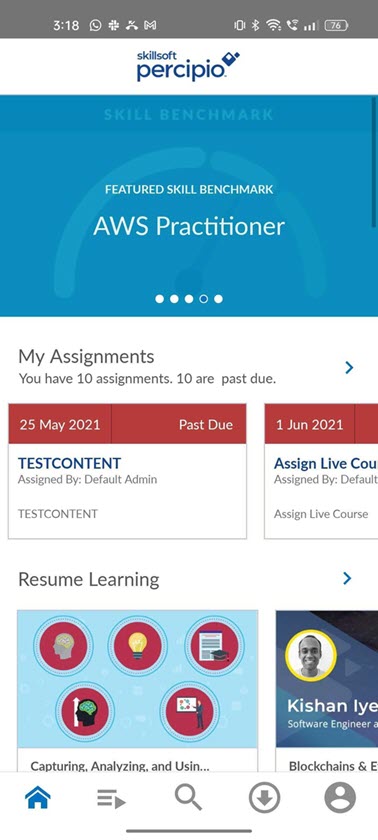
Your downloaded items and playlist no longer display on the home page, but are easily accessible from the icons at the bottom. All other pages and functions remain the same.
The profile icon contains the options for Assignments, Digital badges, My flashcards, Activity, Live course calendar, Edit Skills, Settings, Connect to Apple TV, and Compliance.
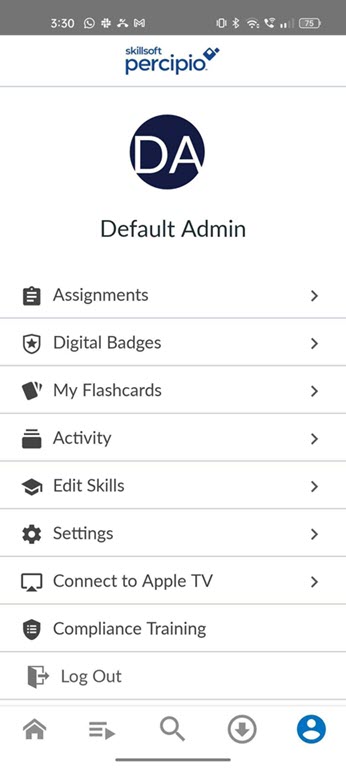
For more information on how to use the mobile app features, see Skillsoft Percipio Mobile app.
Learners can now earn a Certificate of Completion for completing a journey
After learners complete an Aspire or custom journey, they can now view and download a certificate of completion.
- With the journey open, select completion certificate in the banner
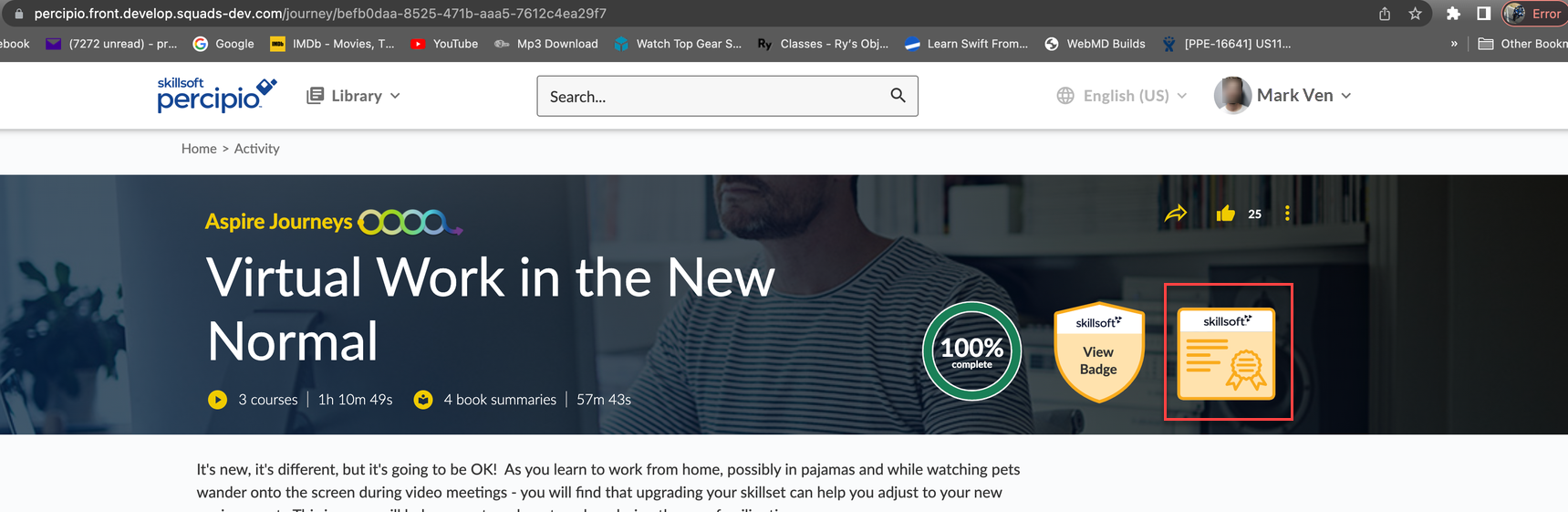
- From the Activity page, locate the completed journey and select Download certificate.
The journey certificate is branded based on your settings in Site Branding.
New auto-rotating admin promoted content banners
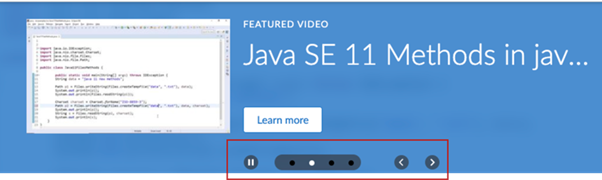
When there is more than one admin promoted content banner, learners now see controls for play or pause, previous and next on the banner. By default, the banner is in the pause state for accessibility reasons. If the learner selects to play, then the banners auto-rotate every 7 seconds. Learners can also navigate through the banners using the dot navigation.
Retiring content pop up now contains date in header
If a learner launches a course, video or linked content item that is retiring within the next 30 days, they receive a pop up indicating that the content item is retiring. The date of retirement now displays in the headline of the pop up.
Manage, promote, and measure learning
The items in this section provide the tools you need to manage users and content, promote learning, and measure learning effectiveness on your bottom line.
Learners can now record learning that they completed outside of the platform
From My Profile, when learners select Activity, they now see External Learning as an option in the left navigation. This allows learners to add learning they did that was not part of the Skillsoft Platform library. For example, they can add articles they read, courses they took, or conferences they attended. After learners add external learning items from the Skillsoft Platform for the web, they can also view them on the mobile app. For more information see External Learning.
By default, the switch to allow recording of external learning is on, but can be turned off by a site administrator from Settings -> Site Configuration -> Site features: Add external learning. For more information, see Add external learning.
Site admins can see a report of all external learning added by individual learners and via a bulk import process (ask your Skillsoft Account team for details) from the Learning -> External Learning menu option. For more information, see External learning report.
New reporting experience released for two User reports as beta version
We are working to bring you a new reporting experience that gives you more flexibility in how you can use reports from the platform. In this beta release, we added two reports: User listing (New) and User Summary (New).
To access these beta reports, from the Analytics menu, select View all reports. Locate them under the Users section.
In addition to the global filters and ability to download reports, features of the new reporting experience include the ability to:
- Show, hide, and reorder columns
- Group columns
- Autosize, pin, sort, and filter columns
Because we are in beta release, we ask you to please give us feedback so we can make improvements before general release. To give feedback directly to the Product team, select the Provide Feedback button in the upper right corner when viewing the report.
For more information on how to use these reports, see the User Listing (New) and User Summary (New) reports.
Updates to Learning Activity Report
Changes for the Learner Activity Report include:
- A new Recurrence column displays that captures how many times a learner has returned and accessed a Skill Benchmark.
- A new Asset type called assessment.
- A new Status called abandoned that indicates if a user leaves a Skill Benchmark without completing it.
Add Skillsoft channels and journeys into your custom Subjects
When creating or editing a custom subject, you can now add both custom and Skillsoft channels and journeys.
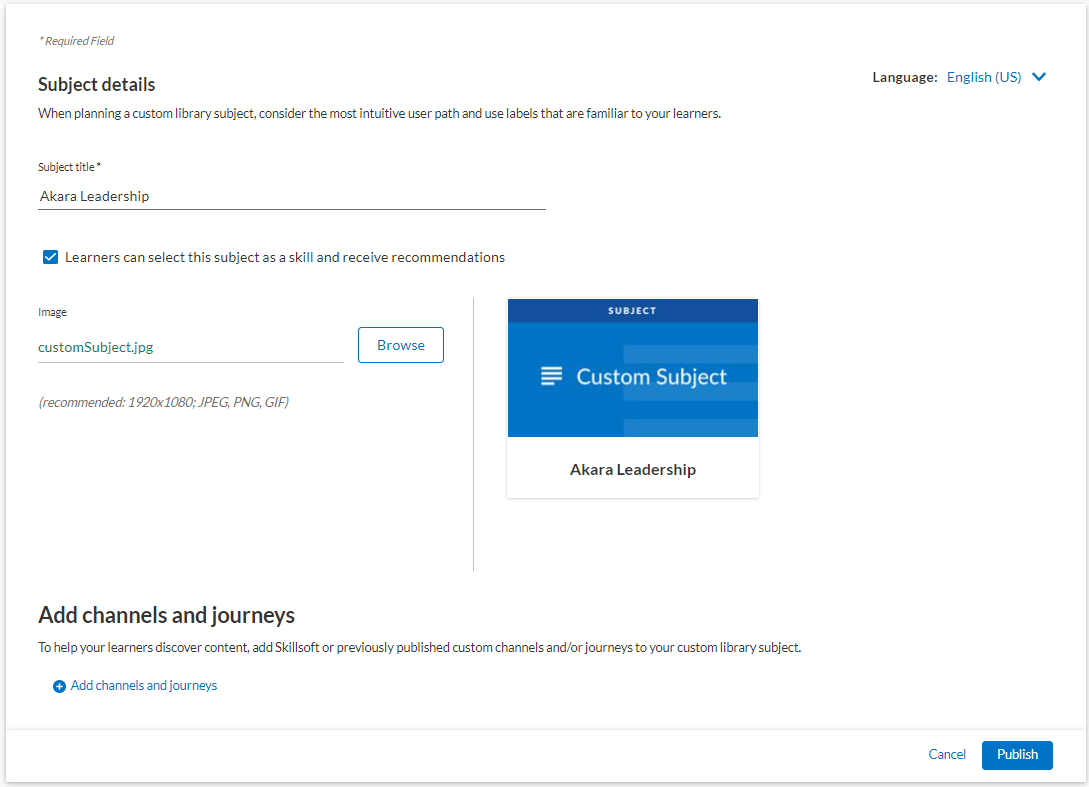
For more information, see Create a new custom subject.
Updates to Live Course (ILT)
The following changes are now live for Live Course:
- The Live Course page now contains two new columns for Created By and Modified By.
- You can now apply a filter to the Status, Created by and Modified by columns.
- If you make changes to an already published course, you can no longer save the changes in an unpublished status. You must publish any changes immediately.
Audience Management page now shows active users
On the top of the Audience Management page, the Total user count has been relabeled to Active users and shows only the number of active users. If you select the link, you see the user list filtered to display only Active users.
Custom channels can only be added to licensed areas and subjects
Previously, you could add a custom channel to any Skillsoft area/subject. Now when you add a channel to an area/subject, you only see a list of those areas/subjects to which you have a license.
Course Completion settings now have the option for both viewing all videos and achieving minimum score
You can now select a third course completion setting where for the learner to achieve completion, they have to view all videos and achieve the minimum score. With this setting on, and for courses without assessments, learners who view all videos achieve completion.
Previously, you only had the option to view all videos or achieve the minimum score.
Compliance, Ecosystems, and Integrations
The items in this section help you to integrate the Skillsoft Platform across your learning ecosystem and promote how Skillsoft works with its partners.
The Skillsoft Platform now integrates with Workday
The integration of the Skillsoft Platform and Workday offers you the best of both worlds—the platform’s engaging learning experience with Workday’s rich enterprise-class learning administration. You can utilize each system as you see fit, using features from each to build a learning experience targeted to your organization. In addition, you have full control over which elements of the Skillsoft library you want to make discoverable in Workday. With this initial release (2022) you will be able to sync courses and videos.
The Workday to Skillsoft Platform integration supports:
- Automated content deployment to the Workday catalog
- Content launch from Workday to the Skillsoft Platform
- Tracking Skillsoft Platform learner activity back to Workday
For more information, see Skillsoft Platform Workday Integration.
Compliance AICC zip packages now named with the Course number appended by the Content ID
When you integrate compliance with your LMS, the AICC zip file packages downloaded either to your browser or to your SFTP site are now named with the Course number appended by the Content ID. Previously, they were only named with the Course Number, which presented problems if you added multiple configurations to a course.